Help
Device guides
EE
Smart Hub Pro

EE Smart Hub Pro

Mac OS Sonoma
Windows 11
f-47e554b3-75c1-4487-b308-fc1cedee894a
f-76018886-9f8e-4db5-a990-aa003e19bfcc
f-52b50695-b922-4bf8-9b01-e372ed226696
f-fd8bd09b-dd62-4229-a858-eed4e940b9c9
f-f92d5337-512b-4fa9-bd04-3a9cbafc70de
  • Device home
  • Getting started
  • Basic functions
  • Connectivity
  • Device home
  • Getting started
  • Basic functions
  • Connectivity

Restoring factory default settings

If your internet connection is slow or doesn't work as it usually does, it may help to restore the factory default settings. Please note that all settings in your router are deleted during this process. Remember, you need to establish a connection to the router web interface.

Click Advanced settings.
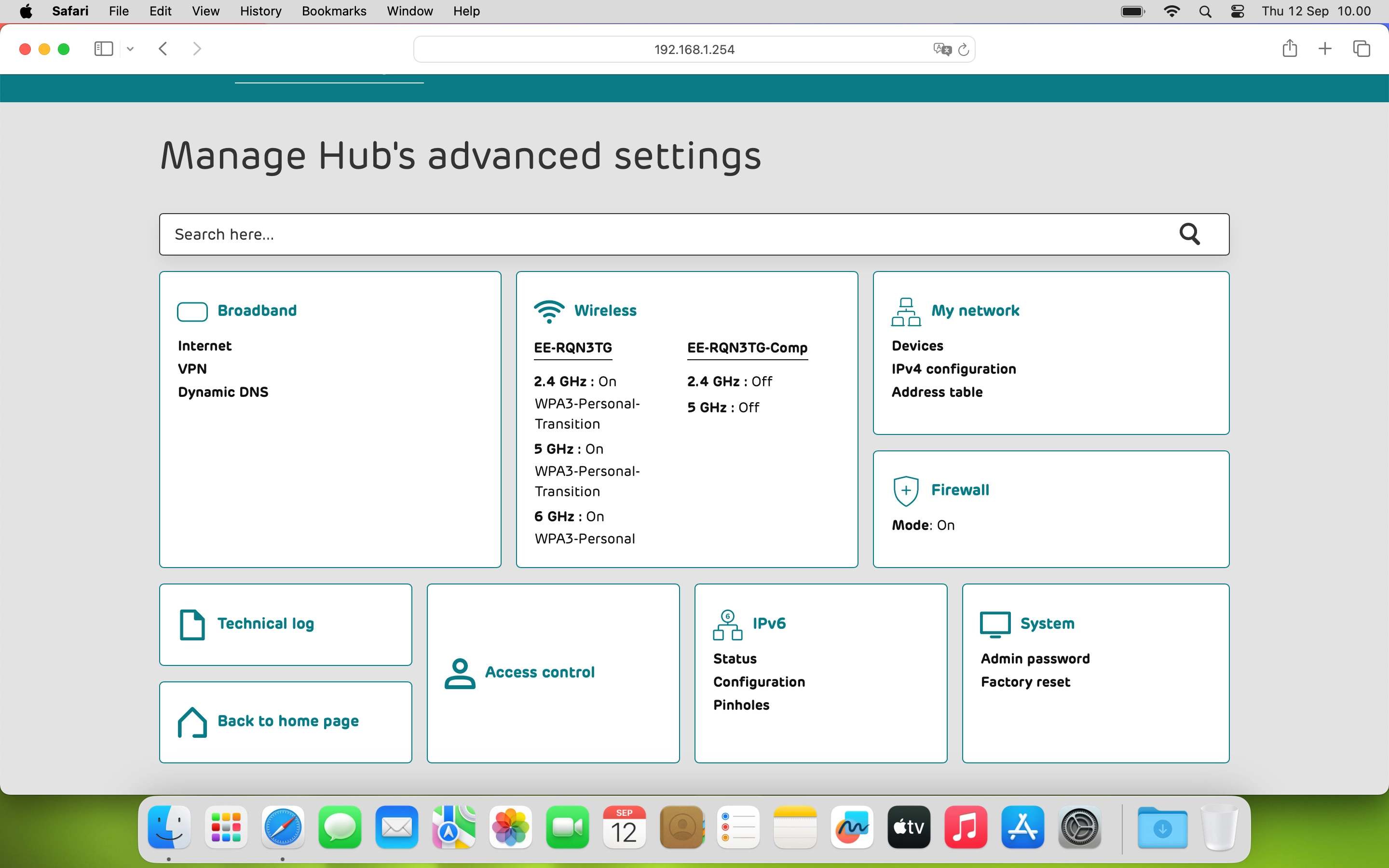
Step 1 of 5

Click Advanced settings.

Click System and, if required, follow the instructions on the screen to key in the administrator password.
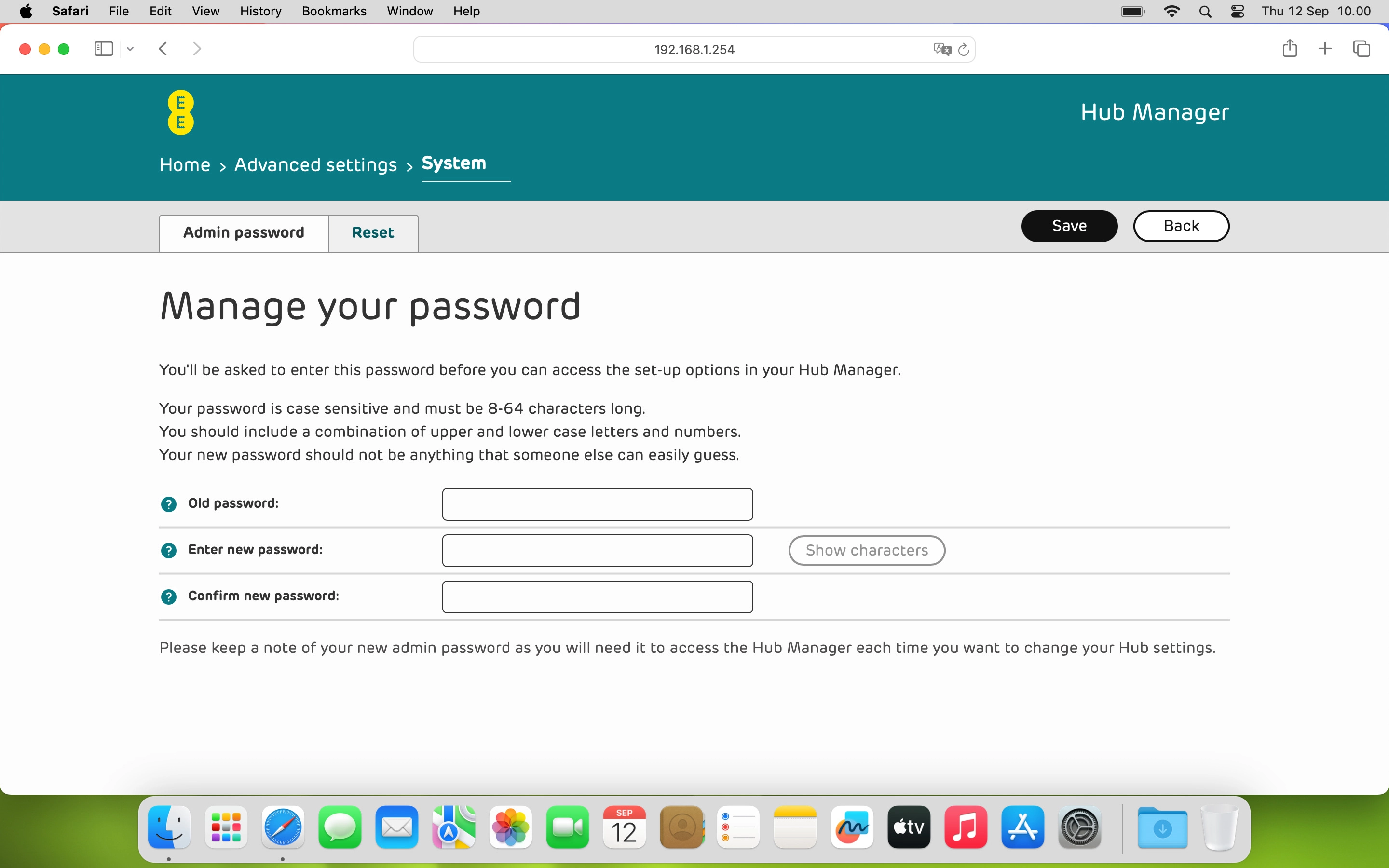
Step 2 of 5

Click System and, if required, follow the instructions on the screen to key in the administrator password.

You can see the administrator password behind the cover on the back of your router.
Click Reset.
Click Reset.
Step 3 of 5

Click Reset.

Click Factory reset my Hub.
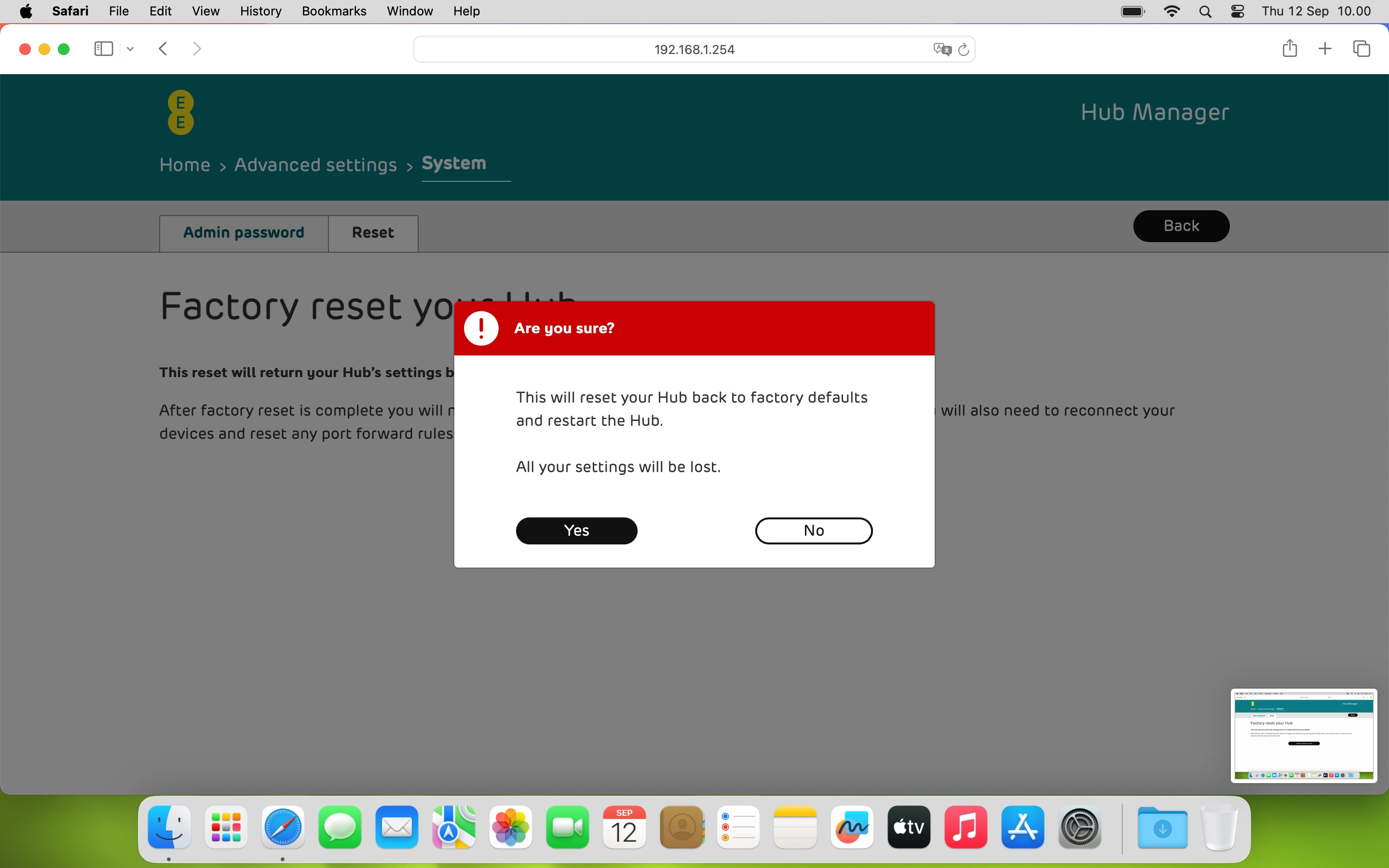
Step 4 of 5

Click Factory reset my Hub.

Click Yes and wait while your router restores the factory default settings.
Step 5 of 5

Click Yes and wait while your router restores the factory default settings.

Get information on...

Or choose...

Show more