Help
Device guides
EE
Smart Hub Pro

EE Smart Hub Pro

Mac OS Sonoma
Windows 11
f-47e554b3-75c1-4487-b308-fc1cedee894a
f-76018886-9f8e-4db5-a990-aa003e19bfcc
f-52b50695-b922-4bf8-9b01-e372ed226696
f-fd8bd09b-dd62-4229-a858-eed4e940b9c9
f-f92d5337-512b-4fa9-bd04-3a9cbafc70de
  • Device home
  • Getting started
  • Basic functions
  • Connectivity
  • Device home
  • Getting started
  • Basic functions
  • Connectivity

Setting up port forwarding

You can open and forward the router ports to a computer or game console on your local network. Remember, you need to know the IP address of the device you want to forward the ports to and establish a connection to the router web interface.

Click Advanced settings.
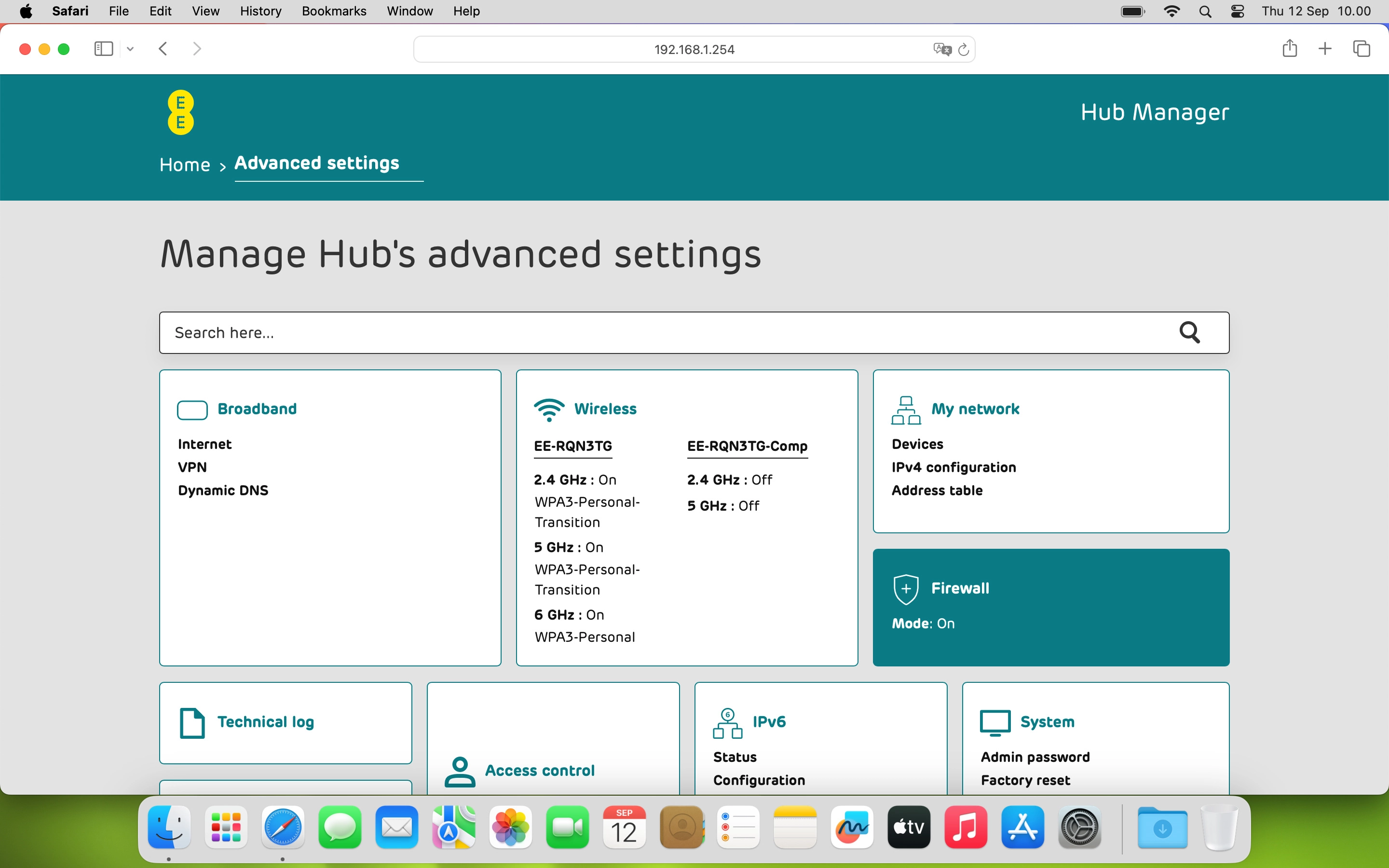
Step 1 of 17

Click Advanced settings.

Click Firewall and, if required, follow the instructions on the screen to key in the administrator password.
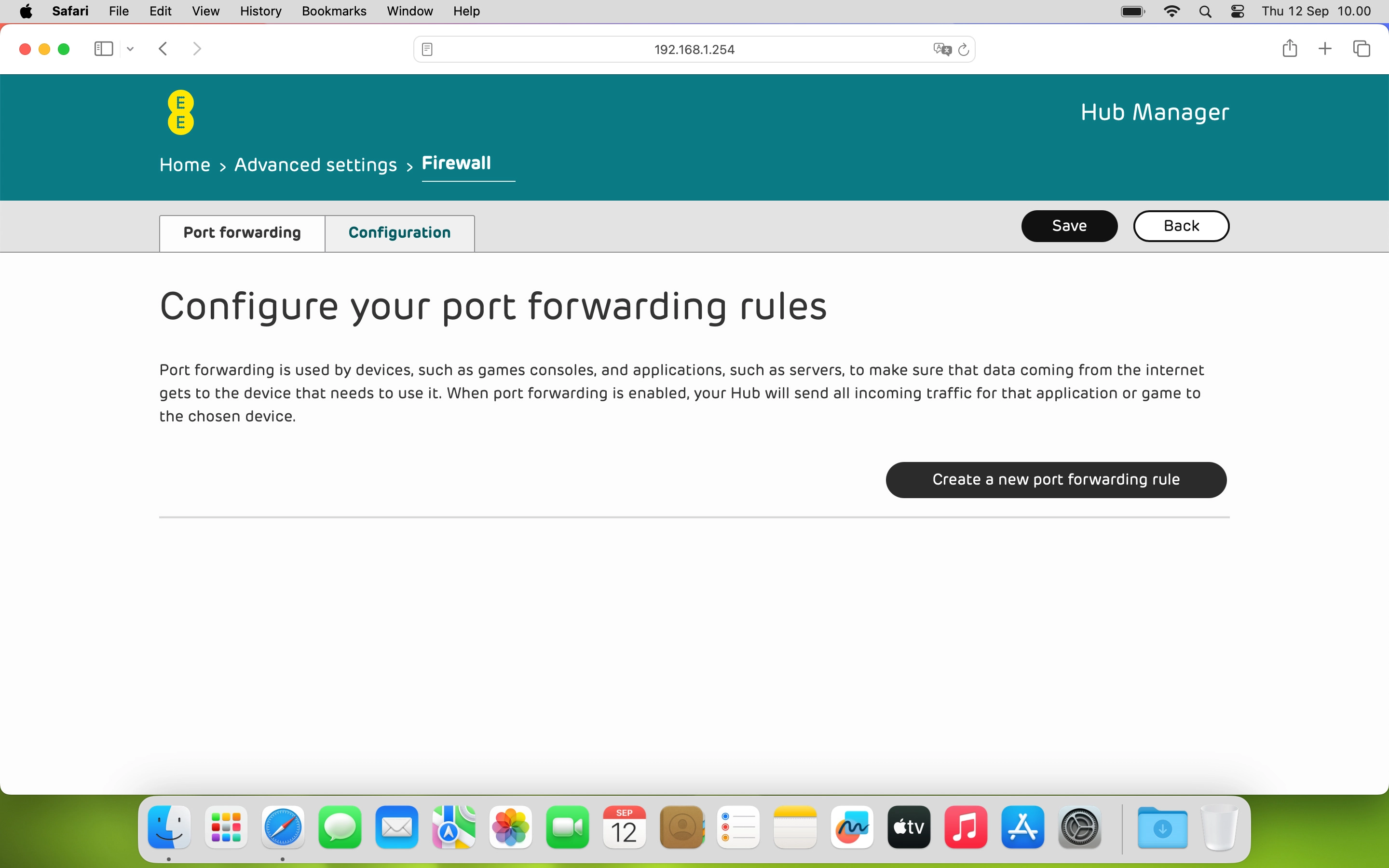
Step 2 of 17

Click Firewall and, if required, follow the instructions on the screen to key in the administrator password.

You can see the administrator password behind the cover on the back of your router.
Click Create a new port forwarding rule.
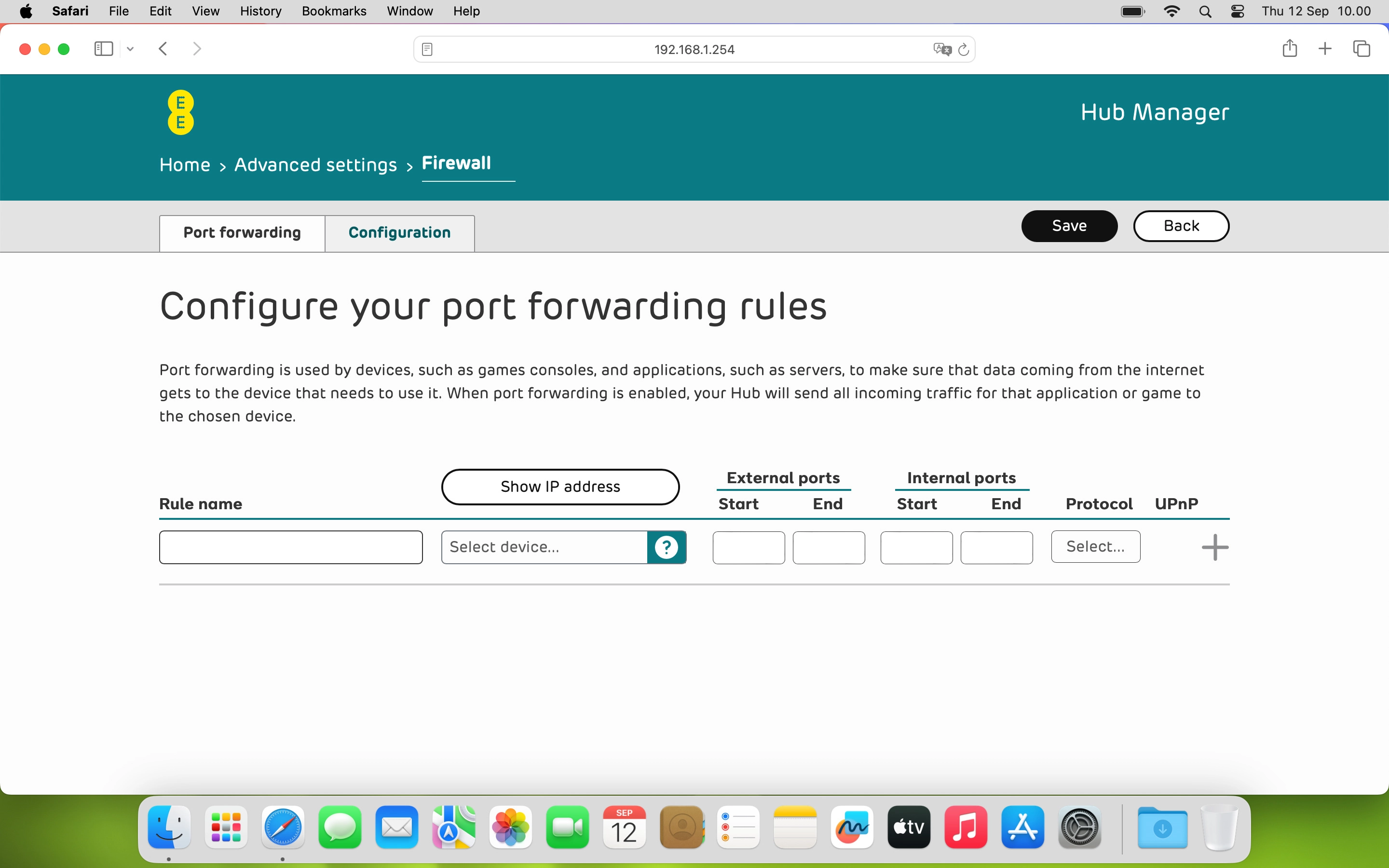
Step 3 of 17

Click Create a new port forwarding rule.

Click the field below
Step 4 of 17

Click the field below "Rule name" and key in the required name.

Click Select device....
Step 5 of 17

Click Select device....

Click the required device to which the external port numbers are to be forwarded.
Step 6 of 17

Click the required device to which the external port numbers are to be forwarded.

Click Set.
Click Set.
Step 7 of 17

Click Set.

Click Show IP address.
Step 8 of 17

Click Show IP address.

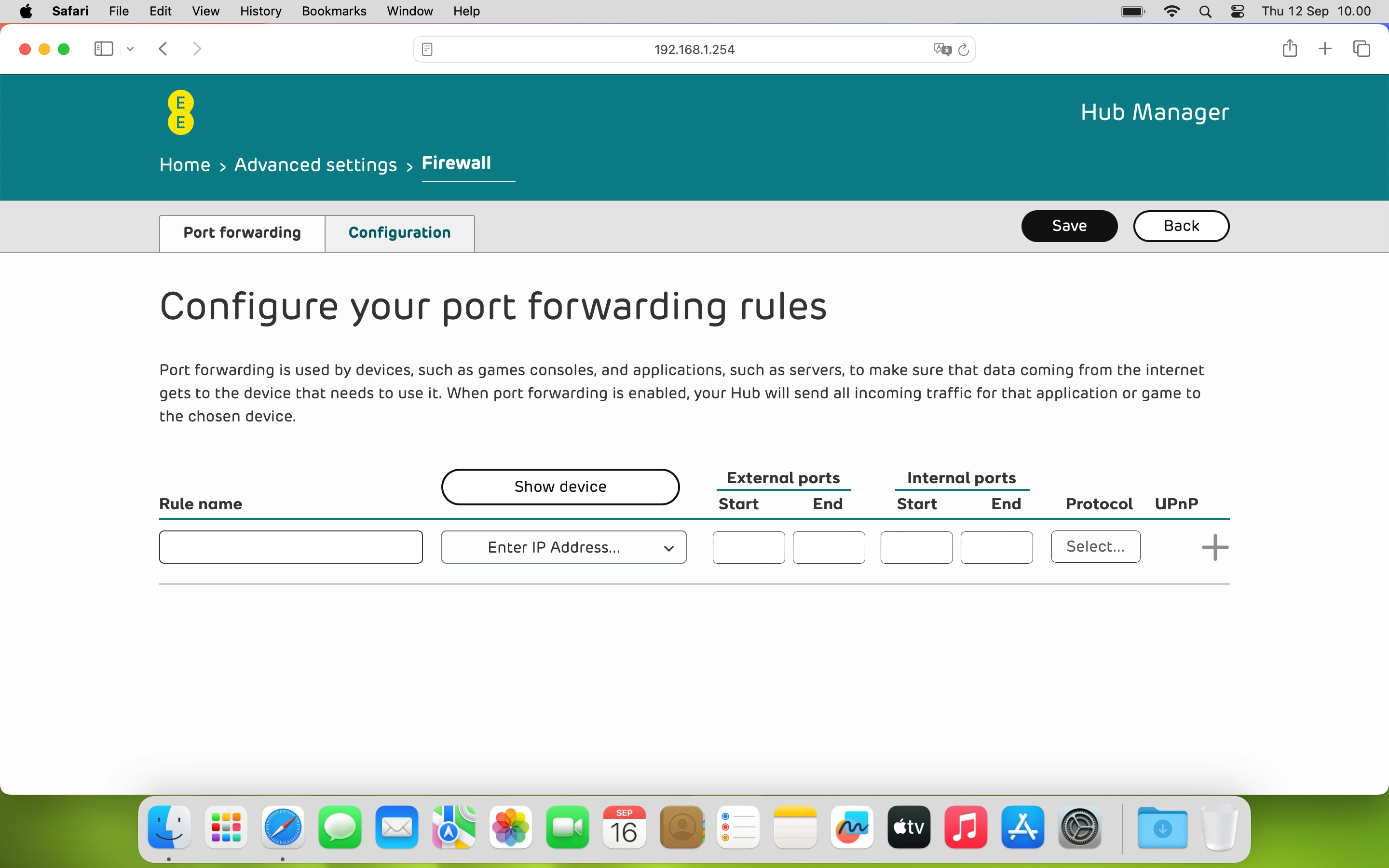
Click Enter IP Address....
Step 9 of 17

Click Enter IP Address....

Click the fields and key in the IP address of the device to which the external port numbers are to be forwarded.
Step 10 of 17

Click the fields and key in the IP address of the device to which the external port numbers are to be forwarded.

Click Set.
Click Set.
Step 11 of 17

Click Set.

Click the fields below
Step 12 of 17

Click the fields below "External ports" and key in the external port numbers to open in the required interval, e.g. 6000-6100.

Click the fields below
Step 13 of 17

Click the fields below "Internal ports" and key in the internal port numbers to open in the required interval, e.g. 6000-6100.

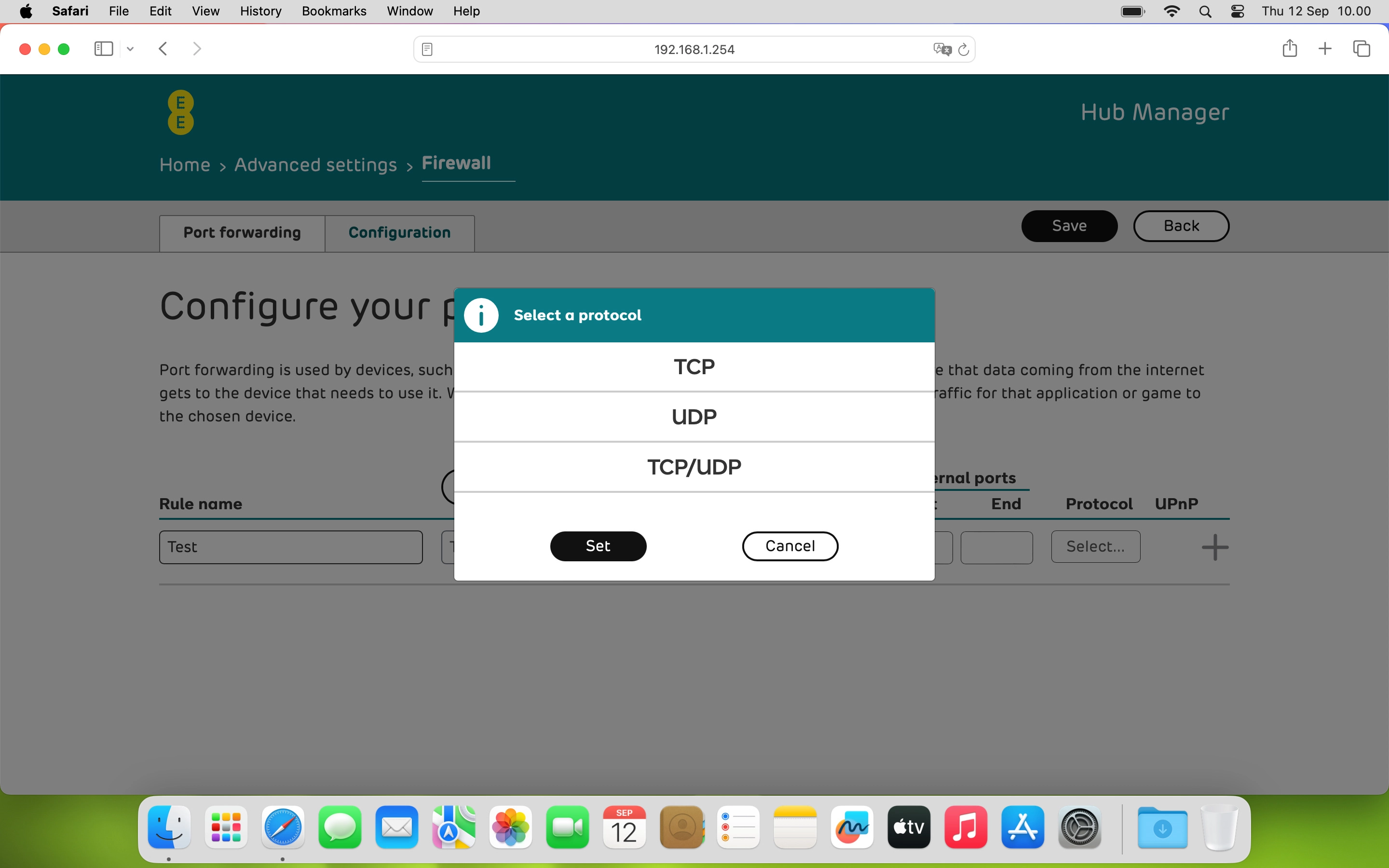
Click Select... below “Protocol”.
Step 14 of 17

Click Select... below “Protocol”.

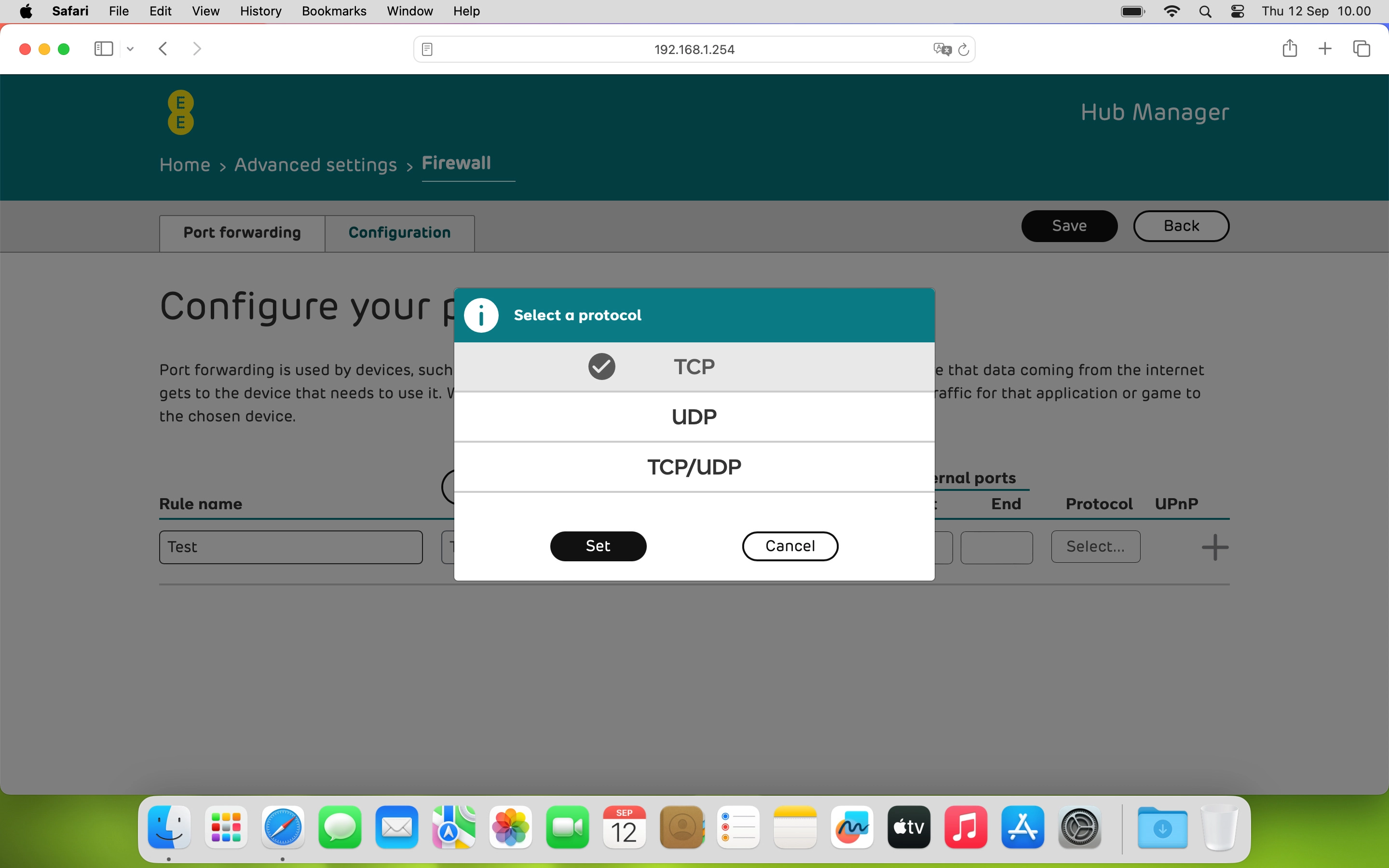
Click the required protocol type.
Step 15 of 17

Click the required protocol type.

If you don't know which setting to select, select "TCP/UDP".
Click Set.
Click Set.
Step 16 of 17

Click Set.

Click Save to add and save the port forwarding.
Step 17 of 17

Click Save to add and save the port forwarding.

Get information on...

Or choose...

Show more