Help
Device guides
EE
Smart Hub Pro

EE Smart Hub Pro

Mac OS Sonoma
Windows 11
f-47e554b3-75c1-4487-b308-fc1cedee894a
f-76018886-9f8e-4db5-a990-aa003e19bfcc
f-52b50695-b922-4bf8-9b01-e372ed226696
f-fd8bd09b-dd62-4229-a858-eed4e940b9c9
f-f92d5337-512b-4fa9-bd04-3a9cbafc70de
  • Device home
  • Getting started
  • Basic functions
  • Connectivity
  • Device home
  • Getting started
  • Basic functions
  • Connectivity

Viewing Wi-Fi hotspot password

If you've changed and lost the password for your router's Wi-Fi hotspot, it can be found in the router web interface. Remember, you need to establish a connection to the router web interface.

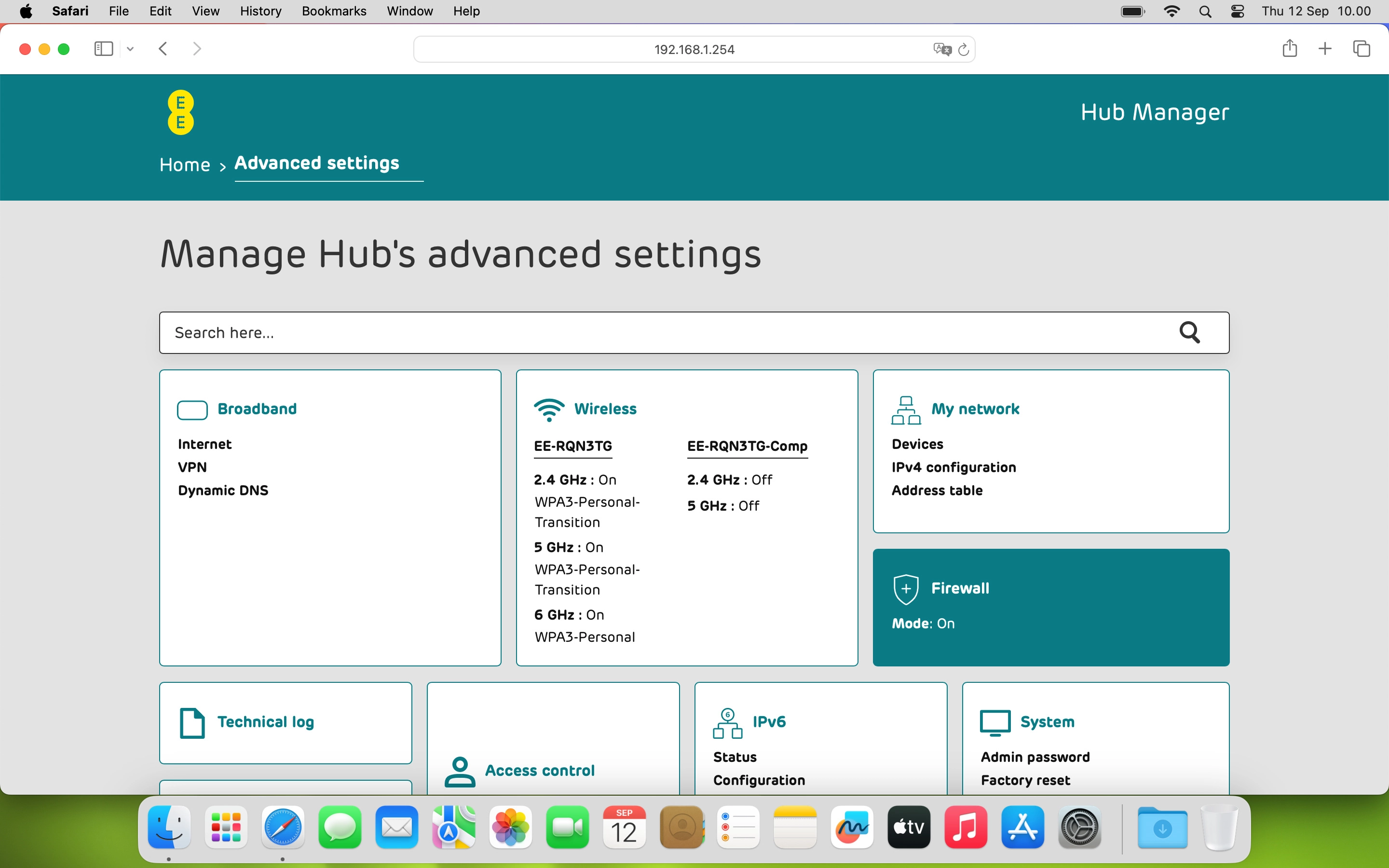
Click Advanced settings.
Step 1 of 4

Click Advanced settings.

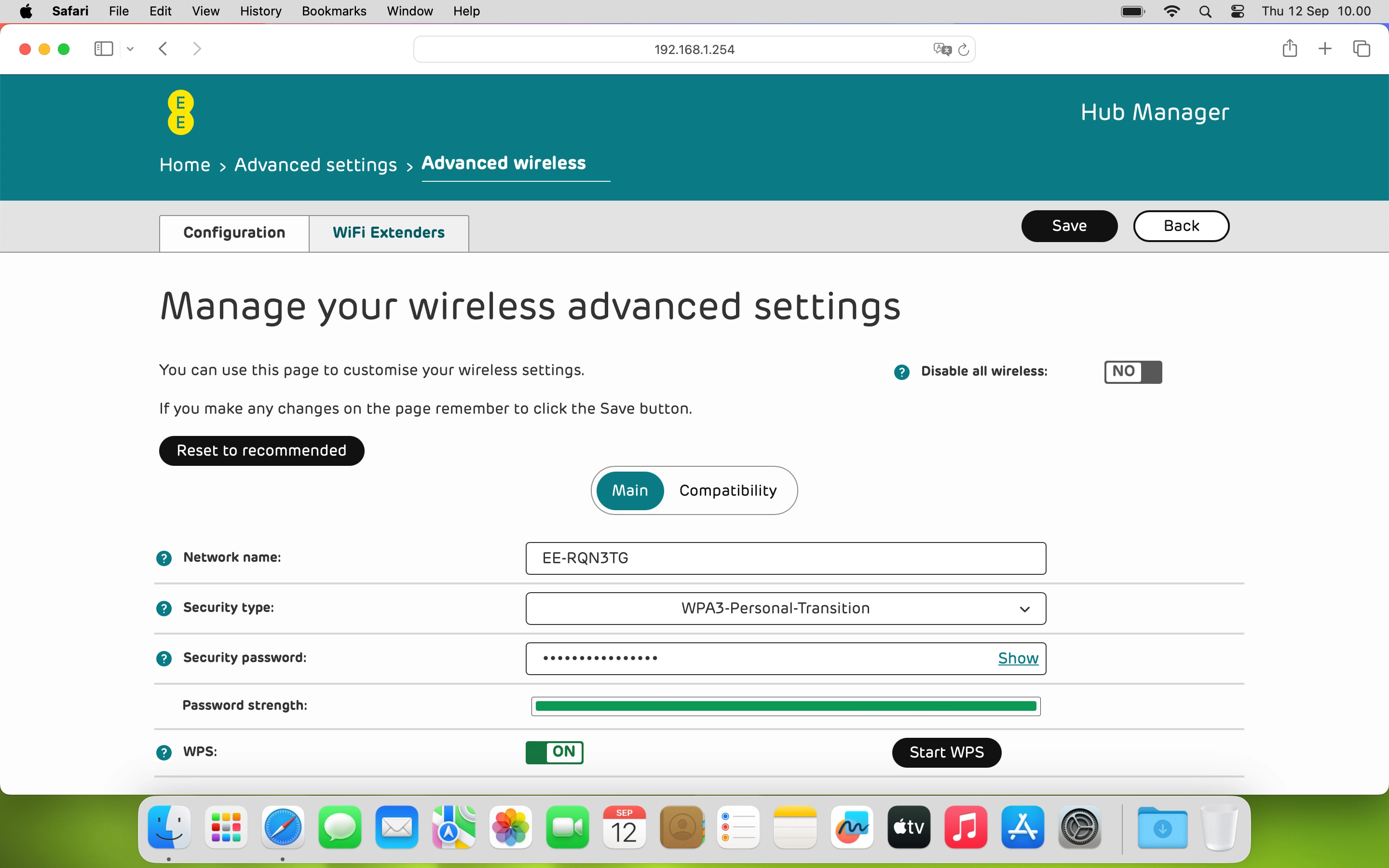
Click Wireless and, if required, follow the instructions on the screen to key in the administrator password.
Step 2 of 4

Click Wireless and, if required, follow the instructions on the screen to key in the administrator password.

You can see the administrator password behind the cover on the back of your router.
Click Show.
Click Show.
Step 3 of 4

Click Show.

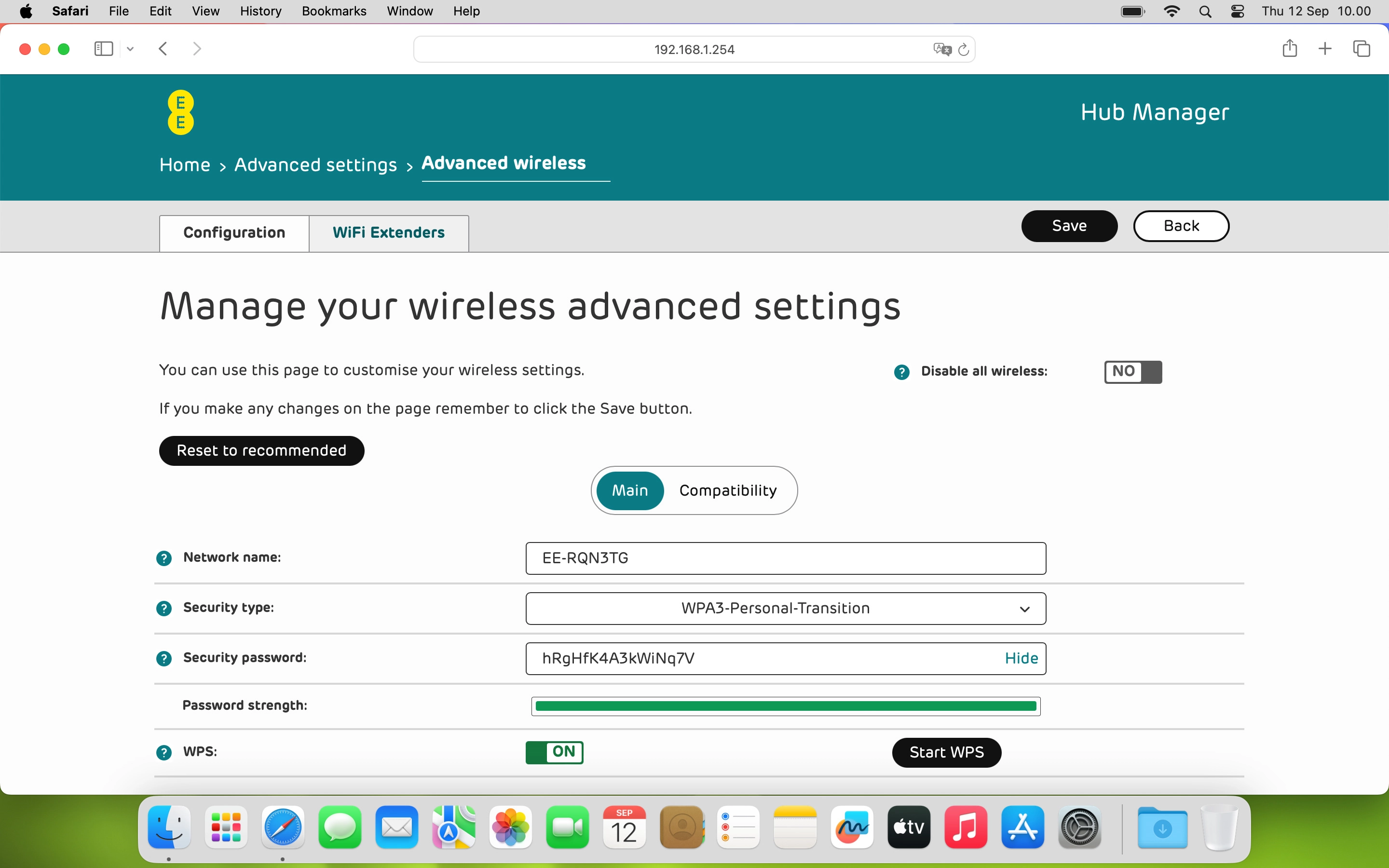
The password is displayed in the field next to
Step 4 of 4

The password is displayed in the field next to "Security password:".

Get information on...

Or choose...

Show more