Help
Device guides
EE
Smart Hub Pro

EE Smart Hub Pro

Mac OS Sonoma
Windows 11
f-47e554b3-75c1-4487-b308-fc1cedee894a
f-76018886-9f8e-4db5-a990-aa003e19bfcc
f-52b50695-b922-4bf8-9b01-e372ed226696
f-fd8bd09b-dd62-4229-a858-eed4e940b9c9
f-f92d5337-512b-4fa9-bd04-3a9cbafc70de
  • Device home
  • Getting started
  • Basic functions
  • Connectivity
  • Device home
  • Getting started
  • Basic functions
  • Connectivity

Guide to router keys and sockets

The list below shows you what the different keys and sockets on your router are used for.
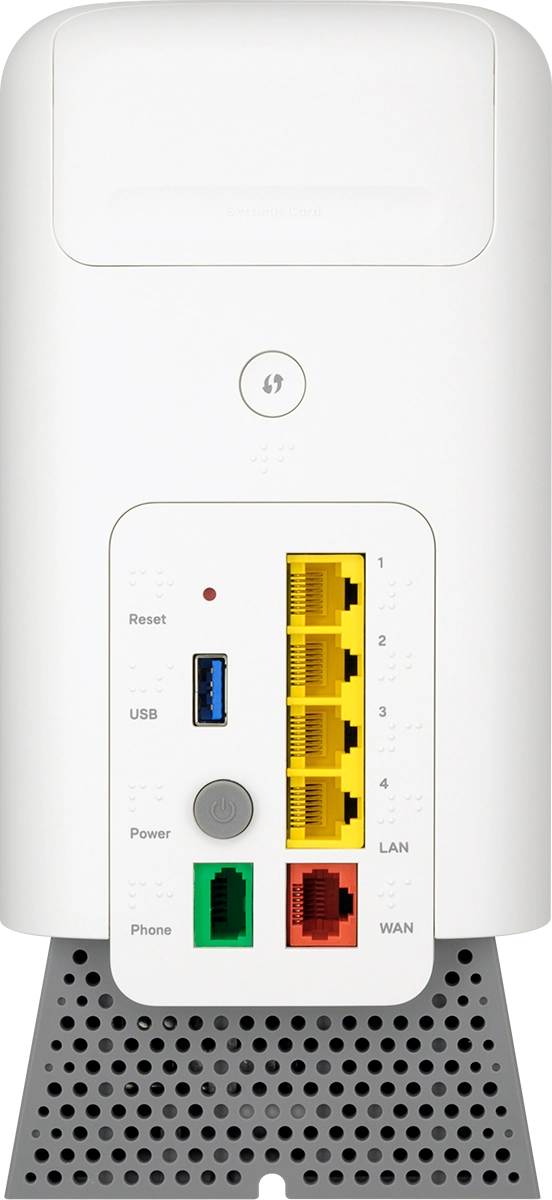
Press the WPS button to connect a WPS device.
Step 1 of 8

Press the WPS button to connect a WPS device.

Insert a sharp-pointed object (such as a paper clip) into the small hole next to
Step 2 of 8

Insert a sharp-pointed object (such as a paper clip) into the small hole next to "Reset" and hold it for at least 10 seconds to restore the factory default settings.

Connect a USB device to the
Step 3 of 8

Connect a USB device to the "USB" port.
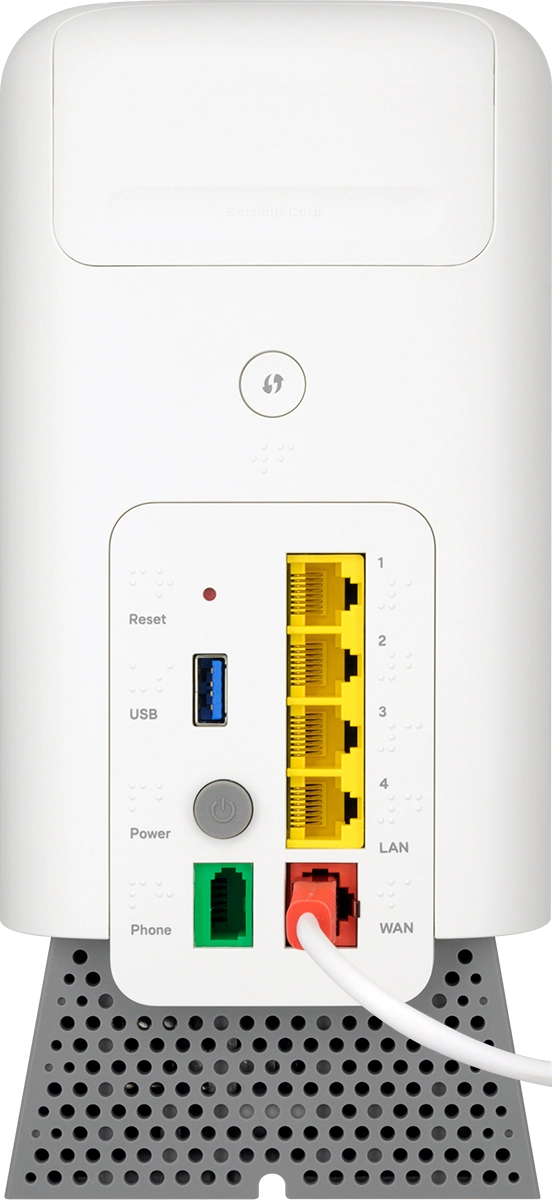
Press On/Off to turn your router on or off.
Step 4 of 8

Press On/Off to turn your router on or off.

Connect a phone to the
Step 5 of 8

Connect a phone to the "Phone" port.

Connect your computer or game console to the
Step 6 of 8

Connect your computer or game console to the "LAN" port.

Connect the network cable (red connector) to the
Step 7 of 8

Connect the network cable (red connector) to the "WAN" port and the other end to the PORT1/LAN1 port on your Openreach modem.
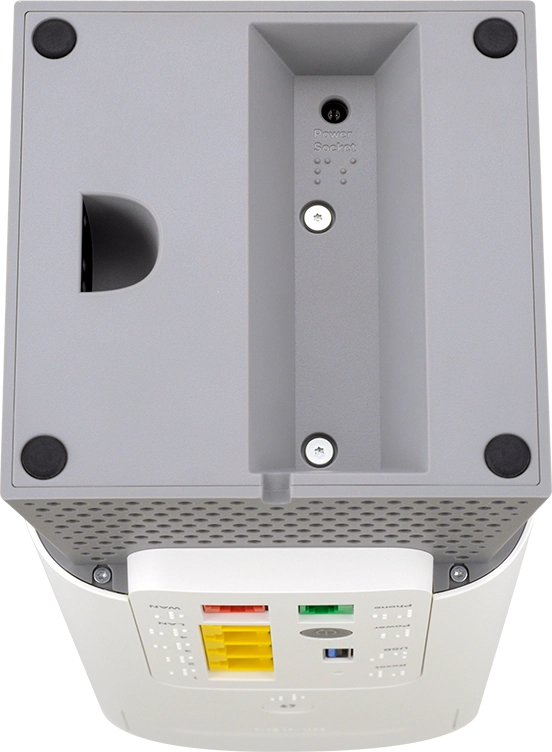
Connect the power supply to the power plug and to a wall socket.
Step 8 of 8

Connect the power supply to the power plug and to a wall socket.

Get information on...

Or choose...

Show more