Help
Device guides
EE
Smart Hub Pro

EE Smart Hub Pro

Mac OS Sonoma
Windows 11
f-47e554b3-75c1-4487-b308-fc1cedee894a
f-76018886-9f8e-4db5-a990-aa003e19bfcc
f-52b50695-b922-4bf8-9b01-e372ed226696
f-fd8bd09b-dd62-4229-a858-eed4e940b9c9
f-f92d5337-512b-4fa9-bd04-3a9cbafc70de
  • Device home
  • Getting started
  • Basic functions
  • Connectivity
  • Device home
  • Getting started
  • Basic functions
  • Connectivity

Start using your router

Before you start using your router, you need to follow these initial steps.
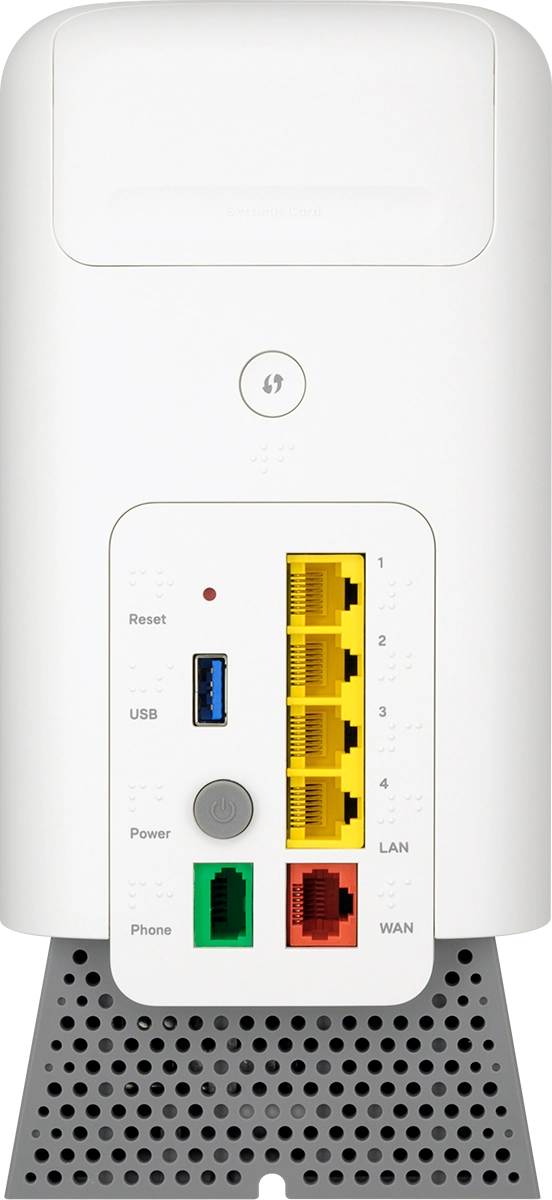
Turn the back of your router towards you.
Step 1 of 19

Turn the back of your router towards you.

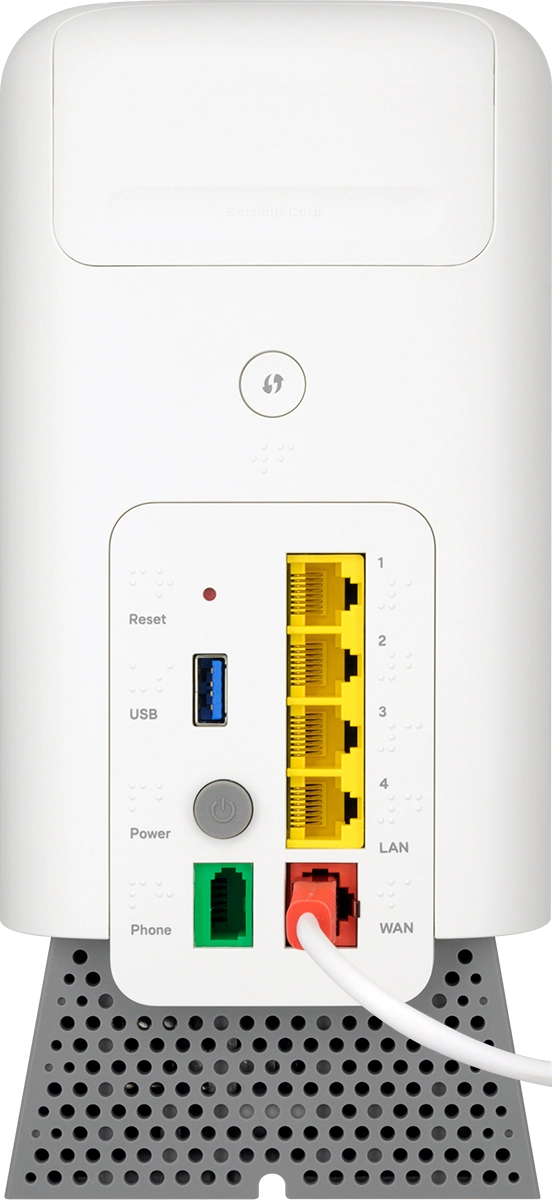
Connect one end of the network cable (red connector) to the
Step 2 of 19

Connect one end of the network cable (red connector) to the "WAN" port and the other end to the PORT1/LAN1 port on your Openreach modem.
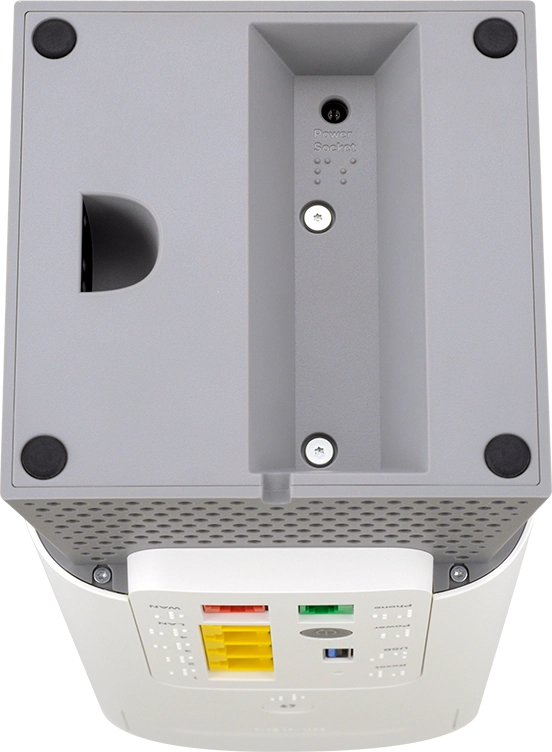
Turn the bottom of your router towards you.
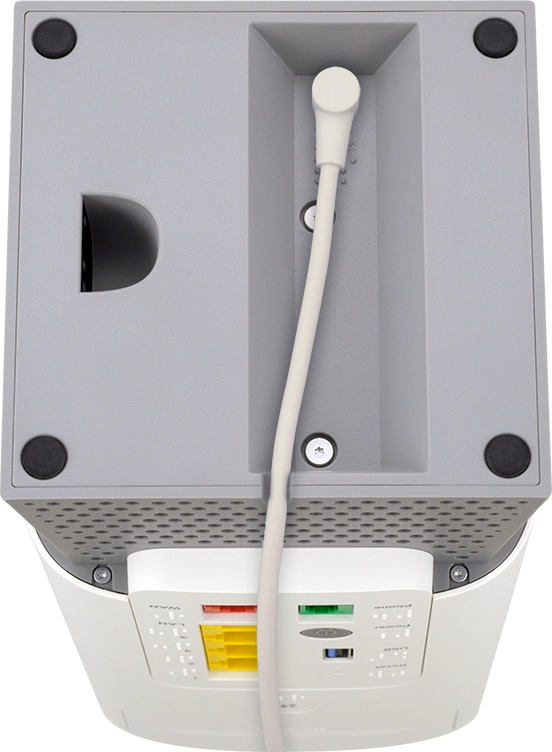
Step 3 of 19

Turn the bottom of your router towards you.

Connect the power supply to the power plug and to a wall socket.
Step 4 of 19

Connect the power supply to the power plug and to a wall socket.

Turn the back of your router towards you.
Step 5 of 19

Turn the back of your router towards you.

Press On/Off to turn on your router.
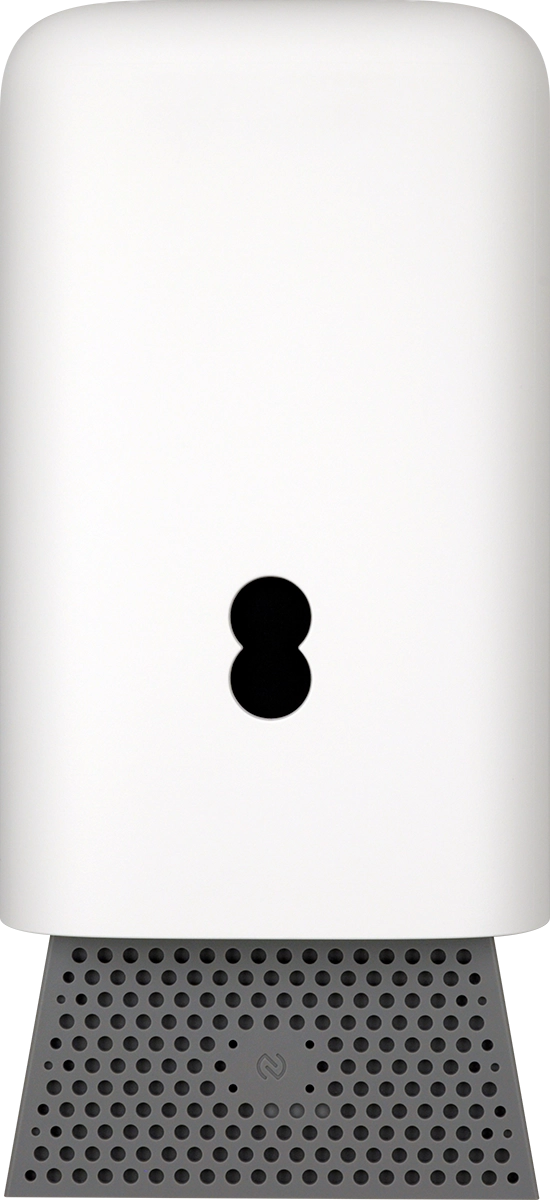
Step 6 of 19

Press On/Off to turn on your router.

When the info LED turns solid blue, an internet connection has been established and your router is ready for use.
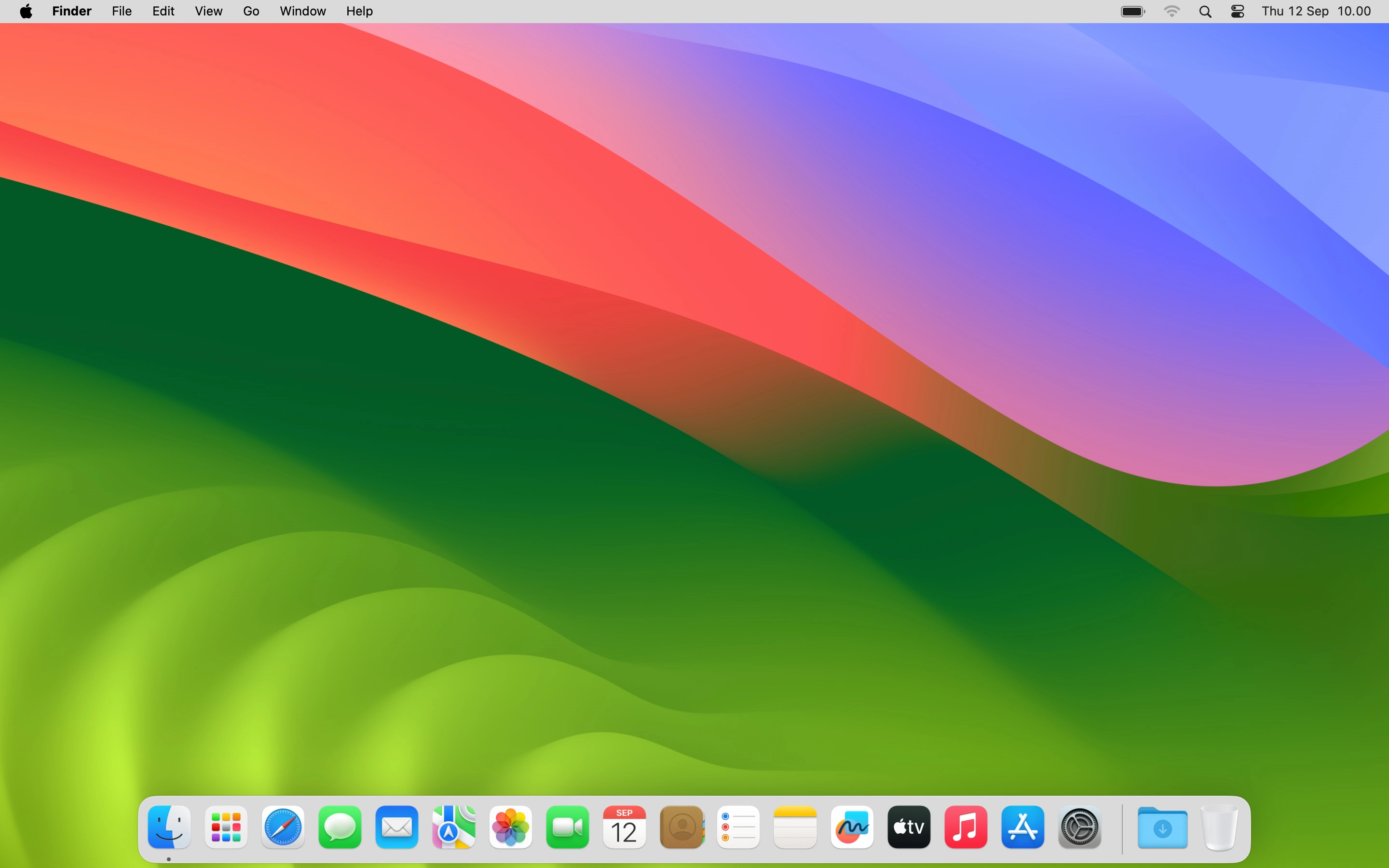
Step 7 of 19

When the info LED turns solid blue, an internet connection has been established and your router is ready for use.

Please note, that it may take at least 3 minutes before your router is fully synchronised and activated.
Do the following on your computer: Click the network icon.
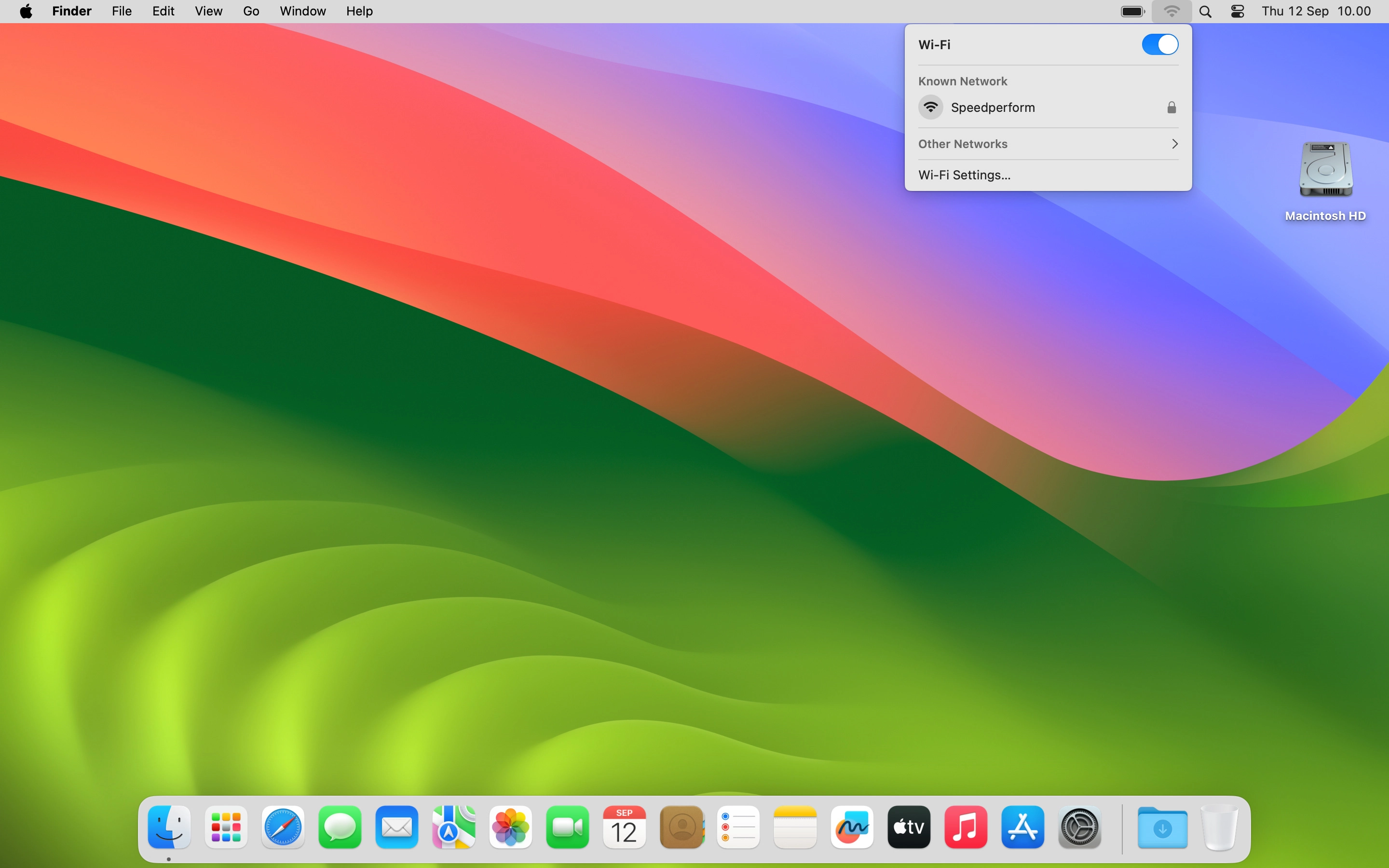
Step 8 of 19

Do the following on your computer: Click the network icon.

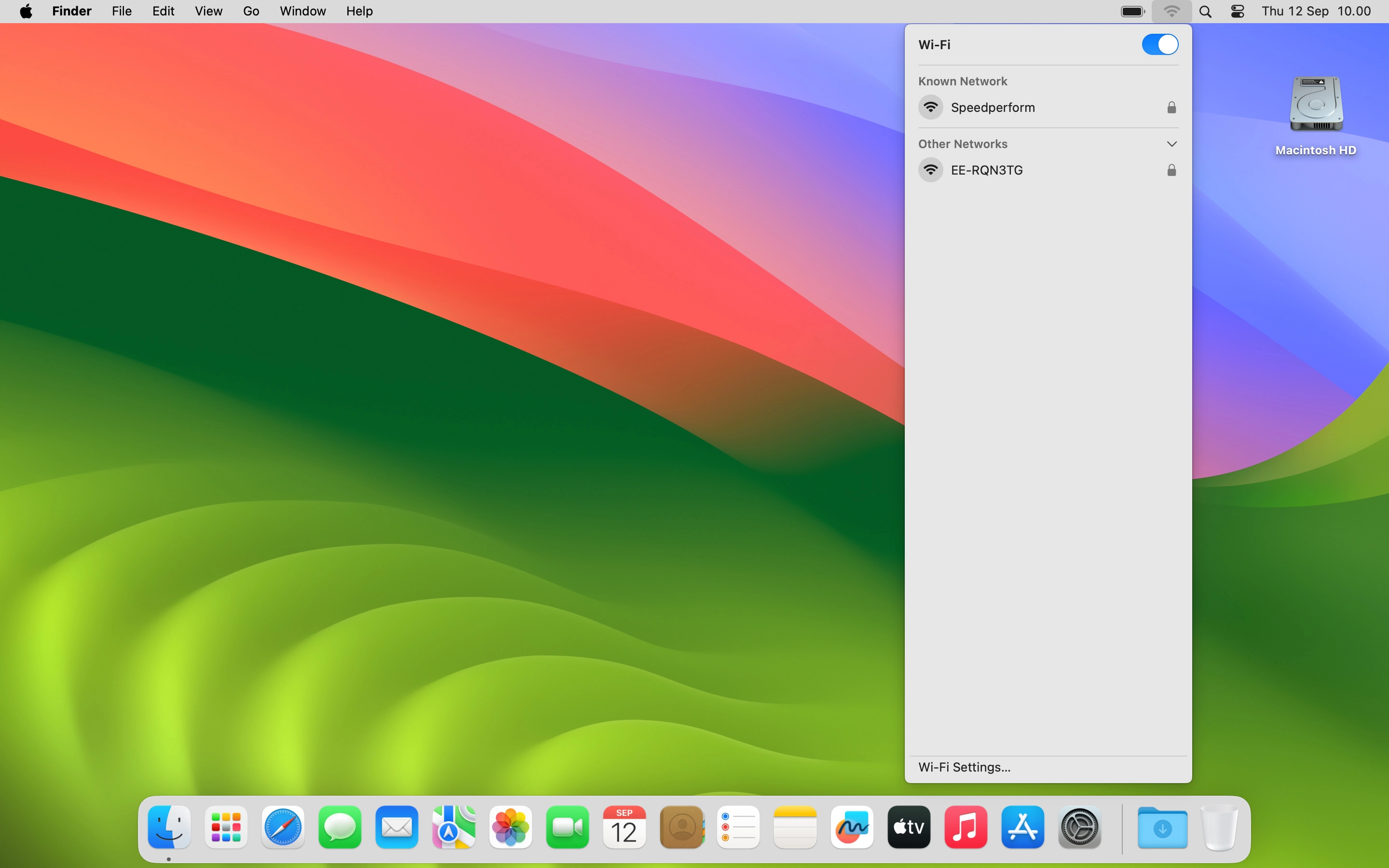
Click Other networks.
Step 9 of 19

Click Other networks.

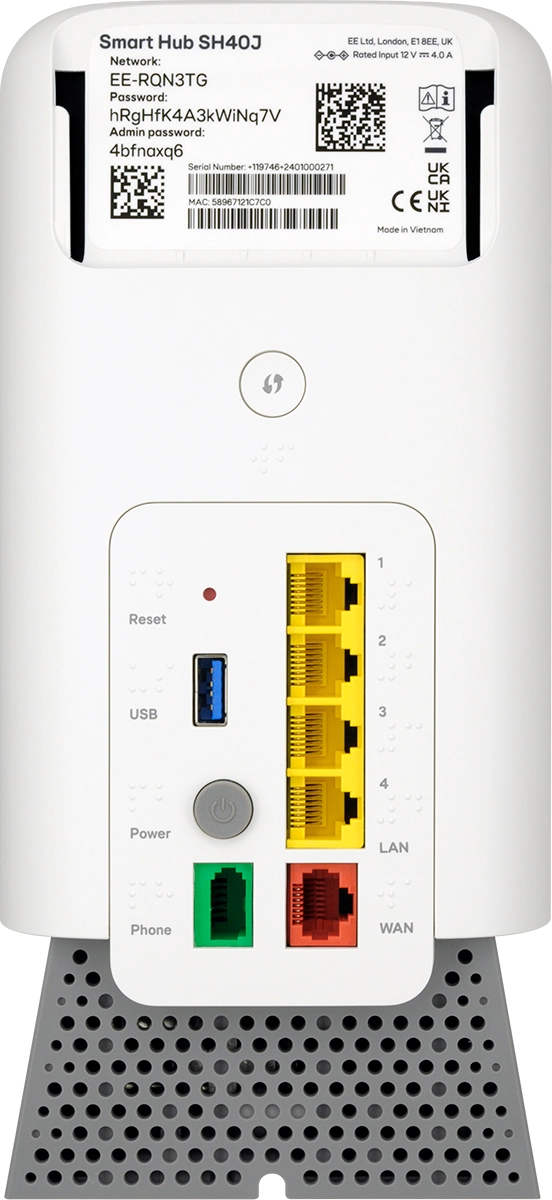
Click the name of your Wi-Fi hotspot.
Step 10 of 19

Click the name of your Wi-Fi hotspot.

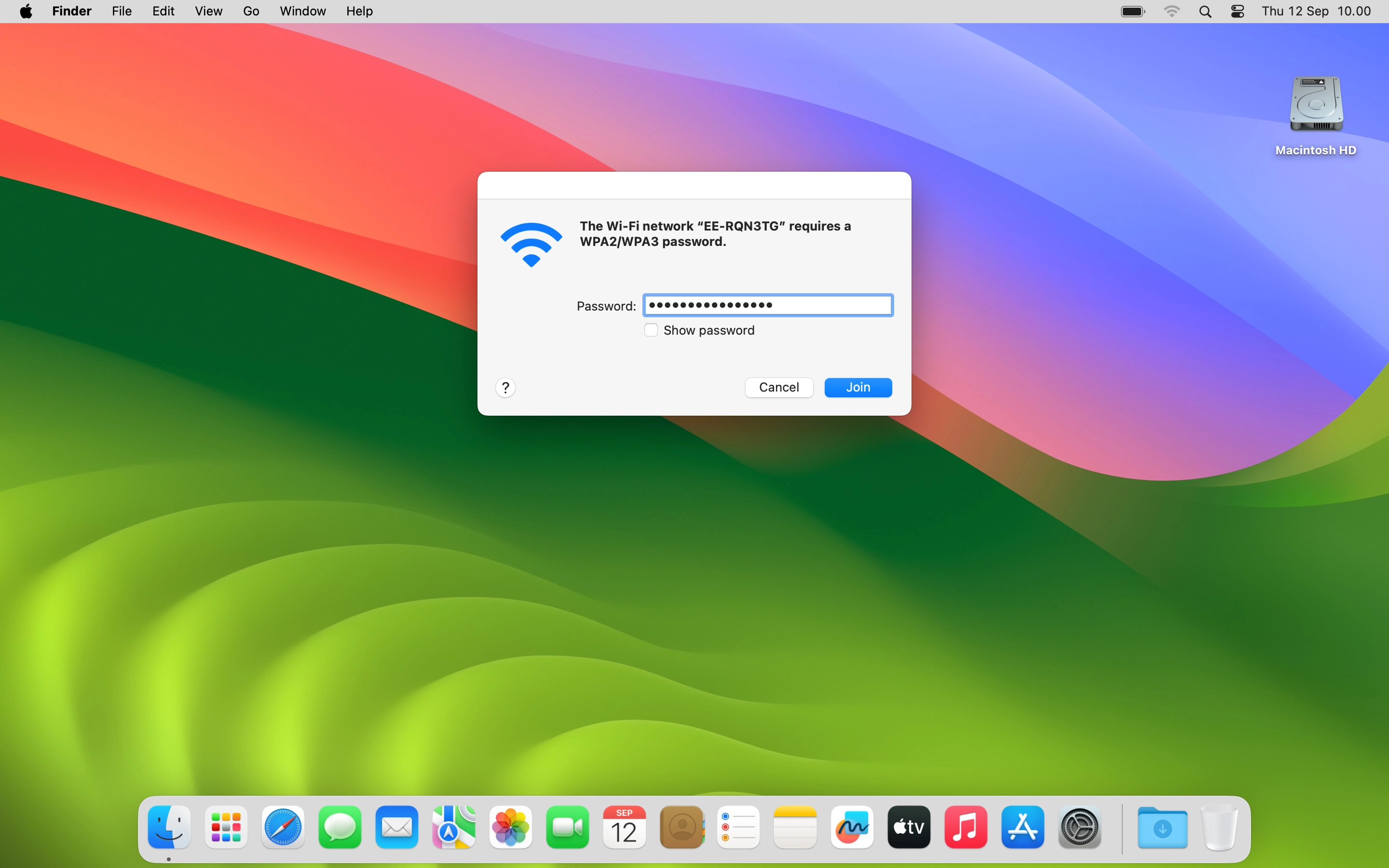
You can see the login information for the Wi-Fi hotspot behind the cover on the back of your router.
Step 11 of 19

You can see the login information for the Wi-Fi hotspot behind the cover on the back of your router.

You can remove the back cover by sliding it upwards.
Key in the password for your Wi-Fi hotspot and click Join.
Step 12 of 19

Key in the password for your Wi-Fi hotspot and click Join.

Open an internet browser on your computer and go to 192.168.1.254
Step 13 of 19

Open an internet browser on your computer and go to 192.168.1.254

For security reasons, it's recommend that you change your router's administrator password.
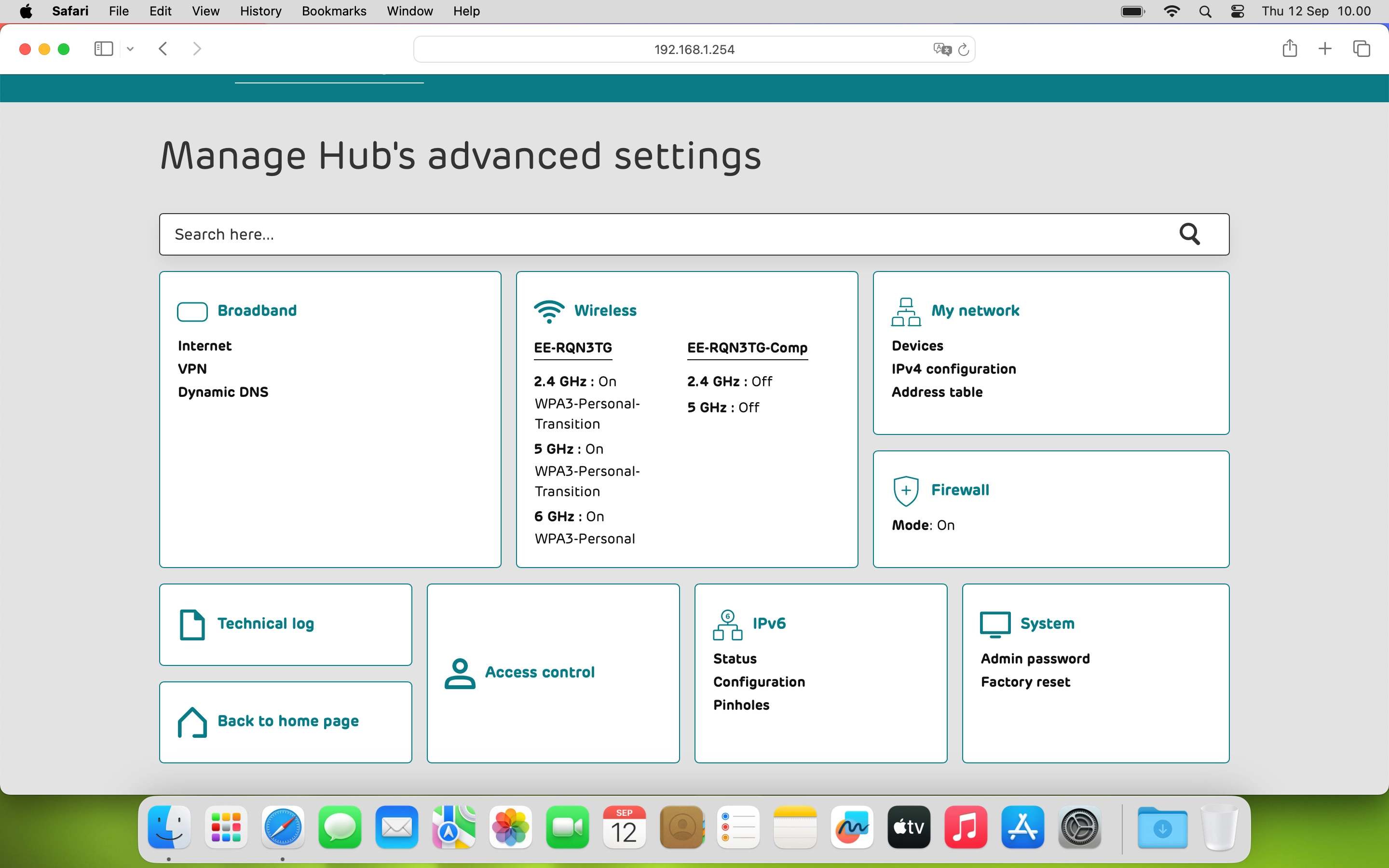
Click Advanced settings.
Step 14 of 19

Click Advanced settings.

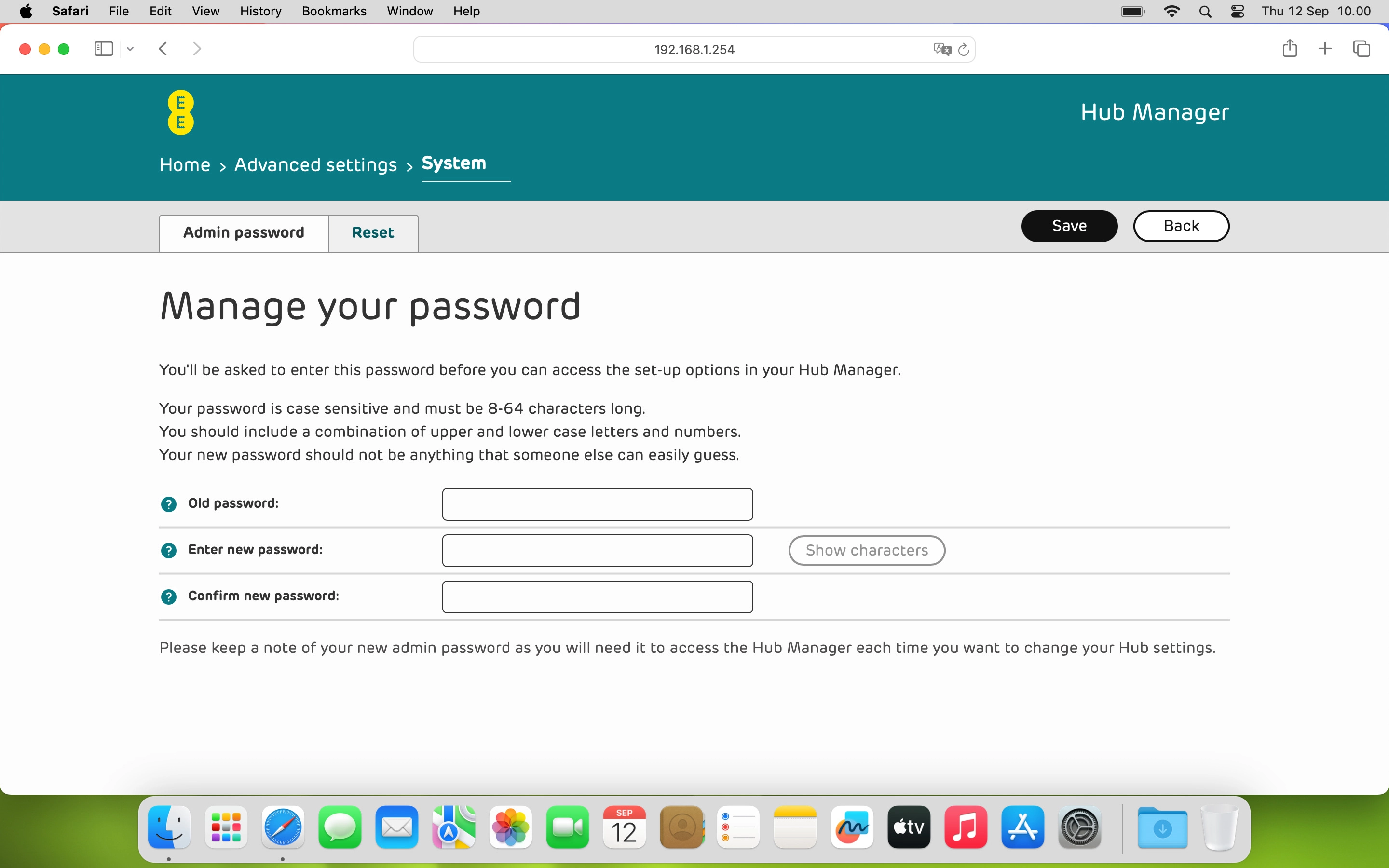
Click System and, if required, follow the instructions on the screen to key in the administrator password.
Step 15 of 19

Click System and, if required, follow the instructions on the screen to key in the administrator password.

You can see the administrator password behind the cover on the back of your router.
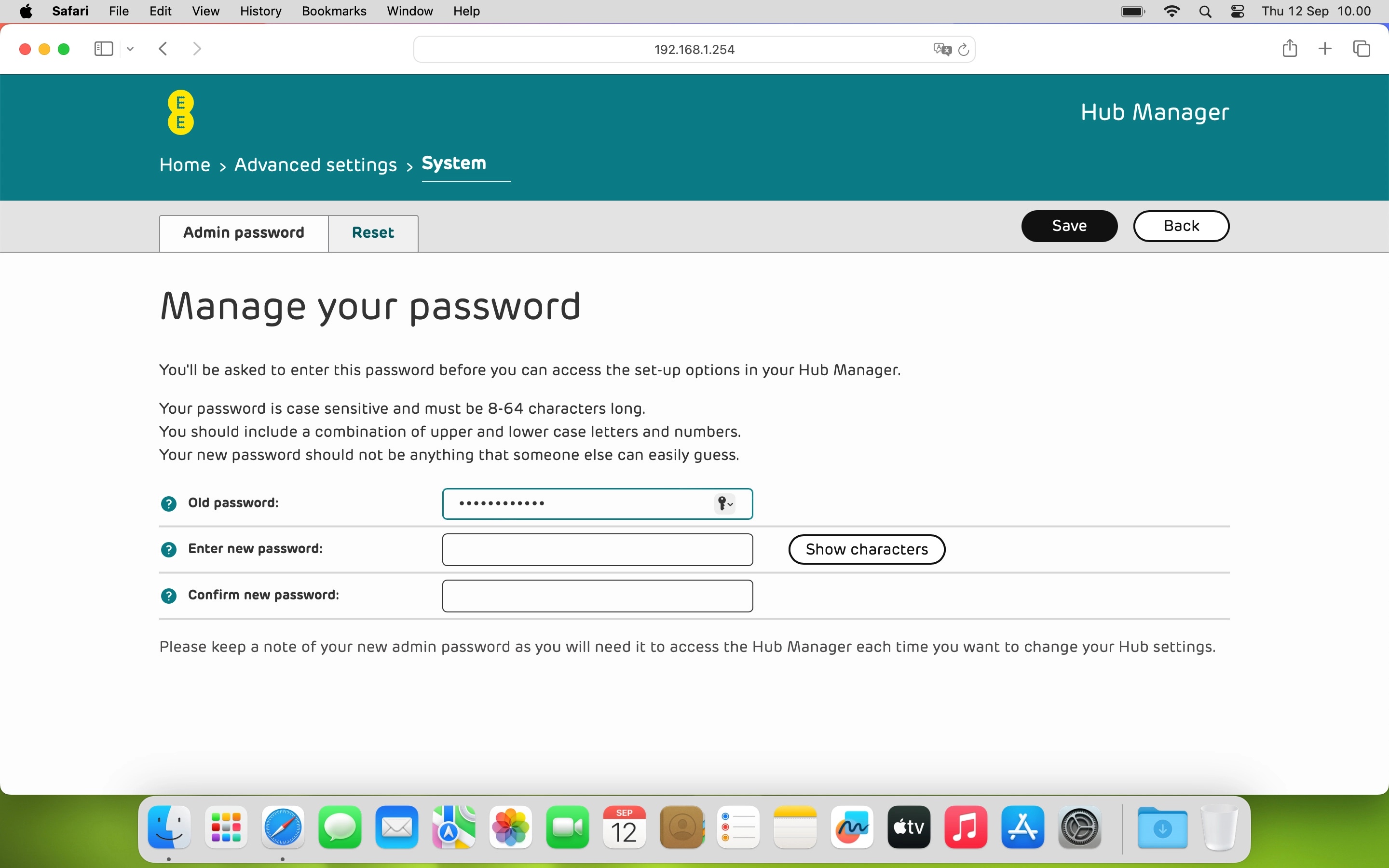
Click the field next to
Step 16 of 19

Click the field next to "Old password:" and key in the current password.
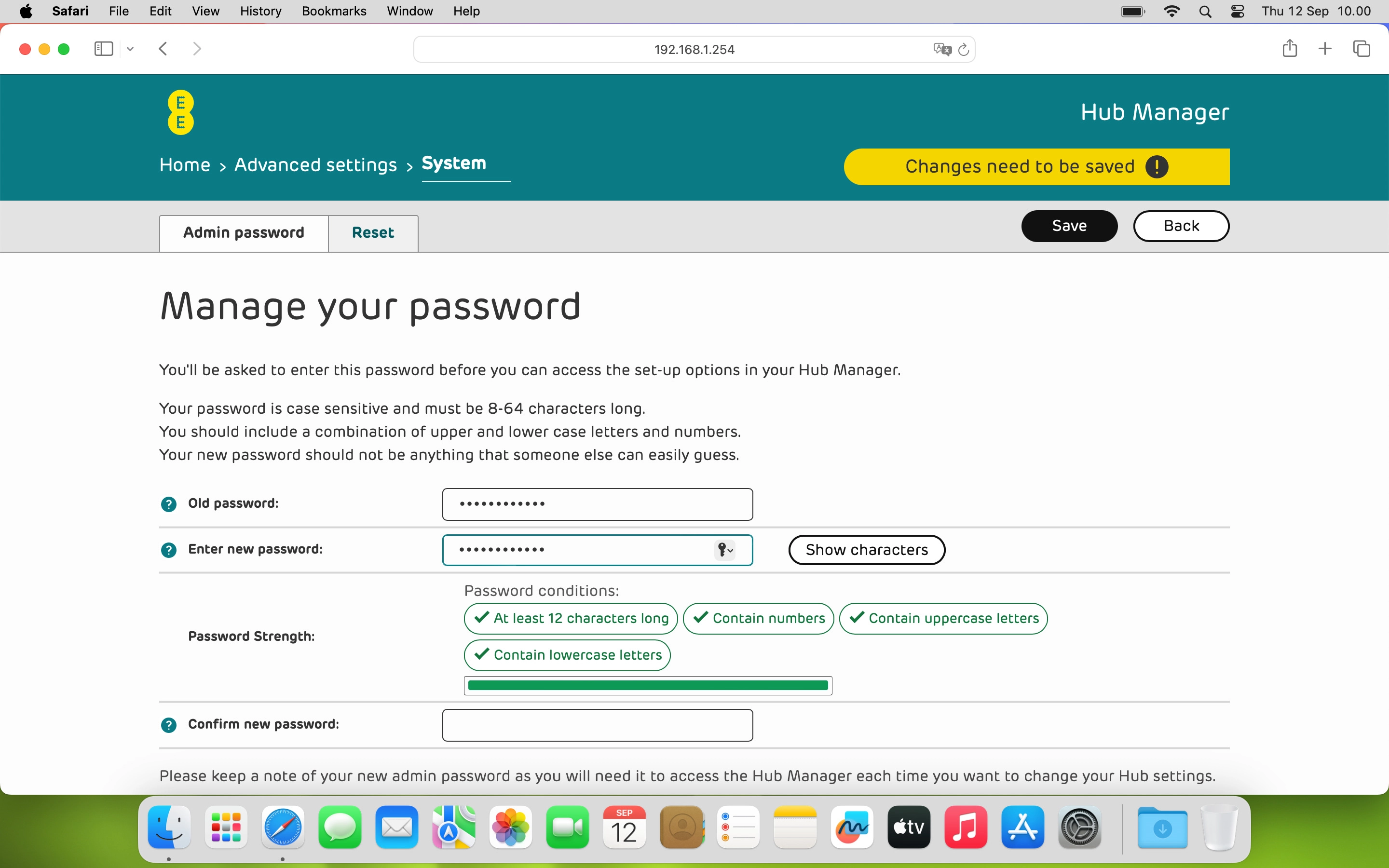
Click the field next to
Step 17 of 19

Click the field next to "Enter new password:" and key in the required password.
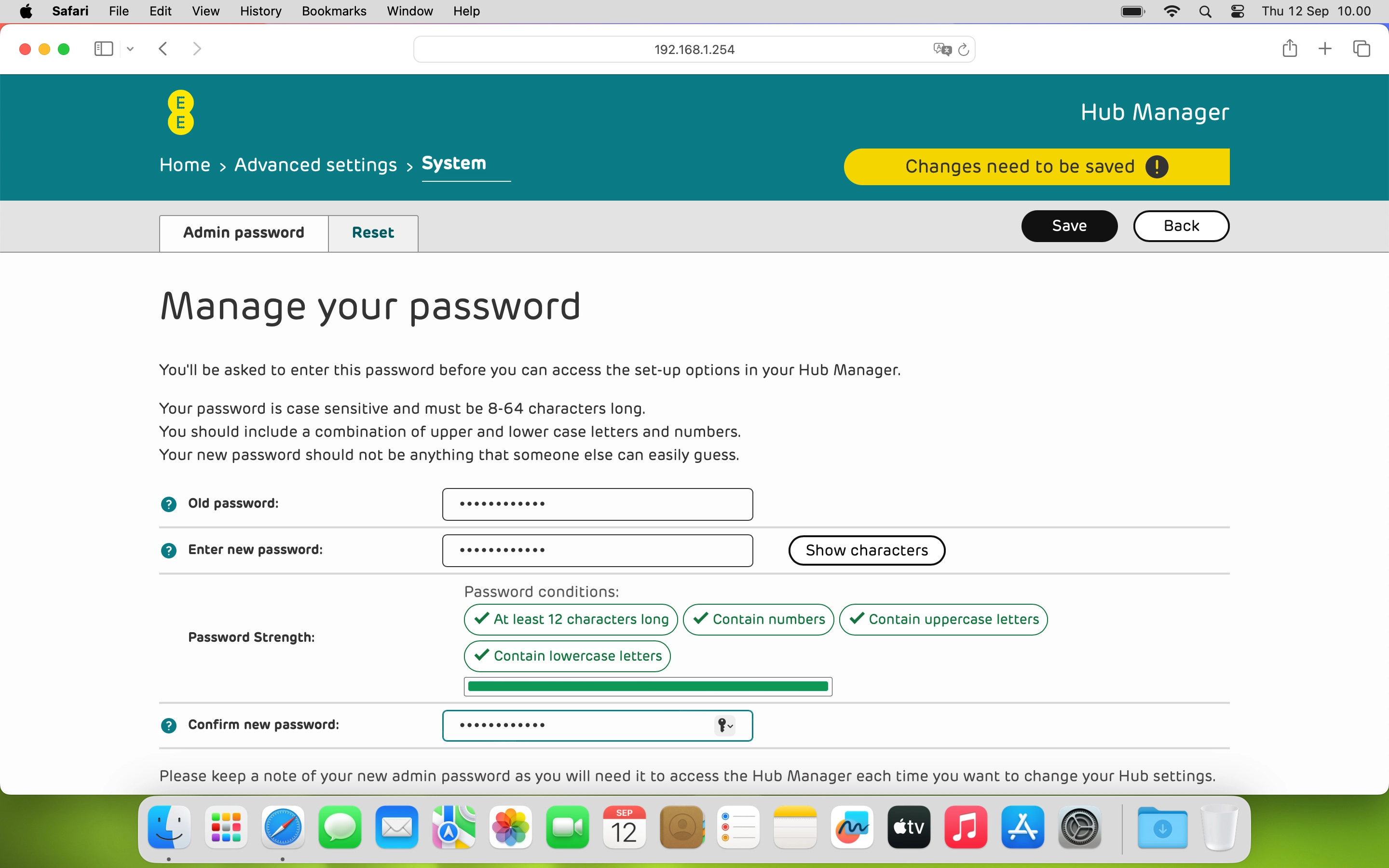
Click the field next to
Step 18 of 19

Click the field next to "Confirm new password:" and key in the required password again.
Click Save.
Click Save.
Step 19 of 19

Click Save.

Get information on...

Or choose...

Show more