Help
Device guides
EE
TV Box Pro

EE TV Box Pro

f-e9a2d970-a375-458d-810e-f3023942b61f
f-295800d2-c4af-4de7-8b66-01f4208bebcd
f-b866e9da-4b3e-4796-ae41-fa4098247be9
  • Device home
  • Getting started
  • Functions
  • Settings
  • Device home
  • Getting started
  • Functions
  • Settings

Watching TV

You have various options when watching TV.

Press the upper or lower part of the
Step 1 of 16

Press the upper or lower part of the "P" key.

There are several ways to change channels.
The TV channel is displayed.
Step 2 of 16

The TV channel is displayed.

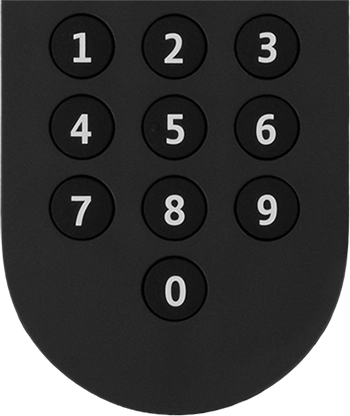
Key in the number of the required TV channel by pressing the numeric keys.
Step 3 of 16

Key in the number of the required TV channel by pressing the numeric keys.

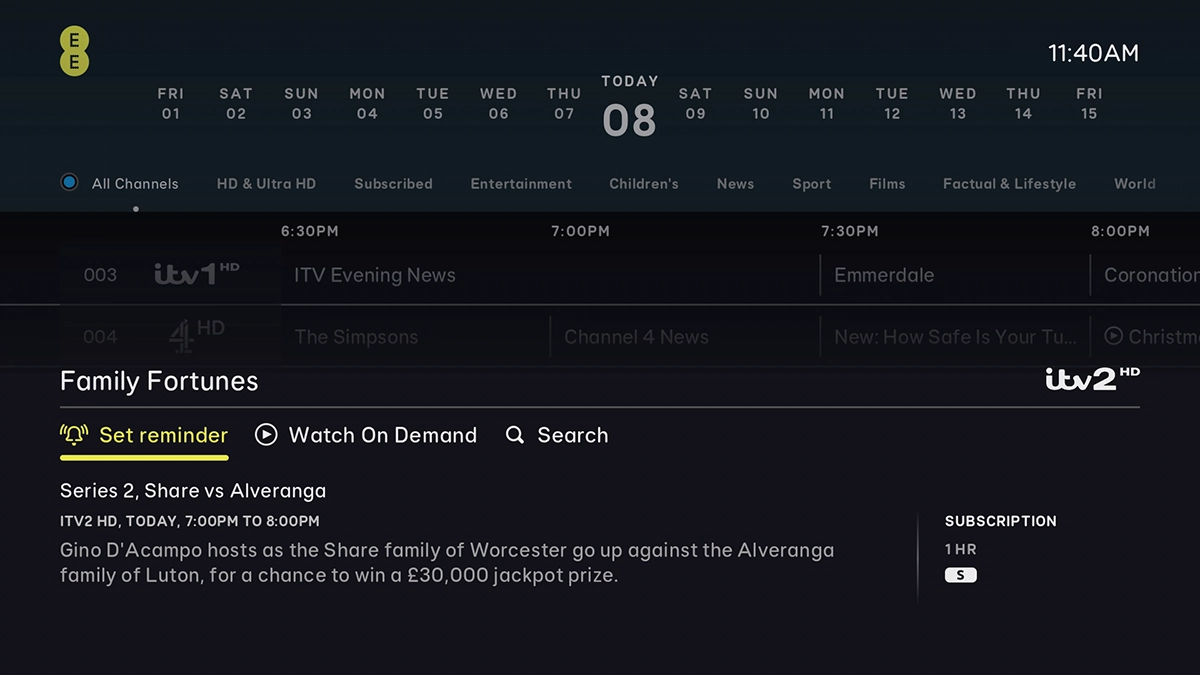
Highlight GUIDE.
Highlight GUIDE.
Step 4 of 16

Highlight GUIDE.

Press OK to open the list of TV programmes. Follow the instructions on the screen to change TV channel.
Step 5 of 16

Press OK to open the list of TV programmes. Follow the instructions on the screen to change TV channel.

Press the upper or lower part of the Volume key to adjust the volume.
Step 6 of 16

Press the upper or lower part of the Volume key to adjust the volume.

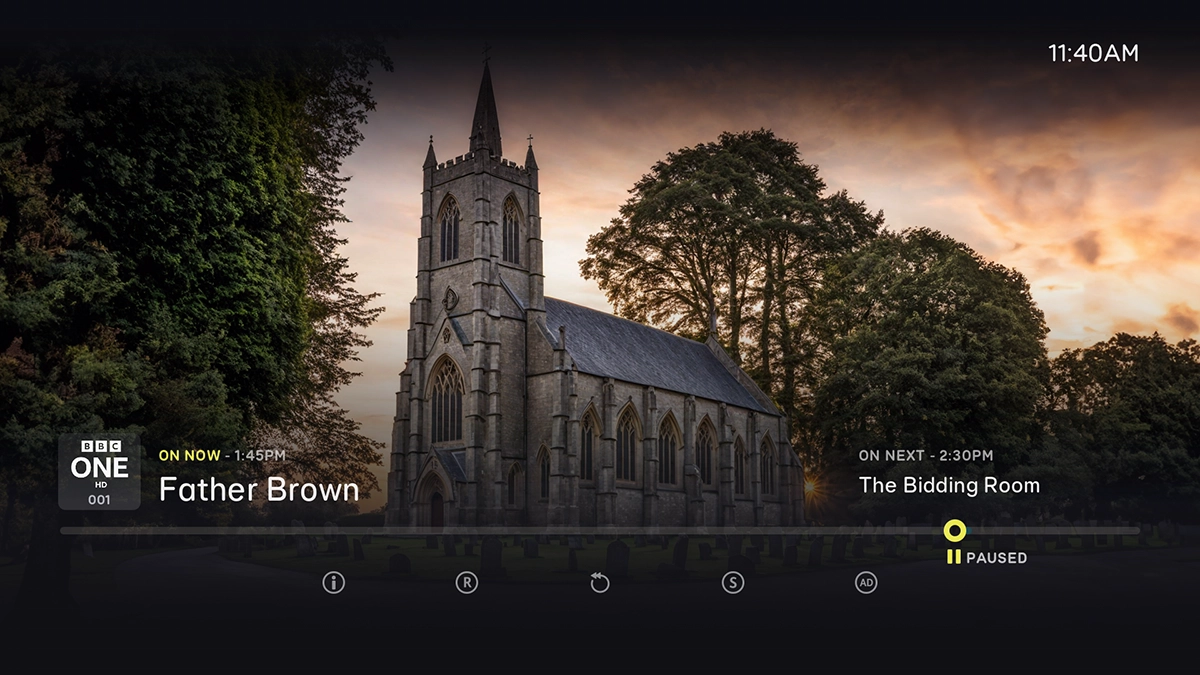
Press the Play/Pause key.
Step 7 of 16

Press the Play/Pause key.

When the pause icon is displayed, the TV programme has been paused.
Step 8 of 16

When the pause icon is displayed, the TV programme has been paused.

Press the Play/Pause key again to resume playback of the TV programme.
Step 9 of 16

Press the Play/Pause key again to resume playback of the TV programme.

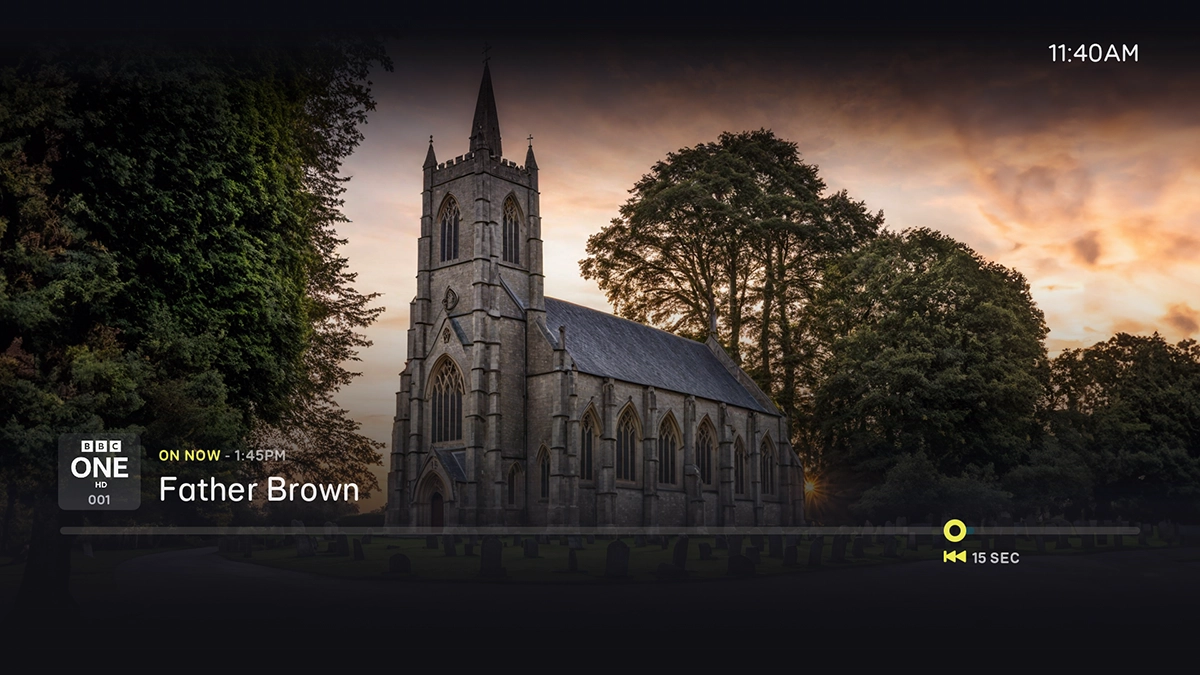
Press the Fast forward/rewind keys to fast forward or rewind a TV programme.
Step 10 of 16

Press the Fast forward/rewind keys to fast forward or rewind a TV programme.

When the arrows are displayed, fast forward or rewind is in progress.
Step 11 of 16

When the arrows are displayed, fast forward or rewind is in progress.

Press the Fast forward/rewind keys repeatedly to increase the speed.
Step 12 of 16

Press the Fast forward/rewind keys repeatedly to increase the speed.

Press the numeric keys to skip through a TV programme you are watching with the playback feature.
Step 13 of 16

Press the numeric keys to skip through a TV programme you are watching with the playback feature.

"1" will skip you forward by 10%, "2" will skip you forward by 20%, "3" will skip you forward by 30% etc. This skipping feature only goes up to number "9", increasing speed by 90%. "0" returns you to the start of your recording.
Press the Information key.
Step 14 of 16

Press the Information key.

A short description of the selected programme is displayed.
Step 15 of 16

A short description of the selected programme is displayed.

Press Back to return to the TV programme.
Step 16 of 16

Press Back to return to the TV programme.

Get information on...

Or choose...

Show more