Help
Device guides
EE
TV Box Pro

EE TV Box Pro

f-e9a2d970-a375-458d-810e-f3023942b61f
f-295800d2-c4af-4de7-8b66-01f4208bebcd
f-b866e9da-4b3e-4796-ae41-fa4098247be9
  • Device home
  • Getting started
  • Functions
  • Settings
  • Device home
  • Getting started
  • Functions
  • Settings

Connecting to a Wi-Fi network

You can use Wi-Fi as an alternative to an ethernet cable when establishing an internet connection. It is, though, recommended to use an ethernet cable for a more stable connection and therefore better quality.

Highlight SETTINGS.
Highlight SETTINGS.
Step 1 of 13

Highlight SETTINGS.

Press OK.
Press OK.
Step 2 of 13

Press OK.

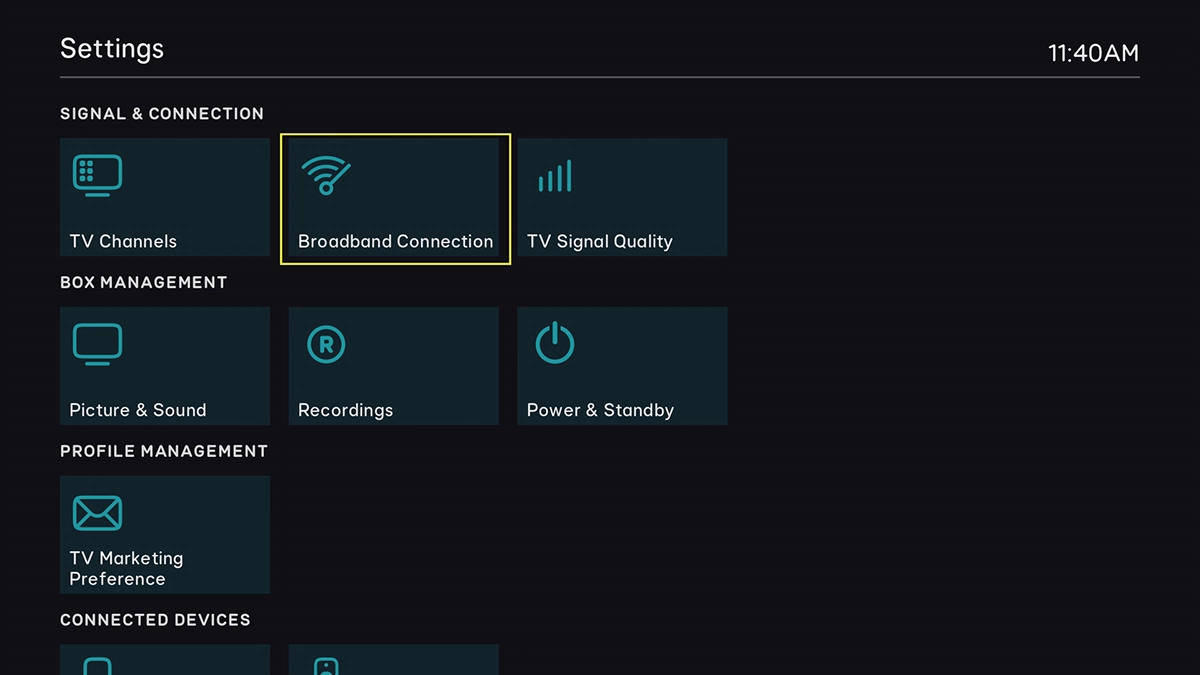
Highlight Broadband Connection.
Step 3 of 13

Highlight Broadband Connection.

Press OK.
Press OK.
Step 4 of 13

Press OK.

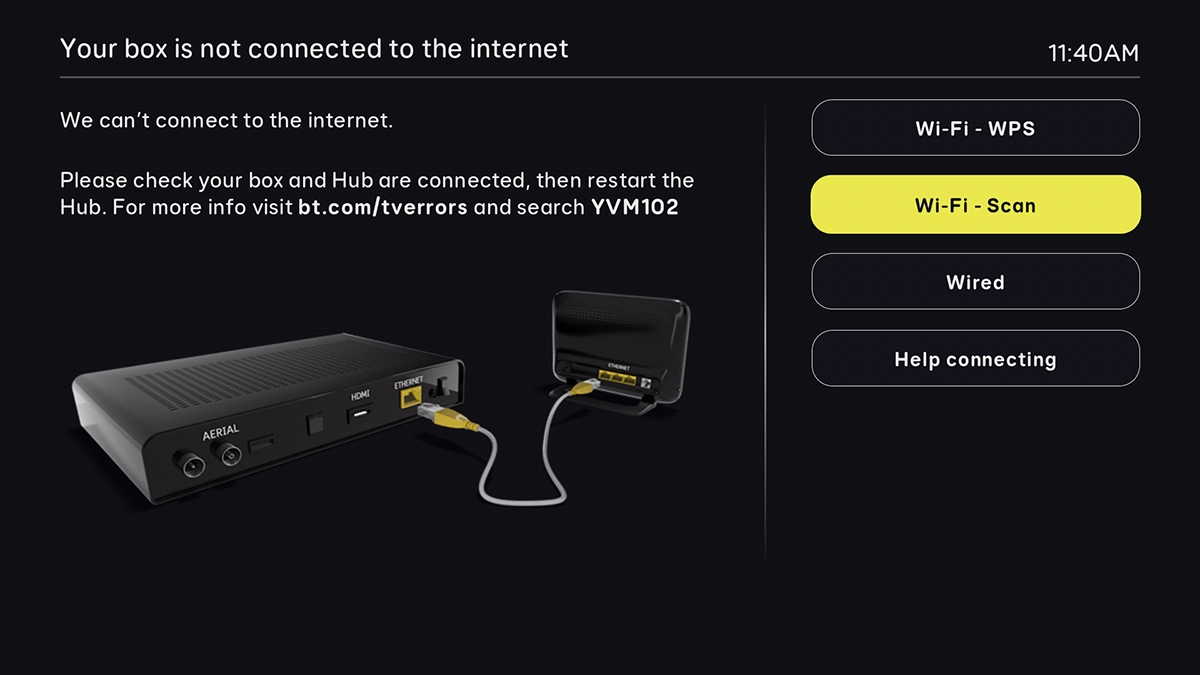
Highlight Wi-Fi - Scan.
Step 5 of 13

Highlight Wi-Fi - Scan.

Press OK.
Press OK.
Step 6 of 13

Press OK.

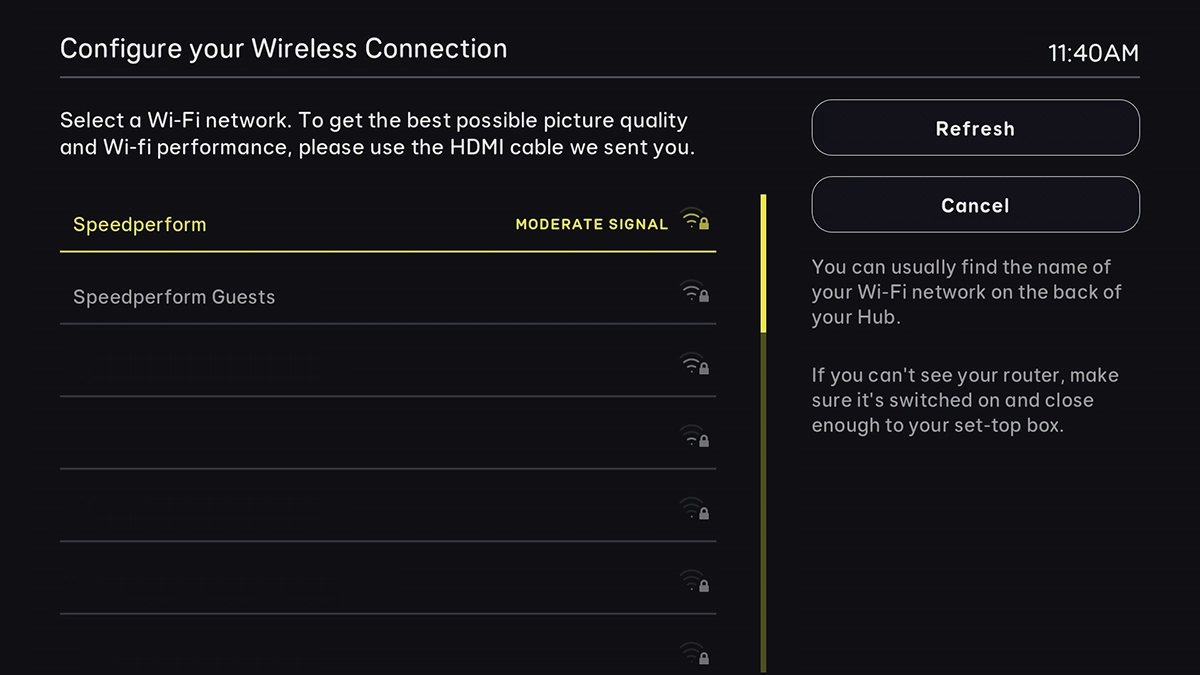
Highlight the required Wi-Fi network.
Step 7 of 13

Highlight the required Wi-Fi network.

Press OK.
Press OK.
Step 8 of 13

Press OK.

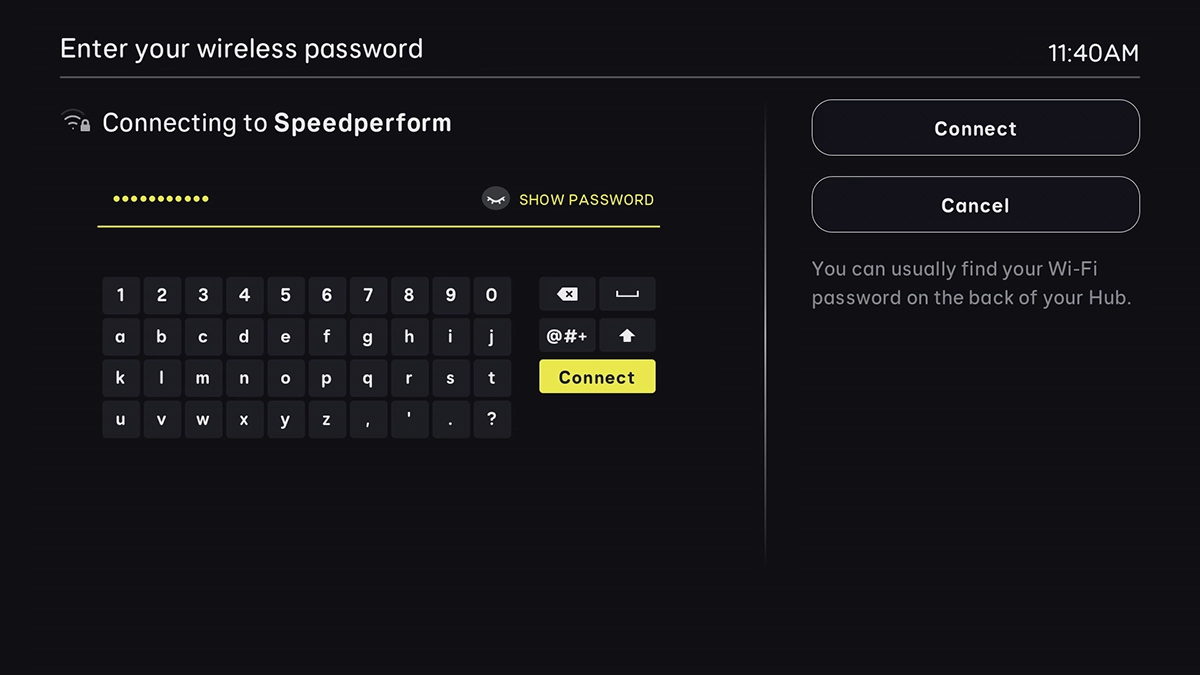
Key in the password for the Wi-Fi network and highlight Connect.
Step 9 of 13

Key in the password for the Wi-Fi network and highlight Connect.

Press OK.
Press OK.
Step 10 of 13

Press OK.

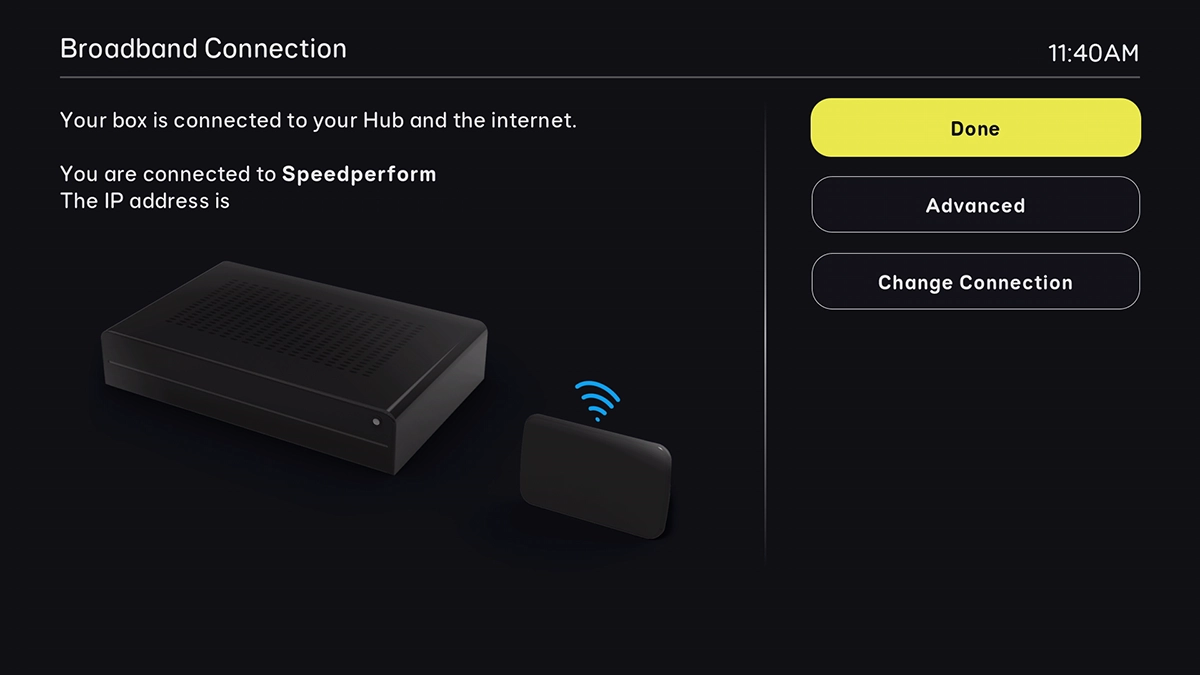
Highlight Done.
Highlight Done.
Step 11 of 13

Highlight Done.

Press OK.
Press OK.
Step 12 of 13

Press OK.

Press the Home key to return to the home menu.
Step 13 of 13

Press the Home key to return to the home menu.

Get information on...

Or choose...

Show more