





Help
Device guides
Google
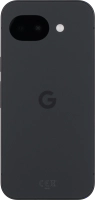
Pixel 10a

Google Pixel 10a

f-8cb102eb-e237-4569-824a-76dae803d530
f-7658ef41-551b-4065-ab3d-56719ee674e0
f-e35a7b4a-c787-4ae3-abfd-bf2cc5f8e5a8
f-699a3988-280b-4506-b20a-207fe9a4d1f8
f-37b4bea7-edb8-43f8-a07d-3c75bf887a3a
f-58a723ac-fb4f-420f-8543-163a80ed34cb
f-0f6f4a6b-9cb5-4aaa-87c5-7612fc4695bb
f-58fd6138-fd0b-4999-9446-bb5e5e5f4431
  • Device home
  • Getting started
  • Basic functions
  • Calls, contacts, messaging
  • Connectivity
  • Specifications
  • Device home
  • Getting started
  • Basic functions
  • Calls, contacts, messaging
  • Connectivity
  • Specifications

Activating eSIM

In addition to your normal SIM, you can also use an eSIM in your phone. An eSIM is a digital SIM that enables you to activate a price plan without the use of a physical SIM. To activate your eSIM you need to set up your phone for internet or establish a connection to a Wi-Fi network.
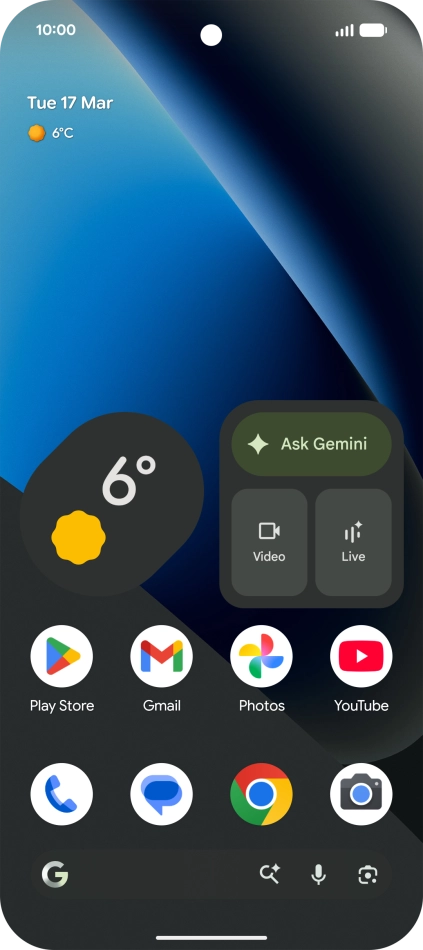
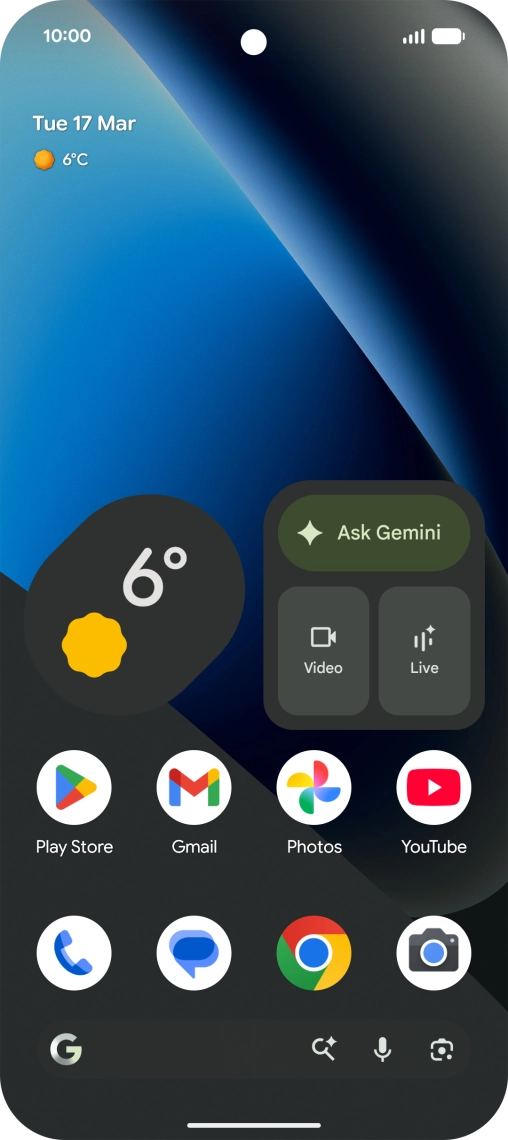
Slide two fingers downwards starting from the top of the screen.
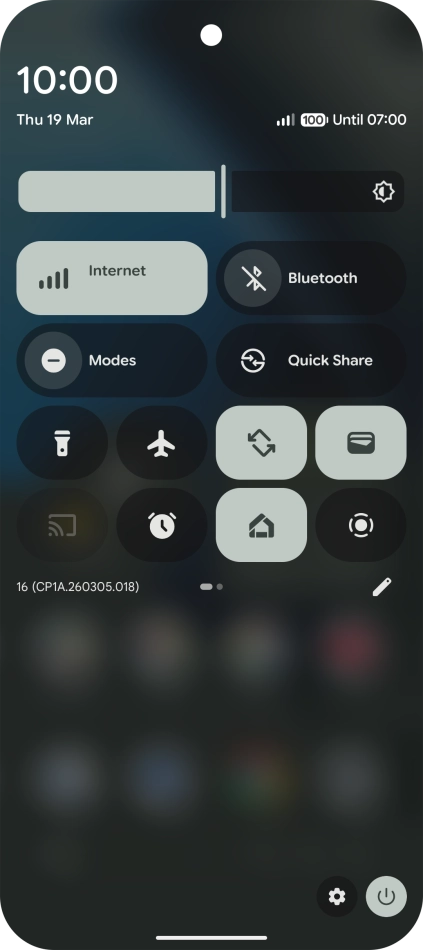
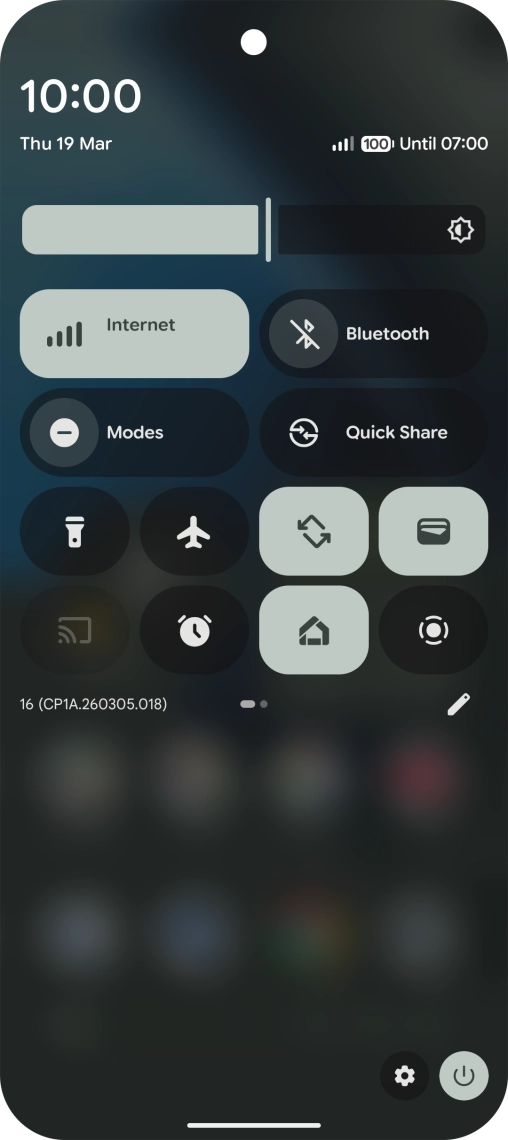
Step 1 of 8

Slide two fingers downwards starting from the top of the screen.

Press the settings icon.
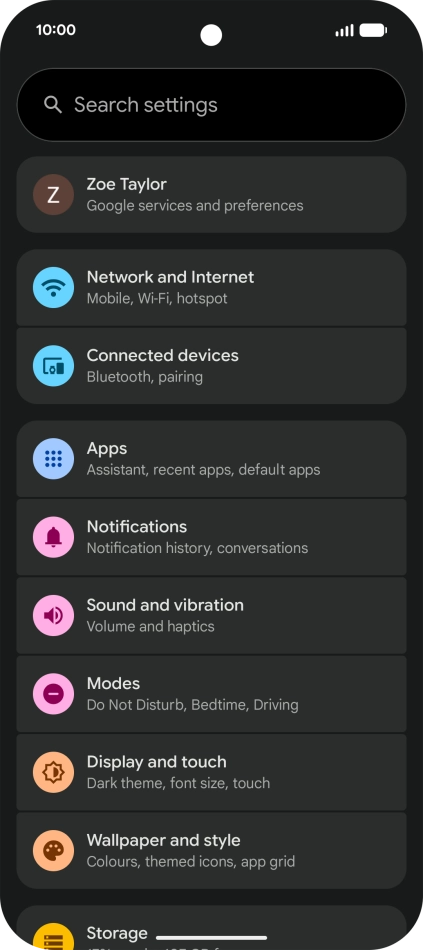
Step 2 of 8

Press the settings icon.

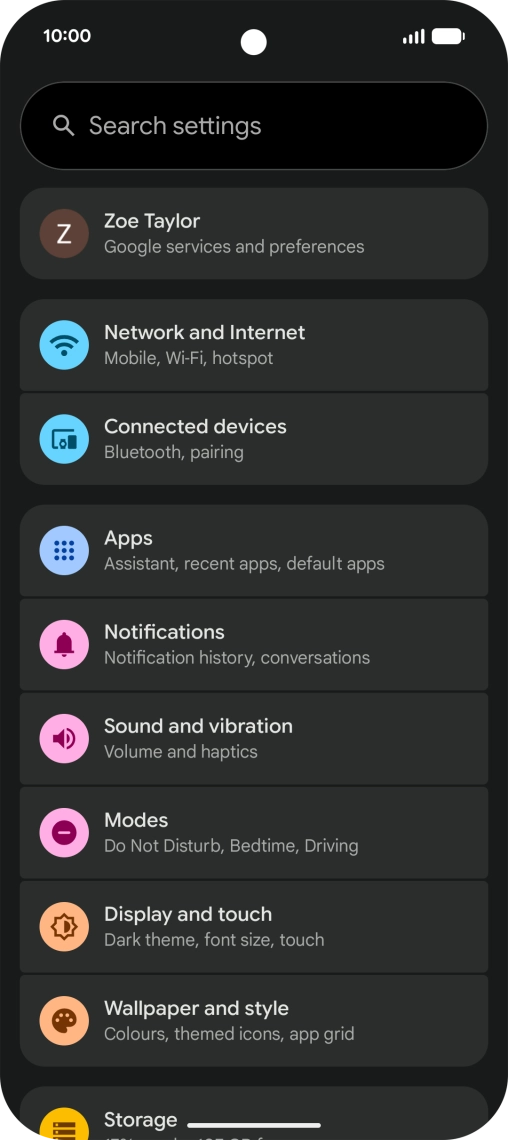
Press Network and Internet.
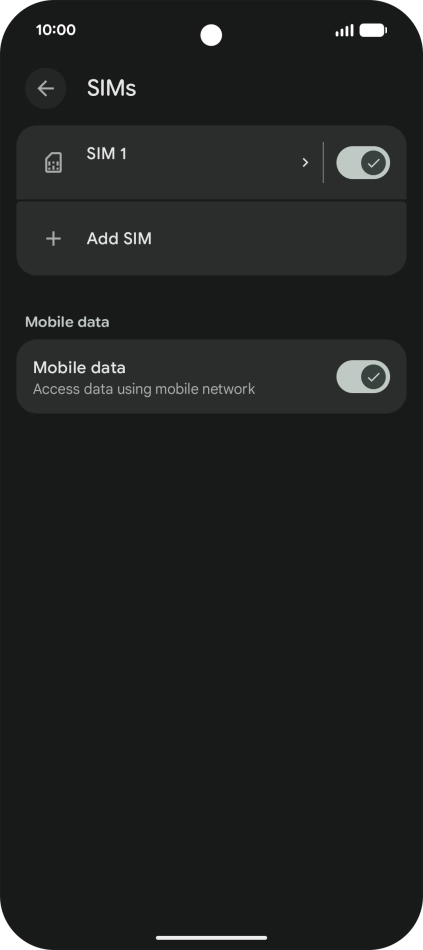
Step 3 of 8

Press Network and Internet.

Press Network and Internet.
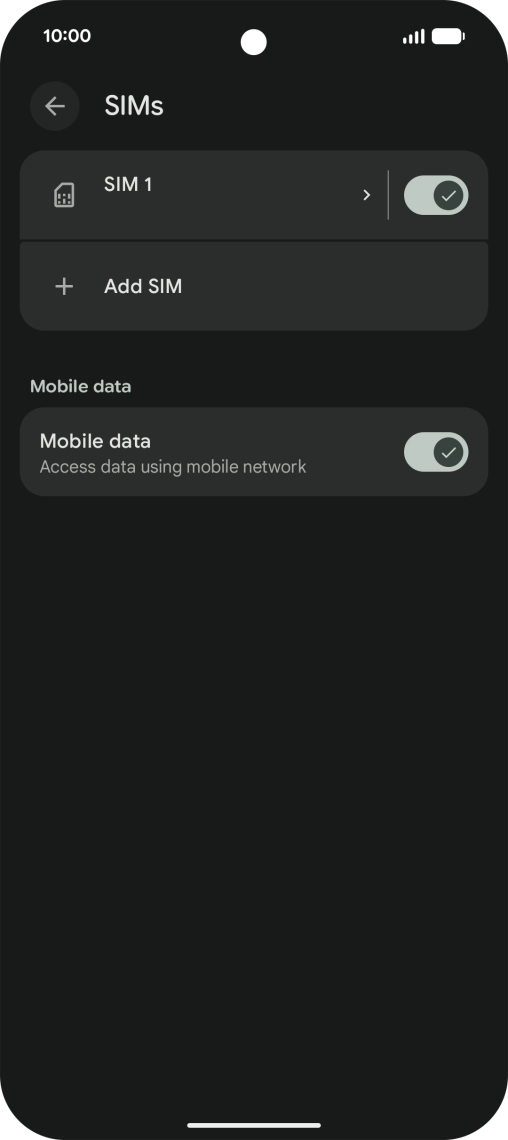
Step 4 of 8

Press Network and Internet.

Press Add SIM.
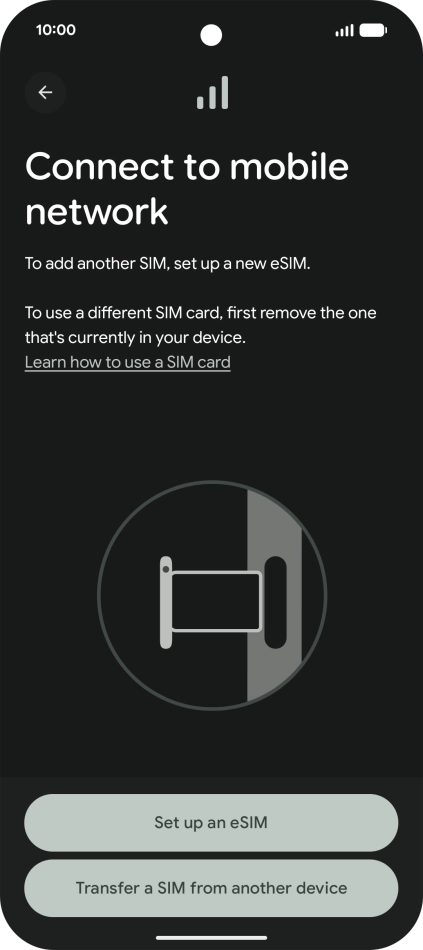
Press Add SIM.
Step 5 of 8

Press Add SIM.

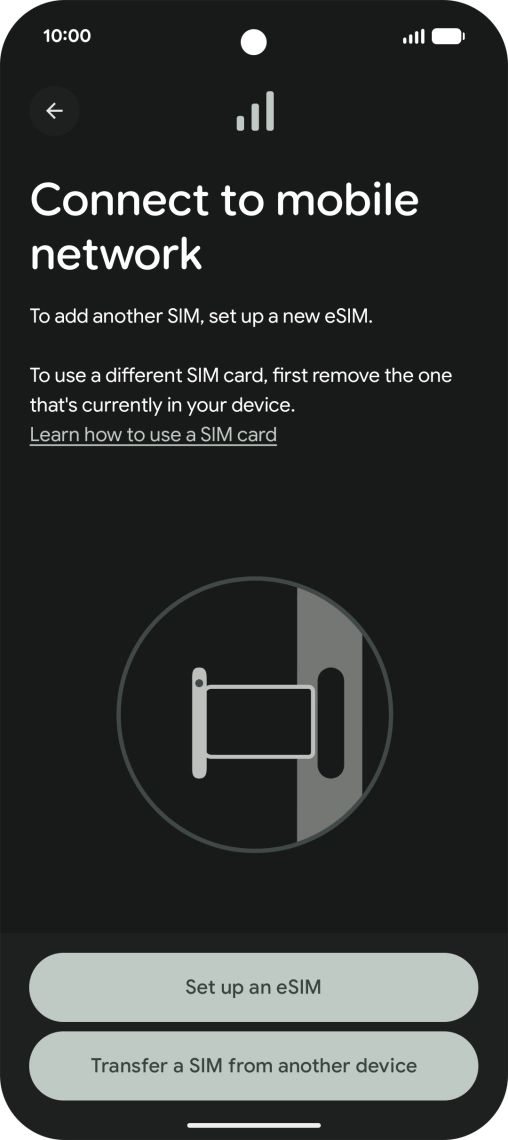
Press Set up an eSIM.
Step 6 of 8

Press Set up an eSIM.

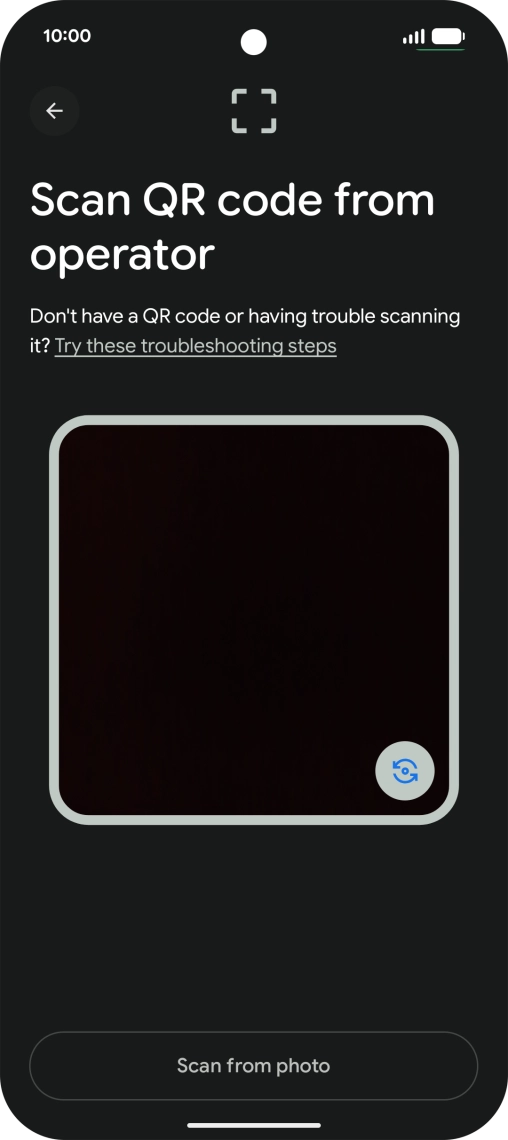
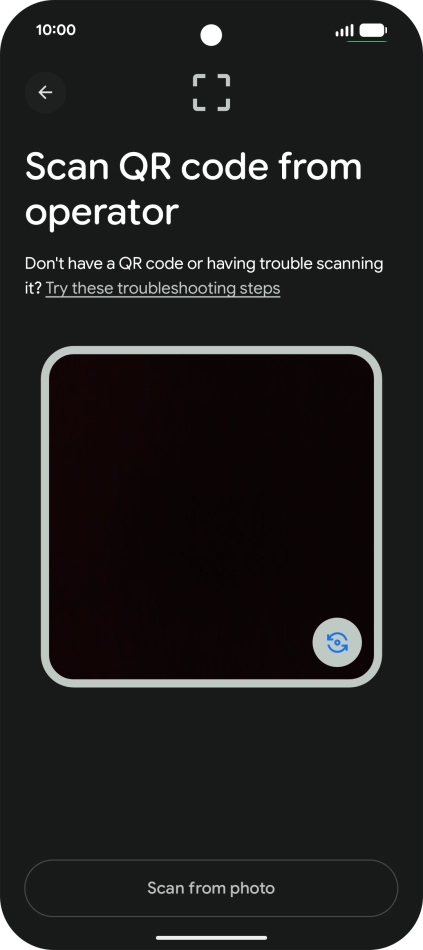
Place the QR code you've received inside the phone camera frame to scan the code.
Step 7 of 8

Place the QR code you've received inside the phone camera frame to scan the code.

Google Pixel 10a
Google Pixel 10a
Step 8 of 8

Follow the instructions on the screen to complete the activation of your eSIM.

Get information on...

Or choose...

Show more