
Help
Device guides
Google
Pixel 2

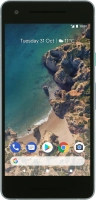
Google Pixel 2

f-273a3652-bfac-4b91-b9b4-e5ae5f92b51f
f-4d1b6746-83ef-4462-83c3-7dc367e1c0c3
f-7e5a85c4-9f18-4dd0-a48a-98e4ef078fb0
f-5ac567ae-a9f3-4a72-bbab-e502e94112e1
f-b70c814d-b025-4b1a-835d-09d0c3f94cf1
f-5fb8701b-883a-4186-a8e0-ea1c3954db7c
  • Device home
  • Getting started
  • Basic functions
  • Calls, contacts, messaging
  • Connectivity
  • Specifications
  • Device home
  • Getting started
  • Basic functions
  • Calls, contacts, messaging
  • Connectivity
  • Specifications

Uninstalling apps

You can uninstall apps to free up memory.

Press the Play Store icon.
Step 1 of 8

Press the Play Store icon.

Slide your finger right starting from the left side of the screen.
Step 2 of 8

Slide your finger right starting from the left side of the screen.

Press My apps & games.
Step 3 of 8

Press My apps & games.

Press INSTALLED.
Press INSTALLED.
Step 4 of 8

Press INSTALLED.

Press the required app.
Step 5 of 8

Press the required app.

Press UNINSTALL.
Press UNINSTALL.
Step 6 of 8

Press UNINSTALL.

Press OK.
Press OK.
Step 7 of 8

Press OK.

Press the Home key to return to the home screen.
Step 8 of 8

Press the Home key to return to the home screen.

Get information on...

Or choose...

Show more