

Help
Device guides
Google
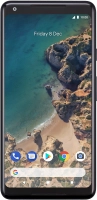
Pixel 2 XL

Google Pixel 2 XL

f-851891aa-ef6c-4860-bbde-c06da94947ed
f-997349b1-7b90-4847-9f62-119f5eac5069
f-438522fd-5401-4fcf-adc4-c5ddf2ca396f
f-41a3ccdb-6ac6-4e3d-8c57-dd45b264968e
f-26eee80e-6a6b-47d7-9c01-d3ab54b41d2a
f-7b2d0a65-1790-433d-97a0-4adb317acc64
  • Device home
  • Getting started
  • Basic functions
  • Calls, contacts, messaging
  • Connectivity
  • Specifications
  • Device home
  • Getting started
  • Basic functions
  • Calls, contacts, messaging
  • Connectivity
  • Specifications

Uninstalling apps

You can uninstall apps to free up memory.
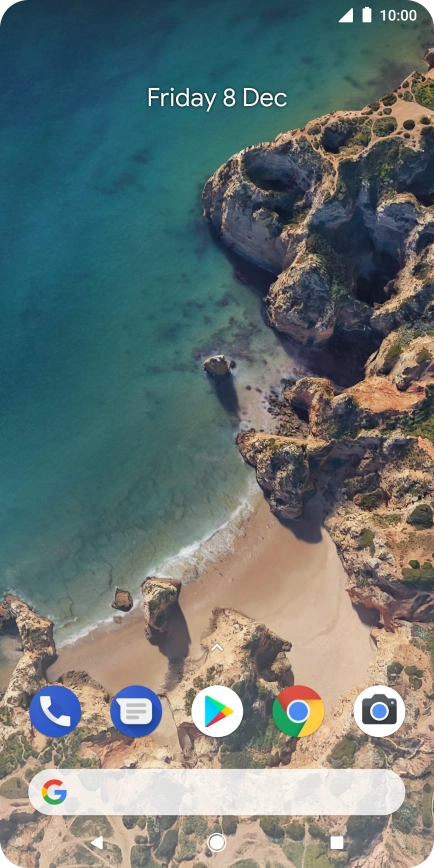
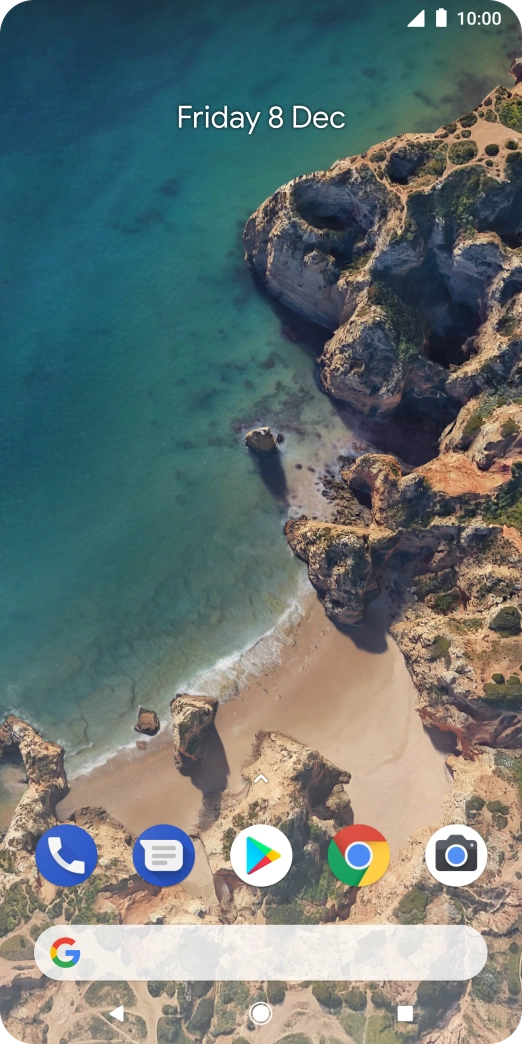
Press the Play Store icon.
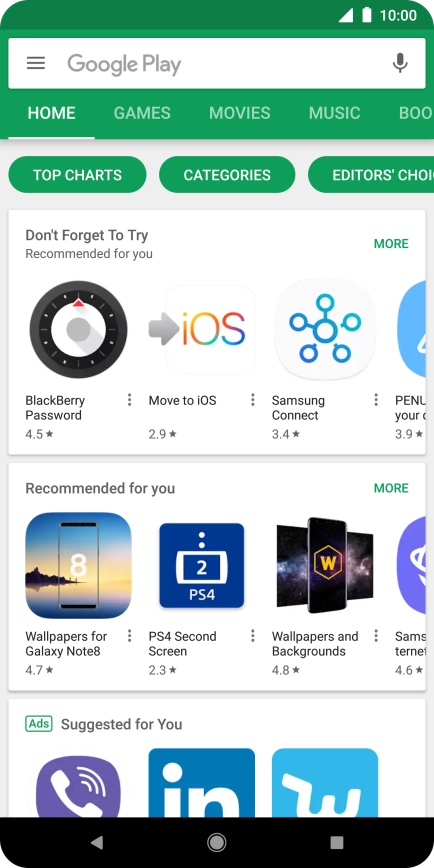
Step 1 of 8

Press the Play Store icon.

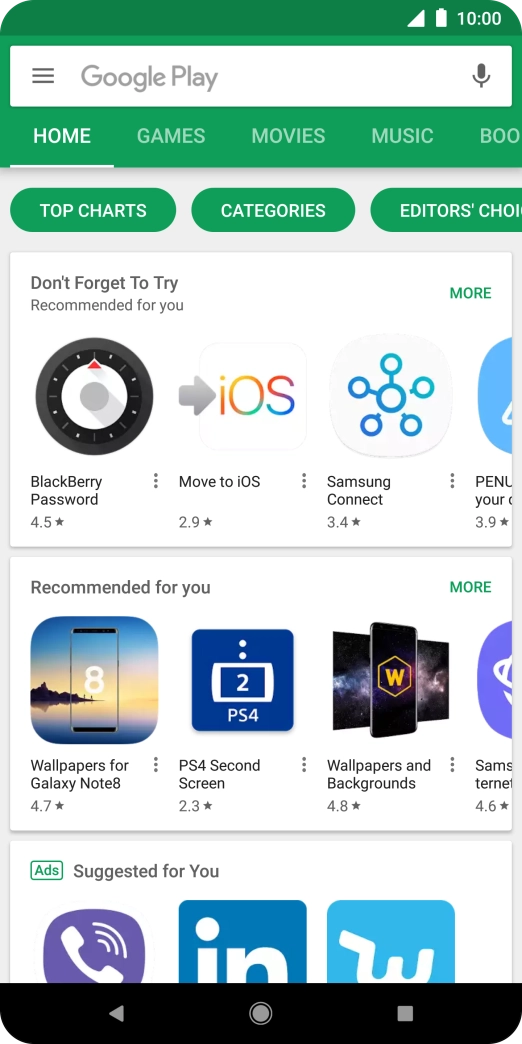
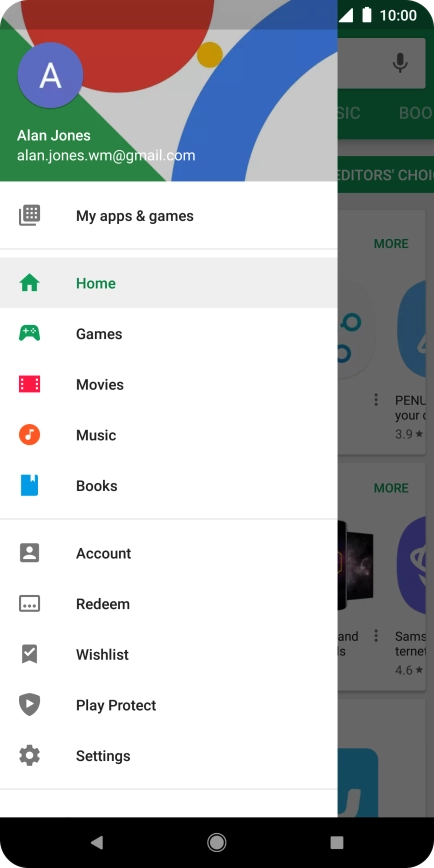
Slide your finger right starting from the left side of the screen.
Step 2 of 8

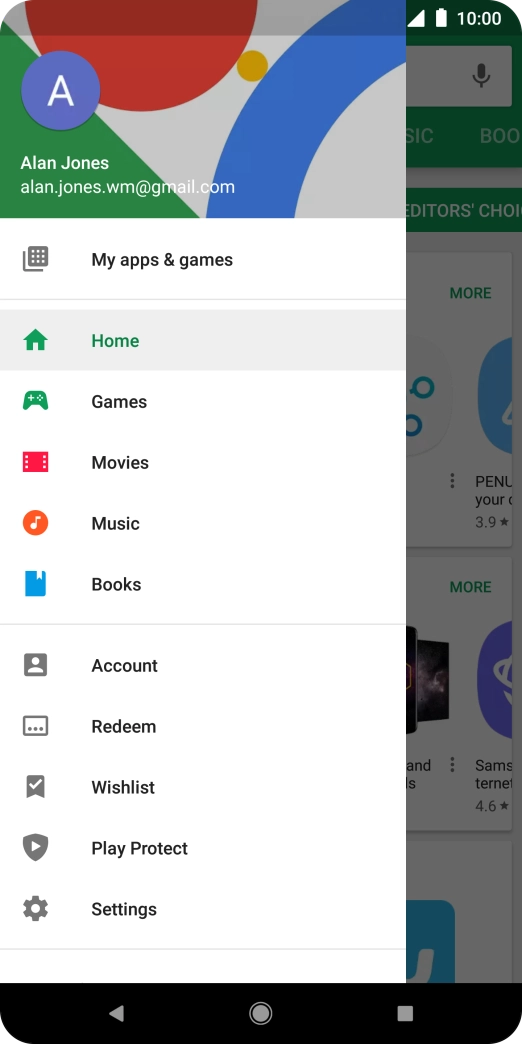
Slide your finger right starting from the left side of the screen.

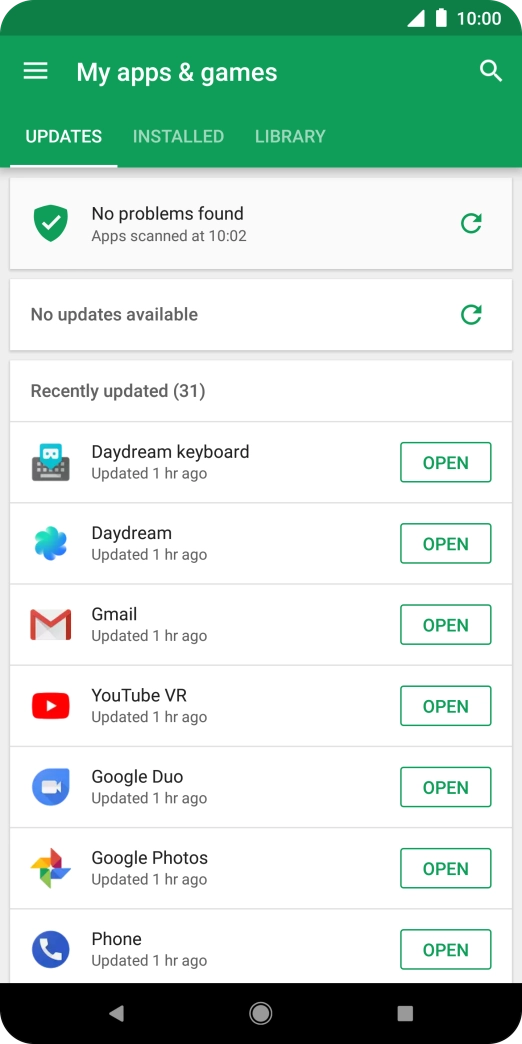
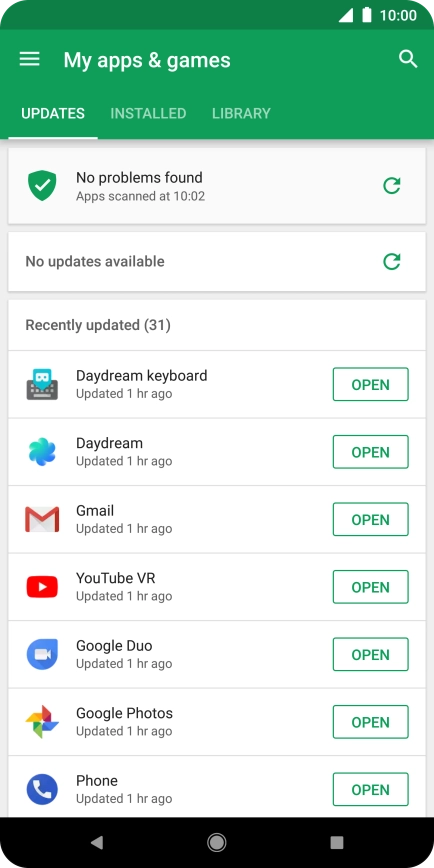
Press My apps & games.
Step 3 of 8

Press My apps & games.

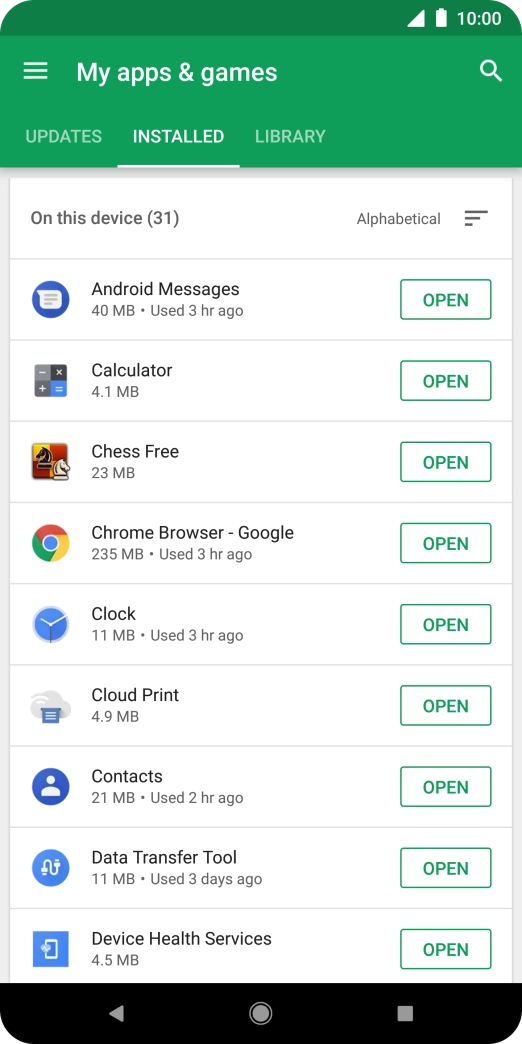
Press INSTALLED.
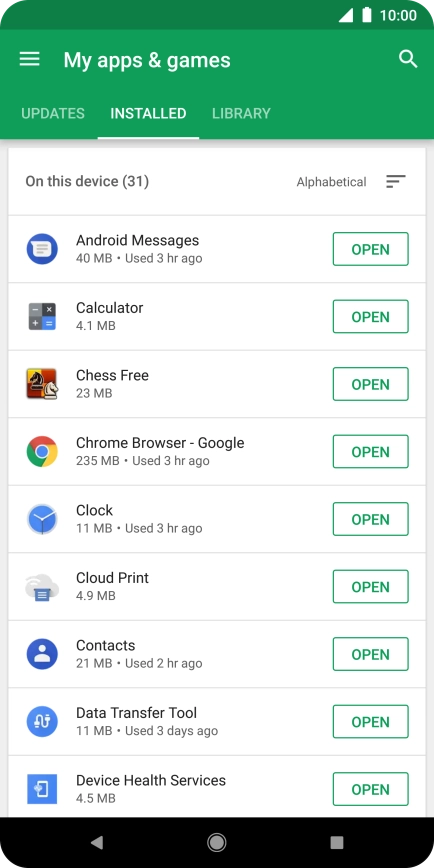
Press INSTALLED.
Step 4 of 8

Press INSTALLED.

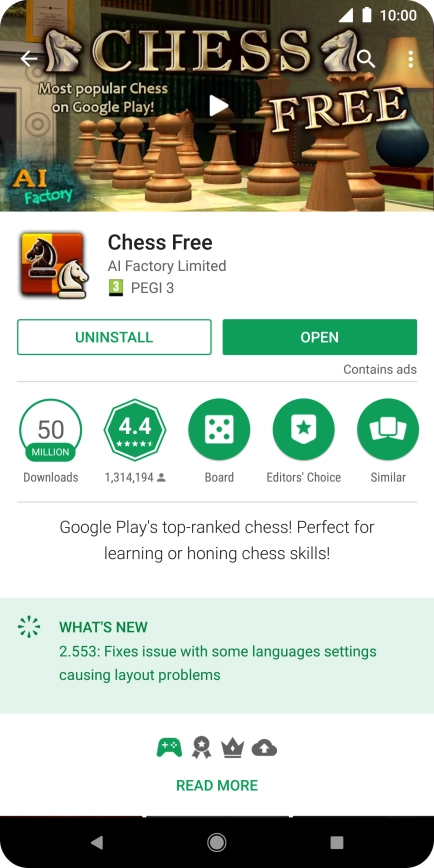
Press the required app.
Step 5 of 8

Press the required app.

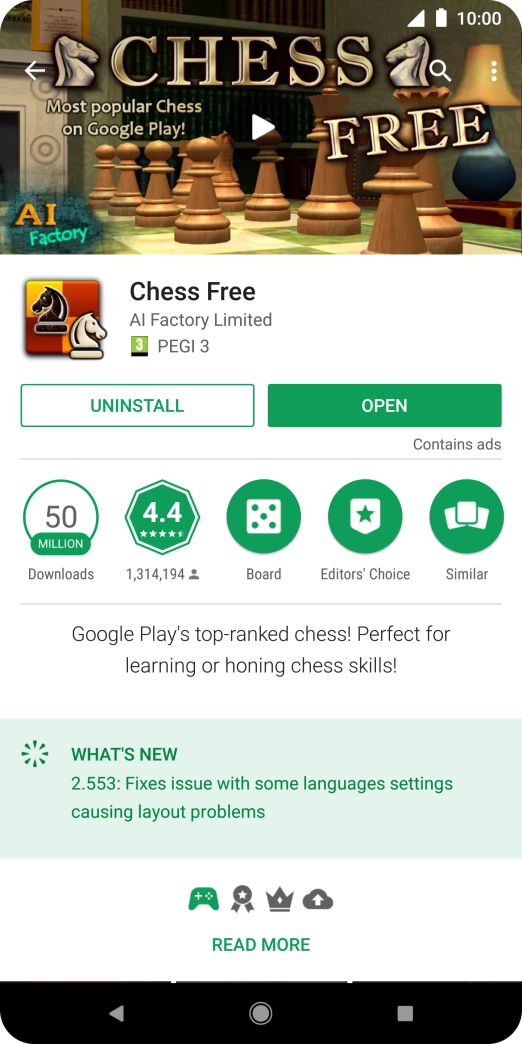
Press UNINSTALL.
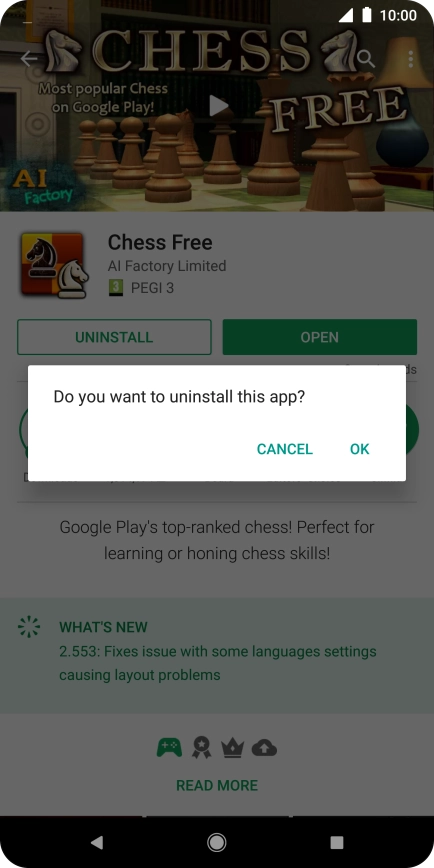
Press UNINSTALL.
Step 6 of 8

Press UNINSTALL.

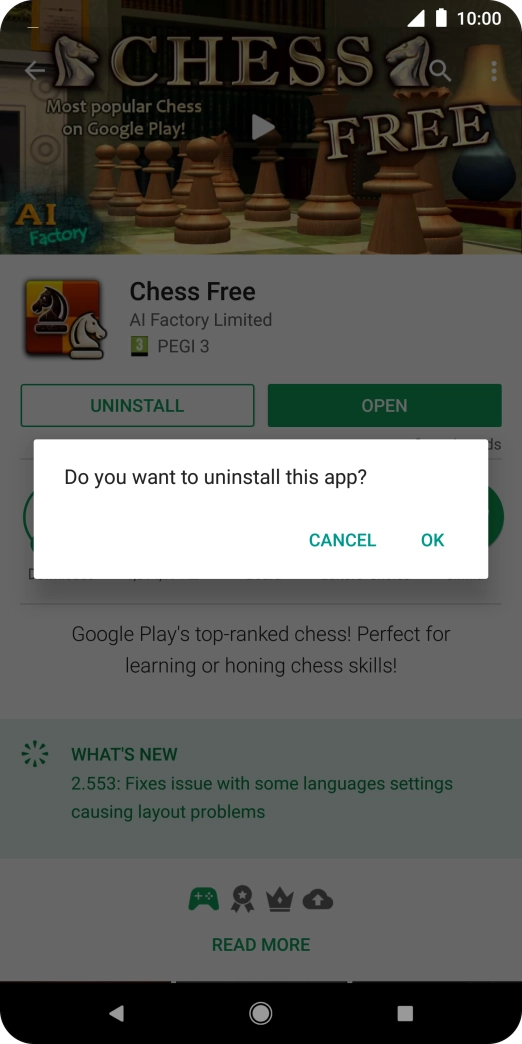
Press OK.
Press OK.
Step 7 of 8

Press OK.

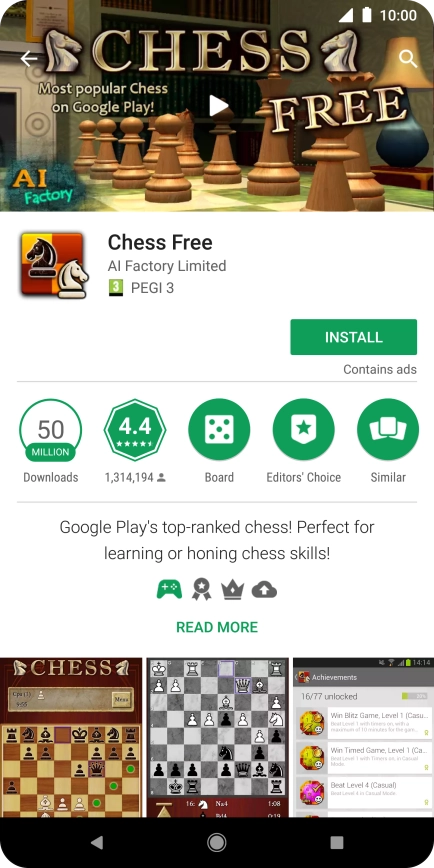
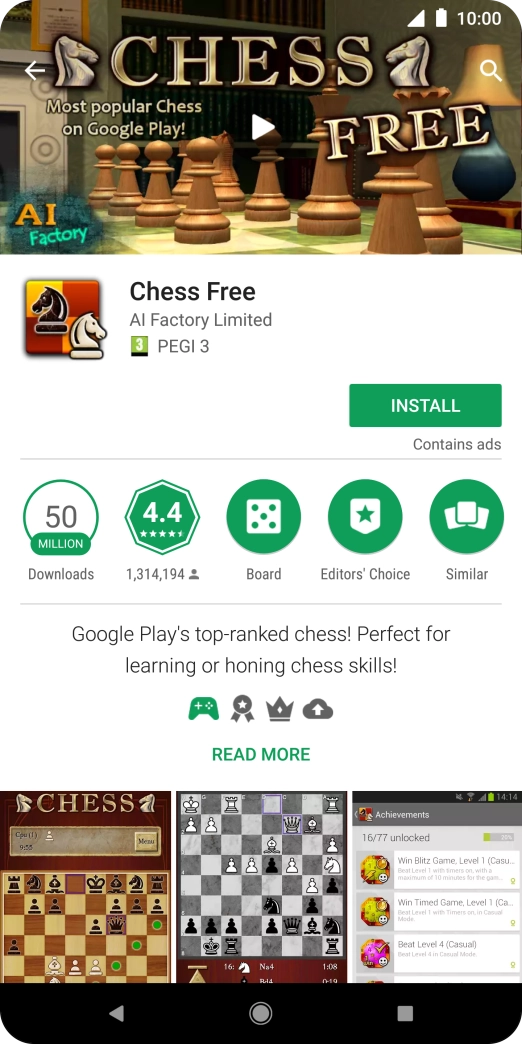
Press the Home key to return to the home screen.
Step 8 of 8

Press the Home key to return to the home screen.

Get information on...

Or choose...

Show more