


Help
Device guides
Google
Pixel 3

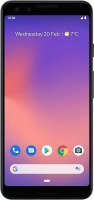
Google Pixel 3

f-51305c6d-9b1e-4727-b483-8b25745dd782
f-3fc32557-2fce-431c-8582-c37c236394f0
f-d334cf92-fd74-42c8-abcf-79f8d40d3112
f-6b142333-f11c-47fe-9e82-af359ee2a7fc
f-7139a432-9fae-4055-81f3-8c085495dd94
f-89949903-ae66-4883-a5e3-31f9a3fc83f8
  • Device home
  • Getting started
  • Basic functions
  • Calls, contacts, messaging
  • Connectivity
  • Specifications
  • Device home
  • Getting started
  • Basic functions
  • Calls, contacts, messaging
  • Connectivity
  • Specifications

Uninstalling apps

You can uninstall apps to free up memory.

Press the Play Store icon.
Step 1 of 8

Press the Play Store icon.

Slide your finger right starting from the left side of the screen.
Step 2 of 8

Slide your finger right starting from the left side of the screen.

Press My apps & games.
Step 3 of 8

Press My apps & games.

Press INSTALLED.
Press INSTALLED.
Step 4 of 8

Press INSTALLED.

Press the required app.
Step 5 of 8

Press the required app.

Press UNINSTALL.
Press UNINSTALL.
Step 6 of 8

Press UNINSTALL.

Press OK.
Press OK.
Step 7 of 8

Press OK.

Press the Home key to return to the home screen.
Step 8 of 8

Press the Home key to return to the home screen.

Get information on...

Or choose...

Show more