
Help
Device guides
Google
Pixel 3a XL

Google Pixel 3a XL

f-731a901e-06c3-44bc-9ce4-1e508155f34b
f-57eeced3-a0e5-4241-a723-04fb36e8b279
f-27748b55-08fe-4487-b051-c0032f7becbf
f-8c34e1e4-dc89-462e-916f-14daadf44ee1
f-5c92c606-cd23-4552-abe0-2fb4577e1a97
f-193359b3-5c38-45d8-851f-c0bea8b35fa1
  • Device home
  • Getting started
  • Basic functions
  • Calls, contacts, messaging
  • Connectivity
  • Specifications
  • Device home
  • Getting started
  • Basic functions
  • Calls, contacts, messaging
  • Connectivity
  • Specifications

Uninstalling apps

You can uninstall apps to free up memory.
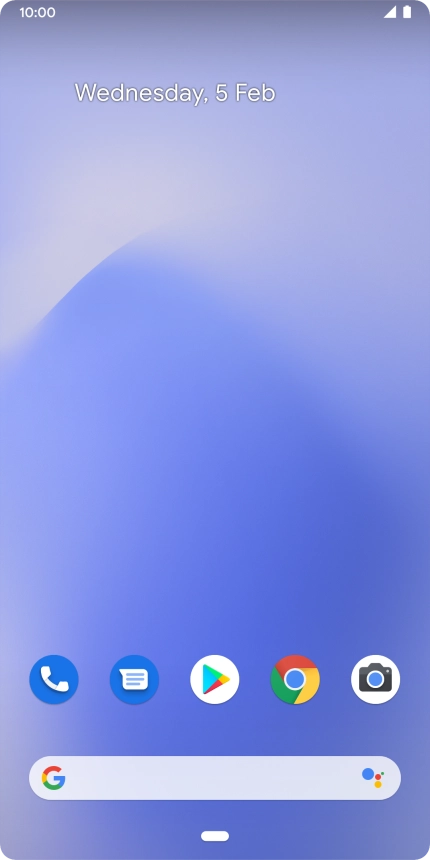
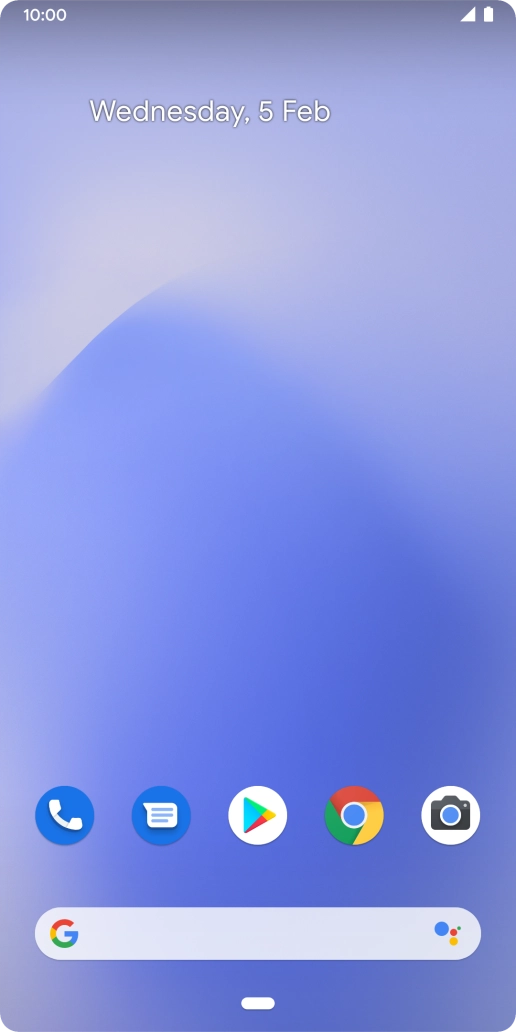
Press the Google Play icon.
Step 1 of 8

Press the Google Play icon.

Slide your finger right starting from the left side of the screen.
Step 2 of 8

Slide your finger right starting from the left side of the screen.

Press My apps & games.
Step 3 of 8

Press My apps & games.

Press Installed.
Press Installed.
Step 4 of 8

Press Installed.

Press the required app.
Step 5 of 8

Press the required app.

Press Uninstall.
Press Uninstall.
Step 6 of 8

Press Uninstall.

Press OK.
Press OK.
Step 7 of 8

Press OK.

Press the Home key to return to the home screen.
Step 8 of 8

Press the Home key to return to the home screen.

Get information on...

Or choose...

Show more