



Help
Device guides
Google
Pixel 5

Google Pixel 5

f-85e245c2-49f3-4ba5-a468-19885b2a12f5
f-d179a928-2af1-4ecc-891c-8f2992040f73
f-b42fd2c9-de8f-4514-9b49-f6404cea6990
f-405c4984-fd21-4ed5-bc29-57d803bc99f8
f-e03a5b3f-b7f4-4f57-84f6-85bfc7703d19
f-10681a4b-a3a0-4d8f-a7fe-227728260f9b
  • Device home
  • Getting started
  • Basic functions
  • Calls, contacts, messaging
  • Connectivity
  • Specifications
  • Device home
  • Getting started
  • Basic functions
  • Calls, contacts, messaging
  • Connectivity
  • Specifications

Taking screenshot

You can take a picture of your screen if you want to share something with your friends or save the picture for later use.

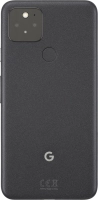
Press On/Off.
Press On/Off.
Step 1 of 2

Press On/Off.

At the same time, press and hold the lower part of the Volume key and keep them both pressed to take a screenshot.
Step 2 of 2

At the same time, press and hold the lower part of the Volume key and keep them both pressed to take a screenshot.

The picture is saved in the phone gallery.

Get information on...

Or choose...

Show more