Help
Device guides
Google
Pixel 9 Pro Fold

Google Pixel 9 Pro Fold
f-e75bdf09-7ab4-4dd7-928c-11f430927df8
f-44f7c04a-6bc2-4749-bdb2-990c2af51342
f-8abbf108-7b95-48e8-b8dc-73bbbcaf6684
f-b9efcfd7-8ab7-4227-b6a2-0487d1b7740c
f-362d9d3e-c149-444e-baa7-188e72295009
f-54270377-0aca-4af2-a3f5-a24e77da0f86
f-6c190ae5-813c-4959-893e-177f733d6dbb
  • Device home
  • Getting started
  • Basic functions
  • Calls, contacts, messaging
  • Connectivity
  • Specifications
  • Device home
  • Getting started
  • Basic functions
  • Calls, contacts, messaging
  • Connectivity
  • Specifications

Activating eSIM

In addition to your normal SIM, you can also use an eSIM in your phone. An eSIM is a digital SIM that enables you to activate a price plan without the use of a physical SIM. To activate your eSIM you need to set up your phone for internet or establish a connection to a Wi-Fi network.

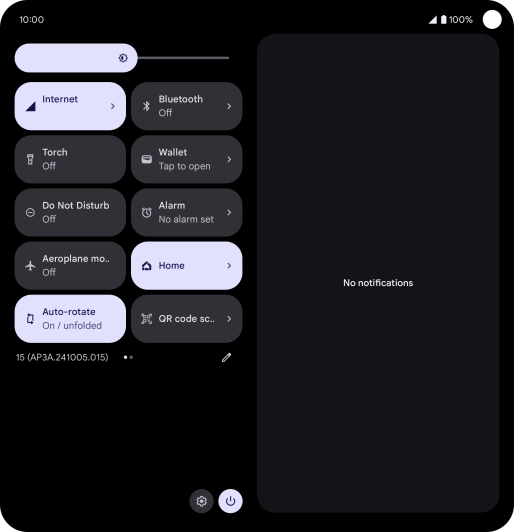
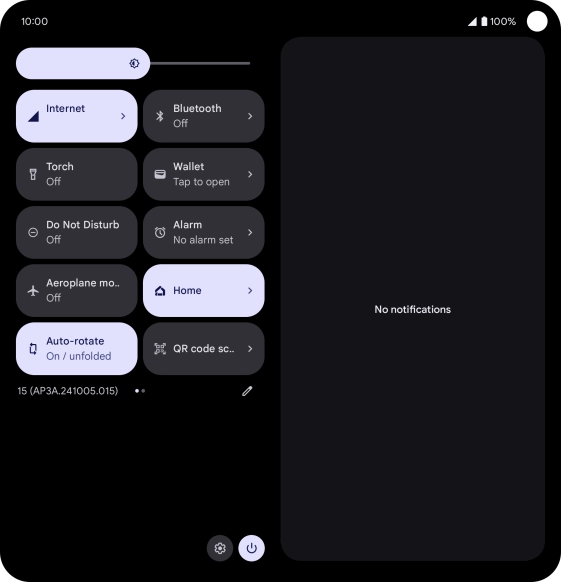
Slide two fingers downwards starting from the top of the screen.
Step 1 of 8

Slide two fingers downwards starting from the top of the screen.

Press the settings icon.
Step 2 of 8

Press the settings icon.

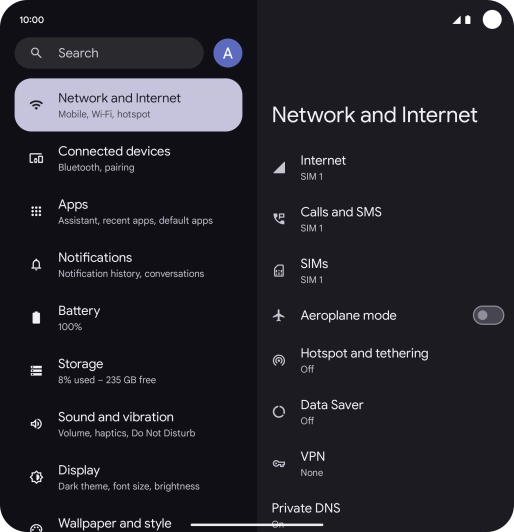
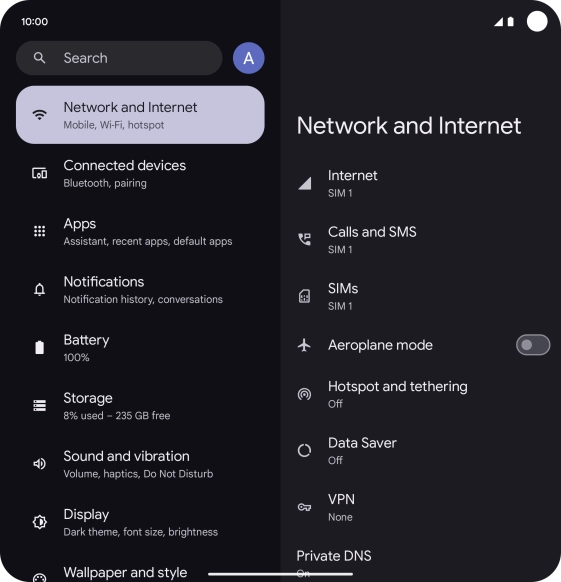
Press Network and Internet.
Step 3 of 8

Press Network and Internet.

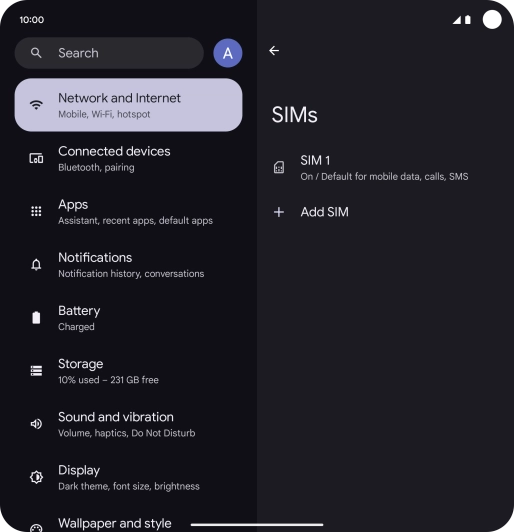
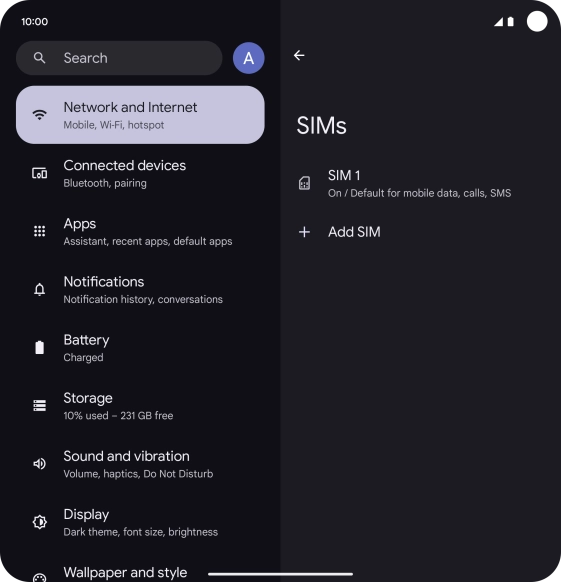
Press SIMs.
Press SIMs.
Step 4 of 8

Press SIMs.

Press Add SIM.
Press Add SIM.
Step 5 of 8

Press Add SIM.

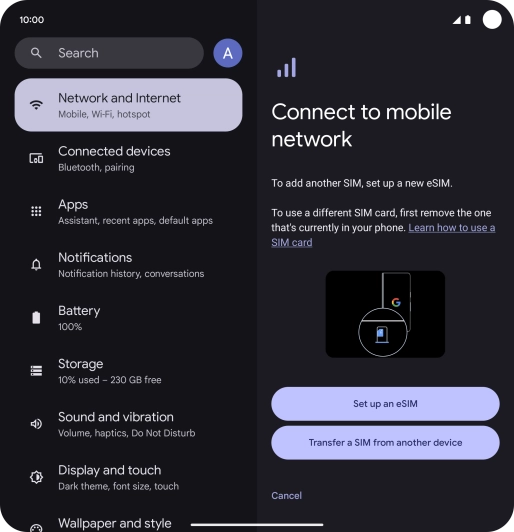
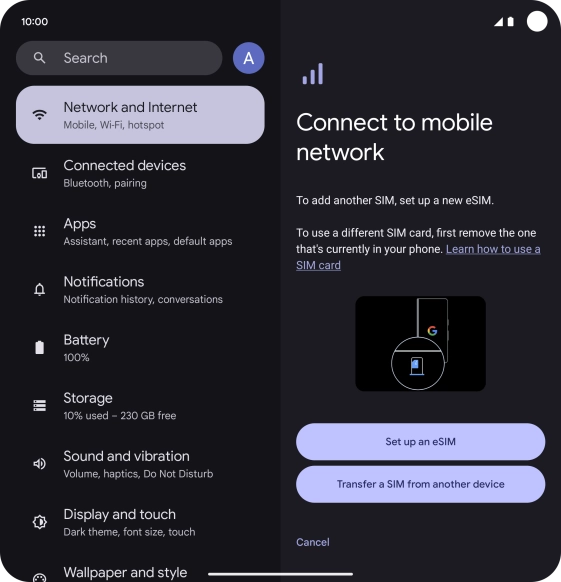
Press Set up an eSIM.
Step 6 of 8

Press Set up an eSIM.

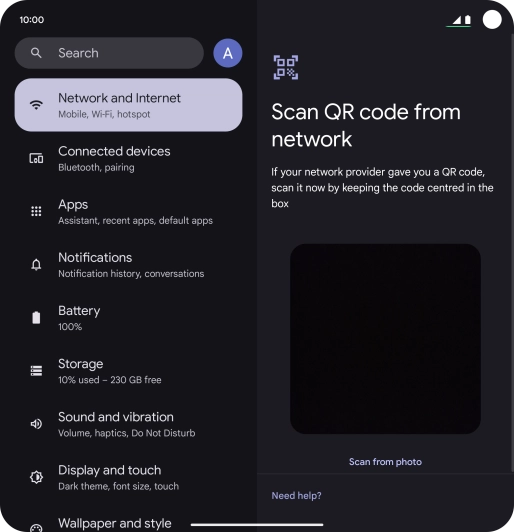
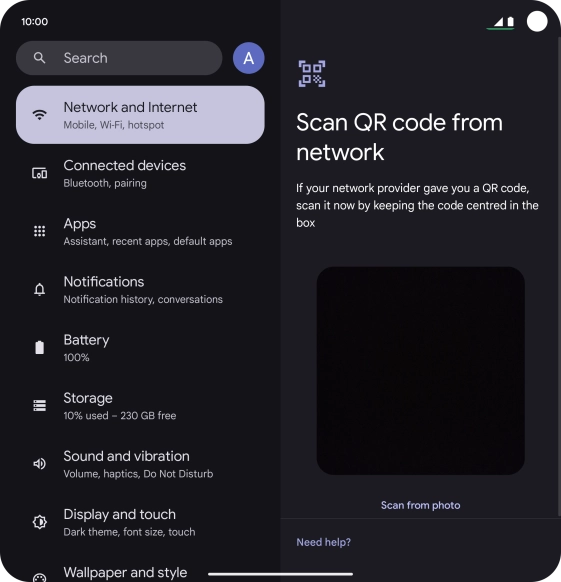
Place the QR code you've received inside the phone camera frame to scan the code.
Step 7 of 8

Place the QR code you've received inside the phone camera frame to scan the code.

Google Pixel 9 Pro Fold


Step 8 of 8

Follow the instructions on the screen to complete the activation of your eSIM.

Get information on...

Or choose...

Show more