





Help
Device guides
Google
Pixel 9a

Google Pixel 9a

f-c35aa2d7-03a3-4fac-b2e4-684704e0d94a
f-e583ad98-2e92-4857-9a03-ab3d96fb4646
f-1d764f20-07a0-4f2d-aac1-2d9a184d8c82
f-2110be86-fd47-45e2-8a64-a27174927e1a
f-27982d45-d313-444d-a3bc-902878e377f3
f-a4d33411-c42d-4343-ba35-cb519cf38a6c
f-1b32f7fb-4034-4e6f-a584-d7d8816b392d
f-17ebdd3c-6e06-49da-8ca7-9a0e6d9c453b
  • Device home
  • Getting started
  • Basic functions
  • Calls, contacts, messaging
  • Connectivity
  • Specifications
  • Device home
  • Getting started
  • Basic functions
  • Calls, contacts, messaging
  • Connectivity
  • Specifications

It's not possible to use Wi-Fi calling

Solution 1 of 4: Wi-Fi calling is turned off

When Wi-Fi calling is turned on, you can make and answer calls using a Wi-Fi network when you're in an area with little or no network coverage. To turn on Wi-Fi calling, you need to establish a connection to a Wi-Fi network, select 4G (LTE) as network mode and follow the steps below. You can also visit the EE web page for more information about Wi-Fi calling.
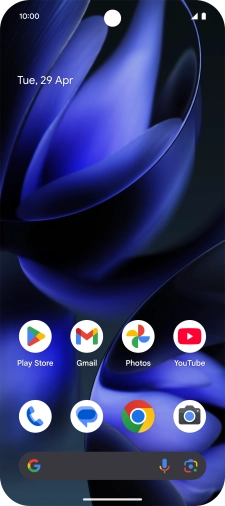
Press the call icon.
Step 1 of 8

Press the call icon.

Press the menu icon.
Step 2 of 8

Press the menu icon.

Press Settings.
Press Settings.
Step 3 of 8

Press Settings.

Press Calling accounts.
Step 4 of 8

Press Calling accounts.

Press the name of the SIM.
Step 5 of 8

Press the name of the SIM.

Press Wi-Fi calling.
Step 6 of 8

Press Wi-Fi calling.

Press the indicator next to
Step 7 of 8

Press the indicator next to "Use Wi-Fi calling" to turn the function on or off.

Slide your finger upwards starting from the bottom of the screen to return to the home screen.
Step 8 of 8

Slide your finger upwards starting from the bottom of the screen to return to the home screen.


Did this solve your problem?

Yes No

Get information on...

Or choose...

Show more