Help
Device guides
Google
Pixel Watch 2

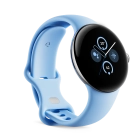
Google Pixel Watch 2
f-6f9fc30b-16a6-4d11-be04-051e0e3a1013
f-b4c90329-2d16-45a4-999d-5c43d91ba0c3
f-0f62a606-a06e-43c3-a6cf-15450f0d9f46
f-8cfa198d-0b40-43e9-91c0-c87e78c6ec06
f-e19324dd-2d01-497a-aff0-23dc54778b8e
f-7fdad4be-a54c-4f2e-ba10-160a0e0ad967
f-e0d3a0d7-9e9f-4a6c-8b54-1e30cb687fab
  • Device home
  • Getting started
  • Basic functions
  • Calls, contacts, messaging
  • Connectivity
  • Specifications
  • Device home
  • Getting started
  • Basic functions
  • Calls, contacts, messaging
  • Connectivity
  • Specifications

I can't update the software on my smartwatch

Solution 3 of 3: The software isn't updated correctly

It's recommended that you update your smartwatch with the newest software, as the manufacturer continuously corrects errors.
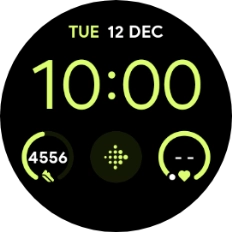
Slide your finger downwards starting from the top of the screen.
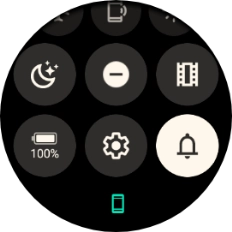
Step 1 of 4

Slide your finger downwards starting from the top of the screen.

Press the settings icon.
Step 2 of 4

Press the settings icon.

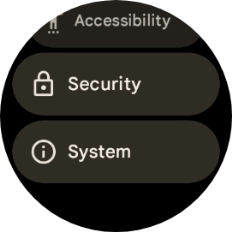
Press System.
Press System.
Step 3 of 4

Press System.

Press System updates. If a new software version is available, it's displayed. Follow the instructions on the screen to update the smartwatch software.
Step 4 of 4

Press System updates. If a new software version is available, it's displayed. Follow the instructions on the screen to update the smartwatch software.


Did this solve your problem?

Yes No

Get information on...

Or choose...

Show more