Help
Device guides
Google
Pixel Watch 2

Google Pixel Watch 2
f-6f9fc30b-16a6-4d11-be04-051e0e3a1013
f-b4c90329-2d16-45a4-999d-5c43d91ba0c3
f-0f62a606-a06e-43c3-a6cf-15450f0d9f46
f-8cfa198d-0b40-43e9-91c0-c87e78c6ec06
f-e19324dd-2d01-497a-aff0-23dc54778b8e
f-7fdad4be-a54c-4f2e-ba10-160a0e0ad967
f-e0d3a0d7-9e9f-4a6c-8b54-1e30cb687fab
  • Device home
  • Getting started
  • Basic functions
  • Calls, contacts, messaging
  • Connectivity
  • Specifications
  • Device home
  • Getting started
  • Basic functions
  • Calls, contacts, messaging
  • Connectivity
  • Specifications

I can't use mobile data on my smartwatch

Solution 1 of 4: Your smartwatch isn't correctly set up for mobile data.

You can set up mobile data on your smartwatch allowing you to make and receive calls and use apps without being connected to your phone.
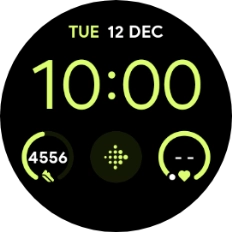
Slide your finger downwards starting from the top of the screen.
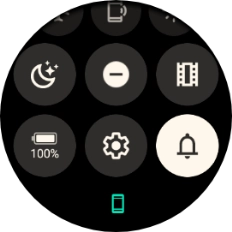
Step 1 of 9

Slide your finger downwards starting from the top of the screen.

Press the settings icon.
Step 2 of 9

Press the settings icon.

Press Connectivity.
Press Connectivity.
Step 3 of 9

Press Connectivity.

Press Mobile.
Press Mobile.
Step 4 of 9

Press Mobile.

Press Mobile.
Press Mobile.
Step 5 of 9

Press Mobile.

Press Automatic to turn on mobile data.
Step 6 of 9

Press Automatic to turn on mobile data.

On your phone: Press Watch.
Step 7 of 9

On your phone: Press Watch.

On your phone: Press Mobile network.
Step 8 of 9

On your phone: Press Mobile network.

On your phone: Follow the instructions on the screen to set up mobile data.
Step 9 of 9

On your phone: Follow the instructions on the screen to set up mobile data.


Did this solve your problem?

Yes No

Get information on...

Or choose...

Show more