Help
Device guides
Google
Pixel Watch 2

Google Pixel Watch 2
f-6f9fc30b-16a6-4d11-be04-051e0e3a1013
f-b4c90329-2d16-45a4-999d-5c43d91ba0c3
f-0f62a606-a06e-43c3-a6cf-15450f0d9f46
f-8cfa198d-0b40-43e9-91c0-c87e78c6ec06
f-e19324dd-2d01-497a-aff0-23dc54778b8e
f-7fdad4be-a54c-4f2e-ba10-160a0e0ad967
f-e0d3a0d7-9e9f-4a6c-8b54-1e30cb687fab
  • Device home
  • Getting started
  • Basic functions
  • Calls, contacts, messaging
  • Connectivity
  • Specifications
  • Device home
  • Getting started
  • Basic functions
  • Calls, contacts, messaging
  • Connectivity
  • Specifications

Using voice control

You can control many of the smartwatch functions with your voice. You can make calls, dictate messages and more.

Press and hold the Side key to activate voice control.
Step 1 of 4

Press and hold the Side key to activate voice control.

If you've turned on automatic activation, you can activate voice control by saying "Hey Google" when the screen on your smartwatch is turned on.
Google Pixel Watch 2
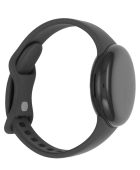
Step 2 of 4

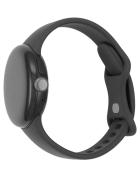
Say, in your own words, what you would like your smartwatch to do.

Google Pixel Watch 2
Step 3 of 4

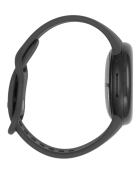
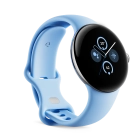
E.g.: CALL [contact], PLAY MUSIC, SET ALARM FOR [time], SEARCH THE WEB FOR [information].

Press the crown to return to the home screen.
Step 4 of 4

Press the crown to return to the home screen.

Get information on...

Or choose...

Show more