Help
Device guides
Google
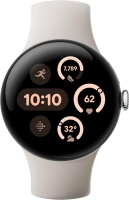
Pixel Watch 3

Google Pixel Watch 3
f-28d7b470-a137-406e-ba80-001ed214dade
f-05fc277e-71f0-4097-9484-dba818d7b3cf
f-d1d9b450-0430-4080-bdec-0905b094149c
f-29176207-ca23-4f58-bad6-87c04befc608
f-fe83c82a-1358-40f9-aa09-5fa4939d67e9
f-01dc7835-4ea8-4682-8d28-57099ca39e7e
f-b9a3a2d1-f309-4a39-a3d0-6845f59d7bce
  • Device home
  • Getting started
  • Basic functions
  • Calls, contacts, messaging
  • Connectivity
  • Specifications
  • Device home
  • Getting started
  • Basic functions
  • Calls, contacts, messaging
  • Connectivity
  • Specifications

Adjusting screen brightness

You can adjust the screen brightness to your surroundings.

Slide your finger downwards starting from the top of the screen.
Step 1 of 7

Slide your finger downwards starting from the top of the screen.

Press the settings icon.
Step 2 of 7

Press the settings icon.

Press Display.
Press Display.
Step 3 of 7

Press Display.

Press Brightness.
Press Brightness.
Step 4 of 7

Press Brightness.

Press the indicator next to
Step 5 of 7

Press the indicator next to "Adaptive brightness" to turn the function on or off.

Press the plus icon or the minus icon to select the required brightness.
Step 6 of 7

Press the plus icon or the minus icon to select the required brightness.

Press the crown to return to the home screen.
Step 7 of 7

Press the crown to return to the home screen.

Get information on...

Or choose...

Show more