Help
Device guides
Google
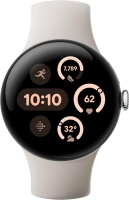
Pixel Watch 3

Google Pixel Watch 3
f-28d7b470-a137-406e-ba80-001ed214dade
f-05fc277e-71f0-4097-9484-dba818d7b3cf
f-d1d9b450-0430-4080-bdec-0905b094149c
f-29176207-ca23-4f58-bad6-87c04befc608
f-fe83c82a-1358-40f9-aa09-5fa4939d67e9
f-01dc7835-4ea8-4682-8d28-57099ca39e7e
f-b9a3a2d1-f309-4a39-a3d0-6845f59d7bce
  • Device home
  • Getting started
  • Basic functions
  • Calls, contacts, messaging
  • Connectivity
  • Specifications
  • Device home
  • Getting started
  • Basic functions
  • Calls, contacts, messaging
  • Connectivity
  • Specifications

Personalising the home screen on your smartwatch

You can change many home screen settings, such as the watch face.

Press and hold the middle of your watch.
Step 1 of 22

Press and hold the middle of your watch.

Slide your finger left on the screen.
Step 2 of 22

Slide your finger left on the screen.

Press the add icon.
Press the add icon.
Step 3 of 22

Press the add icon.

Slide your finger up or down to see the available watch faces.
Step 4 of 22

Slide your finger up or down to see the available watch faces.

Press the required watch face to add it.
Step 5 of 22

Press the required watch face to add it.

Press and hold the middle of your watch.
Step 6 of 22

Press and hold the middle of your watch.

Slide your finger left to see the available watch faces.
Step 7 of 22

Slide your finger left to see the available watch faces.

Press the required watch face.
Step 8 of 22

Press the required watch face.

Press the crown.
Press the crown.
Step 9 of 22

Press the crown.

Press and hold the middle of your watch.
Step 10 of 22

Press and hold the middle of your watch.

Press the edit icon.
Step 11 of 22

Press the edit icon.

Slide your finger on the screen to change between the different design options.
Step 12 of 22

Slide your finger on the screen to change between the different design options.

Turn the Crown to select the required settings.
Step 13 of 22

Turn the Crown to select the required settings.

When you've selected the required design, press the crown.
Step 14 of 22

When you've selected the required design, press the crown.

Slide your finger left on the screen.
Step 15 of 22

Slide your finger left on the screen.

Press and hold any widget.
Step 16 of 22

Press and hold any widget.

Press the add widget icon.
Step 17 of 22

Press the add widget icon.

Slide your finger upwards on the screen to see the different widgets.
Step 18 of 22

Slide your finger upwards on the screen to see the different widgets.

Press the required widget to add it.
Step 19 of 22

Press the required widget to add it.

Press and hold the required widget.
Step 20 of 22

Press and hold the required widget.

Slide your finger upwards on the required widget to remove it.
Step 21 of 22

Slide your finger upwards on the required widget to remove it.

Press the crown to return to the home screen.
Step 22 of 22

Press the crown to return to the home screen.

Get information on...

Or choose...

Show more