Help
Device guides
Google
Pixel Watch 3

Google Pixel Watch 3
f-28d7b470-a137-406e-ba80-001ed214dade
f-05fc277e-71f0-4097-9484-dba818d7b3cf
f-d1d9b450-0430-4080-bdec-0905b094149c
f-29176207-ca23-4f58-bad6-87c04befc608
f-fe83c82a-1358-40f9-aa09-5fa4939d67e9
f-01dc7835-4ea8-4682-8d28-57099ca39e7e
f-b9a3a2d1-f309-4a39-a3d0-6845f59d7bce
  • Device home
  • Getting started
  • Basic functions
  • Calls, contacts, messaging
  • Connectivity
  • Specifications
  • Device home
  • Getting started
  • Basic functions
  • Calls, contacts, messaging
  • Connectivity
  • Specifications

Viewing software version

You can see which software version is installed on your smartwatch. If you don't have the newest software version, it's recommended that you update the smartwatch software.

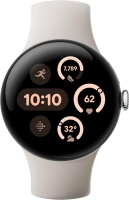
Slide your finger downwards starting from the top of the screen.
Step 1 of 6

Slide your finger downwards starting from the top of the screen.

Press the settings icon.
Step 2 of 6

Press the settings icon.

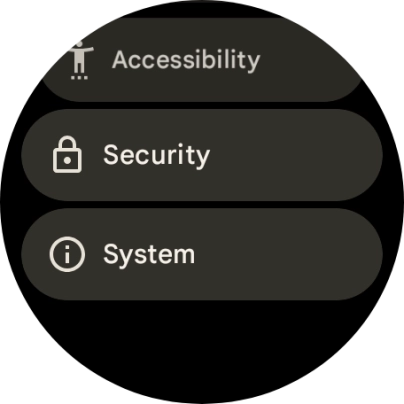
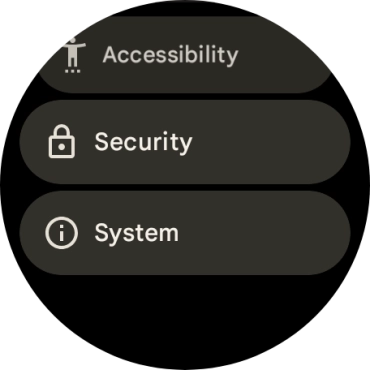
Press System.
Press System.
Step 3 of 6

Press System.

Press About.
Press About.
Step 4 of 6

Press About.

The software information is displayed.
Step 5 of 6

The software information is displayed.

Press the crown to return to the home screen.
Step 6 of 6

Press the crown to return to the home screen.

Get information on...

Or choose...

Show more