Help
Device guides
Google
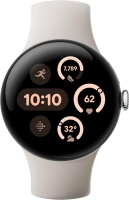
Pixel Watch 3

Google Pixel Watch 3
f-28d7b470-a137-406e-ba80-001ed214dade
f-05fc277e-71f0-4097-9484-dba818d7b3cf
f-d1d9b450-0430-4080-bdec-0905b094149c
f-29176207-ca23-4f58-bad6-87c04befc608
f-fe83c82a-1358-40f9-aa09-5fa4939d67e9
f-01dc7835-4ea8-4682-8d28-57099ca39e7e
f-b9a3a2d1-f309-4a39-a3d0-6845f59d7bce
  • Device home
  • Getting started
  • Basic functions
  • Calls, contacts, messaging
  • Connectivity
  • Specifications
  • Device home
  • Getting started
  • Basic functions
  • Calls, contacts, messaging
  • Connectivity
  • Specifications

Reading email message

You can receive email messages from your email accounts on your smartwatch.

Press the crown.
Press the crown.
Step 1 of 11

Press the crown.

Press the email icon.
Step 2 of 11

Press the email icon.

To read email messages on your smartwatch, you need to set up your email account on your phone using the Gmail app.
Press the menu icon.
Step 3 of 11

Press the menu icon.

Press the required inbox.
Step 4 of 11

Press the required inbox.

Press the required email message to read it.
Step 5 of 11

Press the required email message to read it.

Press Reply.
Press Reply.
Step 6 of 11

Press Reply.

Press the microphone icon and follow the instructions on the screen to record and send the required reply.
Step 7 of 11

Press the microphone icon and follow the instructions on the screen to record and send the required reply.

Press Reply.
Press Reply.
Step 8 of 11

Press Reply.

Press the keypad icon and follow the instructions on the screen to write and send the required reply.
Step 9 of 11

Press the keypad icon and follow the instructions on the screen to write and send the required reply.

Press the delete email message icon.
Step 10 of 11

Press the delete email message icon.

Press the crown to return to the home screen.
Step 11 of 11

Press the crown to return to the home screen.

Get information on...

Or choose...

Show more