Help
Device guides
Google
Pixel Watch 3

Google Pixel Watch 3
f-28d7b470-a137-406e-ba80-001ed214dade
f-05fc277e-71f0-4097-9484-dba818d7b3cf
f-d1d9b450-0430-4080-bdec-0905b094149c
f-29176207-ca23-4f58-bad6-87c04befc608
f-fe83c82a-1358-40f9-aa09-5fa4939d67e9
f-01dc7835-4ea8-4682-8d28-57099ca39e7e
f-b9a3a2d1-f309-4a39-a3d0-6845f59d7bce
  • Device home
  • Getting started
  • Basic functions
  • Calls, contacts, messaging
  • Connectivity
  • Specifications
  • Device home
  • Getting started
  • Basic functions
  • Calls, contacts, messaging
  • Connectivity
  • Specifications

Turning GPS on or off

Your smartwatch can determine your geographical position using GPS (Global Positioning System). The information about your location can be used by a number of applications on your smartwatch such as navigation, SOS function or weather forecast.

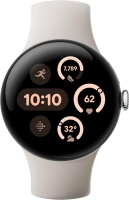
Slide your finger downwards starting from the top of the screen.
Step 1 of 15

Slide your finger downwards starting from the top of the screen.

Press the settings icon.
Step 2 of 15

Press the settings icon.

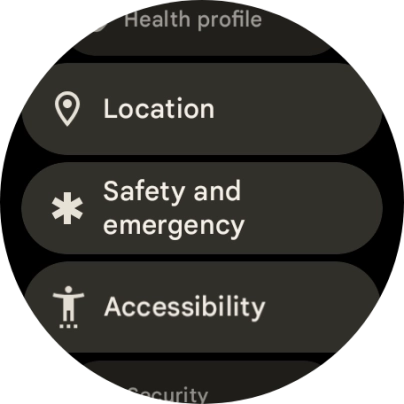
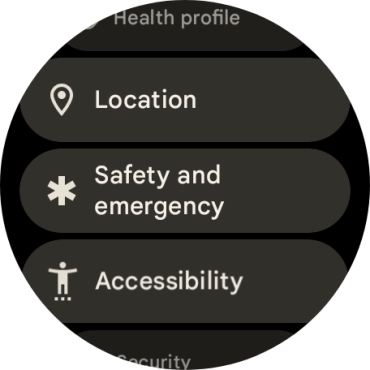
Press Location.
Press Location.
Step 3 of 15

Press Location.

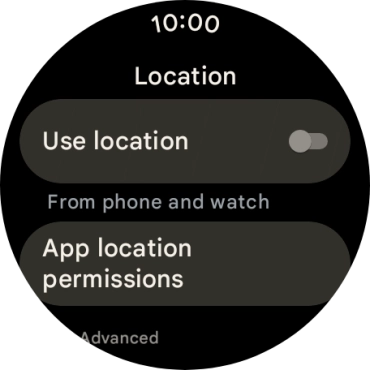
Press the indicator next to
Step 4 of 15

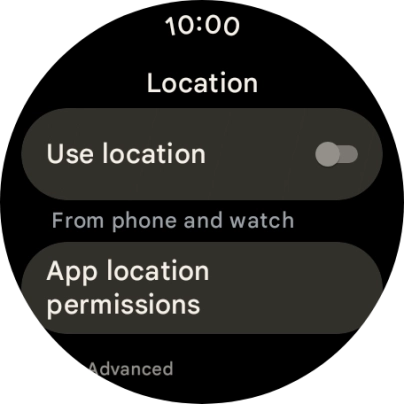
Press the indicator next to "Use location" to turn the function on or off.

If you turn on this function, your phone can find your exact position using GPS. If you turn off the function, you can't use any GPS functions on your phone.
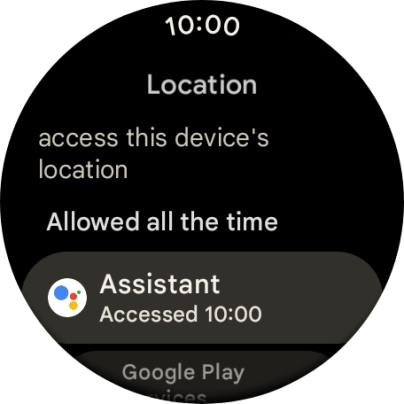
Press App location permissions.
Step 5 of 15

Press App location permissions.

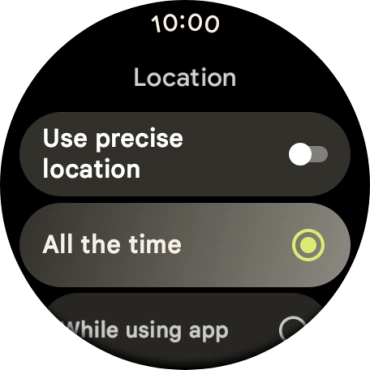
Press the required app.
Step 6 of 15

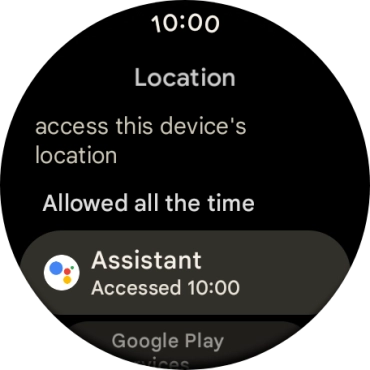
Press the required app.

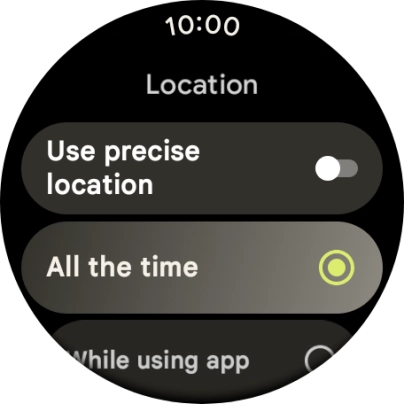
Follow the instructions on the screen to select the required settings and turn the function on or off.
Step 7 of 15

Follow the instructions on the screen to select the required settings and turn the function on or off.

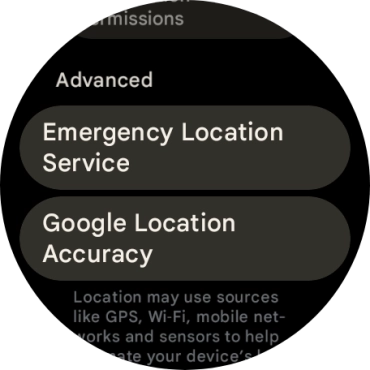
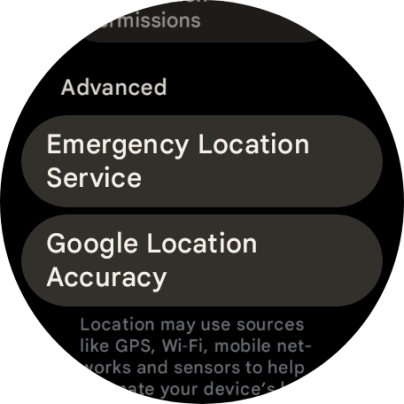
Slide your finger right on the screen twice.
Step 8 of 15

Slide your finger right on the screen twice.

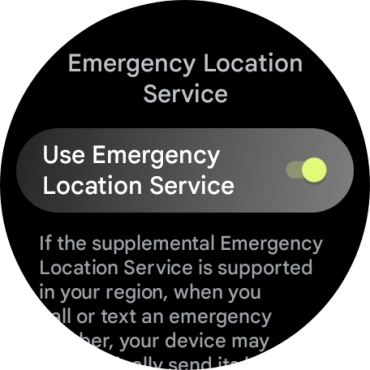
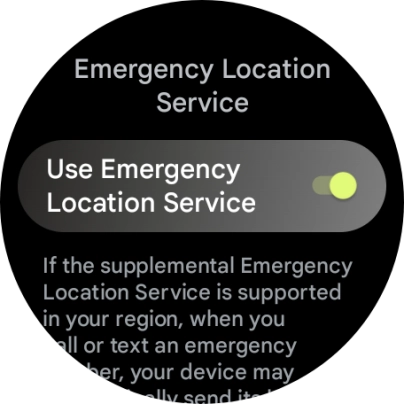
Press Emergency Location Service.
Step 9 of 15

Press Emergency Location Service.

Press the indicator next to
Step 10 of 15

Press the indicator next to "Use Emergency Location Service" to turn the function on or off.

If use of GPS location for emergency calls is turned on, your location will automatically be shared with the emergency dispatch centre during emergency calls in countries where the function is supported.
Slide your finger right on the screen.
Step 11 of 15

Slide your finger right on the screen.

Press Google Location Accuracy.
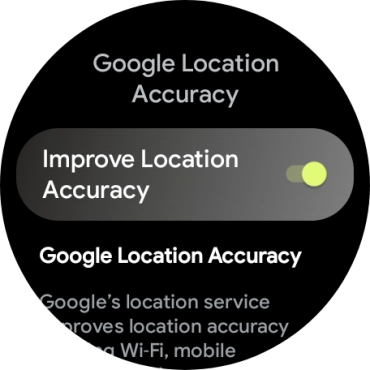
Step 12 of 15

Press Google Location Accuracy.

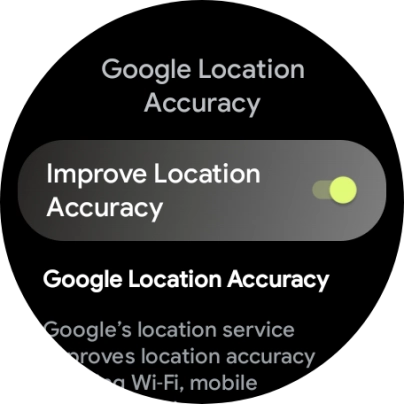
If you press the indicator next to
Step 13 of 15

If you press the indicator next to "Improve Location Accuracy" to turn on the function, your smartwatch can find your exact position using the GPS satellites, the mobile network and nearby Wi-Fi networks. Satellite-based GPS requires a clear view of the sky.

If you press the indicator next to
Step 14 of 15

If you press the indicator next to "Improve Location Accuracy" to turn off the function, your smartwatch can find your exact position using the GPS satellites but it may take longer as there is no access to supplementary information from the mobile network or nearby Wi-Fi networks.

Press the crown to return to the home screen.
Step 15 of 15

Press the crown to return to the home screen.

Get information on...

Or choose...

Show more