Help
Device guides
Google
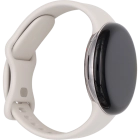
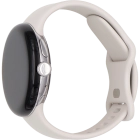
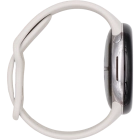
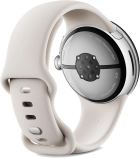
Pixel Watch 3

Google Pixel Watch 3
f-28d7b470-a137-406e-ba80-001ed214dade
f-05fc277e-71f0-4097-9484-dba818d7b3cf
f-d1d9b450-0430-4080-bdec-0905b094149c
f-29176207-ca23-4f58-bad6-87c04befc608
f-fe83c82a-1358-40f9-aa09-5fa4939d67e9
f-01dc7835-4ea8-4682-8d28-57099ca39e7e
f-b9a3a2d1-f309-4a39-a3d0-6845f59d7bce
  • Device home
  • Getting started
  • Basic functions
  • Calls, contacts, messaging
  • Connectivity
  • Specifications
  • Device home
  • Getting started
  • Basic functions
  • Calls, contacts, messaging
  • Connectivity
  • Specifications

Using GPS navigation

You can use your smartwatch for navigation helping you find a certain destination.

Slide your finger downwards starting from the top of the screen.
Step 1 of 14

Slide your finger downwards starting from the top of the screen.

Press the Google Maps icon.
Step 2 of 14

Press the Google Maps icon.

Press the microphone icon and say the required destination.
Step 3 of 14

Press the microphone icon and say the required destination.

Press the confirm icon.
Step 4 of 14

Press the confirm icon.

Press the keypad icon.
Step 5 of 14

Press the keypad icon.

Key in the required destination and press the search icon.
Step 6 of 14

Key in the required destination and press the search icon.

Press the required destination.
Step 7 of 14

Press the required destination.

Press the required mode of transportation.
Step 8 of 14

Press the required mode of transportation.

Follow the instructions on the screen to navigate to the selected destination.
Step 9 of 14

Follow the instructions on the screen to navigate to the selected destination.

Press the map icon to see the route on a map.
Step 10 of 14

Press the map icon to see the route on a map.

Press the route description icon to return to the directions.
Step 11 of 14

Press the route description icon to return to the directions.

Slide your finger upwards starting from the bottom of the screen.
Step 12 of 14

Slide your finger upwards starting from the bottom of the screen.

Press Exit.
Press Exit.
Step 13 of 14

Press Exit.

Press the crown to return to the home screen.
Step 14 of 14

Press the crown to return to the home screen.

Get information on...

Or choose...

Show more