Help
Device guides
Google
Pixel Watch 3

Google Pixel Watch 3
f-28d7b470-a137-406e-ba80-001ed214dade
f-05fc277e-71f0-4097-9484-dba818d7b3cf
f-d1d9b450-0430-4080-bdec-0905b094149c
f-29176207-ca23-4f58-bad6-87c04befc608
f-fe83c82a-1358-40f9-aa09-5fa4939d67e9
f-01dc7835-4ea8-4682-8d28-57099ca39e7e
f-b9a3a2d1-f309-4a39-a3d0-6845f59d7bce
  • Device home
  • Getting started
  • Basic functions
  • Calls, contacts, messaging
  • Connectivity
  • Specifications
  • Device home
  • Getting started
  • Basic functions
  • Calls, contacts, messaging
  • Connectivity
  • Specifications

Selecting accessibility settings

You can select various help function settings for screen, sound and interaction making it easier to use the smartwatch functions.

Slide your finger downwards starting from the top of the screen.
Step 1 of 7

Slide your finger downwards starting from the top of the screen.

Press the settings icon.
Step 2 of 7

Press the settings icon.

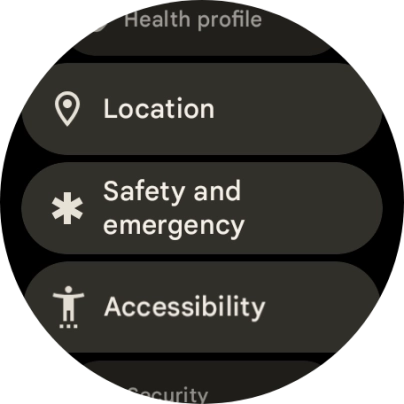
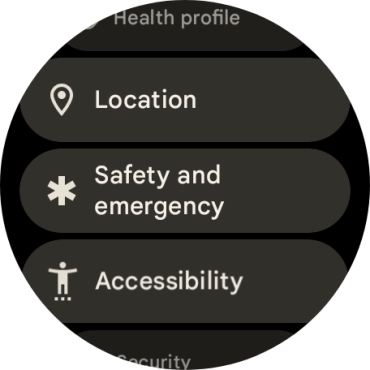
Press Accessibility.
Step 3 of 7

Press Accessibility.

Press TalkBack and follow the instructions on the screen to turn the function on or off.
Step 4 of 7

Press TalkBack and follow the instructions on the screen to turn the function on or off.

With TalkBack turned on, selected menu items will be highlighted and described via speech by your smartwatch.
Press the required category below
Step 5 of 7

Press the required category below "Display" and follow the instructions on the screen to select the required settings.

You can select different settings for screen customisation, such as change contrast, colour and font size making it easier to use the smartwatch screen.
Press the required category below
Step 6 of 7

Press the required category below "General" and follow the instructions on the screen to select the required settings.

You can select additional settings for accessibility functions, such as changing a connected audio device to mono, setting the left/right audio balance of the connected Bluetooth audio device or setting specific accessibility functions that can be activated by pressing the keys on your smartwatch.
Press the crown to return to the home screen.
Step 7 of 7

Press the crown to return to the home screen.

Get information on...

Or choose...

Show more