Help
Device guides
Google
Pixel Watch

Google Pixel Watch

f-fd863b6a-1af8-43ad-b1ee-27f8dedff1be
f-8f6a0610-298e-44d7-918d-5593849dd1bf
f-d07cf61a-4583-4259-ab95-c337909b0d77
f-10ae5d2c-a8ff-4001-b79f-f4fe3054dc7d
f-291543ae-dd7d-4ba4-9b54-dfe106299751
  • Device home
  • Getting started
  • Basic functions
  • Calls, contacts, messaging
  • Connectivity
  • Specifications
  • Device home
  • Getting started
  • Basic functions
  • Calls, contacts, messaging
  • Connectivity
  • Specifications

I can't pair my smartwatch with my phone

Solution 2 of 3: Pairing and activation isn't done correctly

You need to activate your smartwatch before using it for the first time and after a factory reset.

Press and hold the crown until your smartwatch turns on.
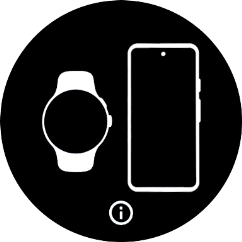
Step 1 of 26

Press and hold the crown until your smartwatch turns on.

Press the information icon.
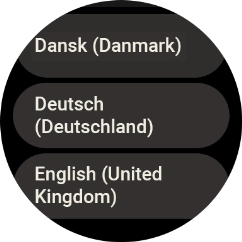
Step 2 of 26

Press the information icon.

Press the required language.
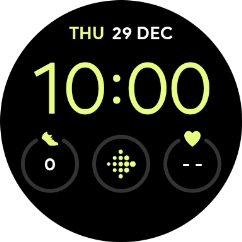
Step 3 of 26

Press the required language.

Place your smartwatch next to your phone.
Step 4 of 26

Place your smartwatch next to your phone.

On your phone: Press Watch.
Step 5 of 26

On your phone: Press Watch.

On your phone: Press Connect.
Step 6 of 26

On your phone: Press Connect.

On your phone: Check that the code is identical to the code displayed on your smartwatch.
Step 7 of 26

On your phone: Check that the code is identical to the code displayed on your smartwatch.

On your phone: Press Confirm.
Step 8 of 26

On your phone: Press Confirm.

On your phone: Press More.
Step 9 of 26

On your phone: Press More.

On your phone: Press I agree.
Step 10 of 26

On your phone: Press I agree.

On your phone: Press Next to log on with your Google account.
Step 11 of 26

On your phone: Press Next to log on with your Google account.

On your phone: Press Enter your password.
Step 12 of 26

On your phone: Press Enter your password.

On your phone: Key in the password for your Google account and press Next.
Step 13 of 26

On your phone: Key in the password for your Google account and press Next.

On your phone: Press Next.
Step 14 of 26

On your phone: Press Next.

On your phone: Press Next.
Step 15 of 26

On your phone: Press Next.

On your phone: Press the required settings.
Step 16 of 26

On your phone: Press the required settings.

On your phone: Press Next.
Step 17 of 26

On your phone: Press Next.

On your phone: Press Not now.
Step 18 of 26

On your phone: Press Not now.

On your phone: Press Next.
Step 19 of 26

On your phone: Press Next.

On your phone: Follow the instructions on the screen to set up Google Assistant or press Skip.
Step 20 of 26

On your phone: Follow the instructions on the screen to set up Google Assistant or press Skip.

On your phone: Press Continue.
Step 21 of 26

On your phone: Press Continue.

On your phone: Follow the instructions on the screen to set up a screen lock or press Skip.
Step 22 of 26

On your phone: Follow the instructions on the screen to set up a screen lock or press Skip.

On your phone: Follow the instructions on the screen to set up Google Wallet or press Skip.
Step 23 of 26

On your phone: Follow the instructions on the screen to set up Google Wallet or press Skip.

On your phone: Follow the instructions on the screen to install the suggested extra apps on your smartwatch or press Skip.
Step 24 of 26

On your phone: Follow the instructions on the screen to install the suggested extra apps on your smartwatch or press Skip.

On your phone: Press Done and wait a moment while the activation of your smartwatch is completed.
Step 25 of 26

On your phone: Press Done and wait a moment while the activation of your smartwatch is completed.

On your phone: When this screen is displayed, your smartwatch is activated and synchronised with your phone.
Step 26 of 26

On your phone: When this screen is displayed, your smartwatch is activated and synchronised with your phone.


Did this solve your problem?

Yes No

Get information on...

Or choose...

Show more