



Help
Device guides
HONOR
400 Pro

HONOR 400 Pro

f-af491fdd-c553-405d-b456-a154ee7430c3
f-4abf4d89-14f6-45d3-848c-cb406bfbe8dd
f-fcf04d42-7e05-4b49-81ef-3d9eba00bd93
f-b235118c-51b6-4298-b8c7-c00409587729
f-e6adf23f-73af-43b4-b006-39893192ad45
f-7611e62f-18c1-4ca0-949a-97d038a3d1f1
f-8be3d7cb-f2e0-4b52-a9f0-9bb15f01d23f
f-f099e569-2a7a-46a1-a3dc-cf86b128c2ab
  • Device home
  • Getting started
  • Basic functions
  • Calls, contacts, messaging
  • Connectivity
  • Specifications
  • Device home
  • Getting started
  • Basic functions
  • Calls, contacts, messaging
  • Connectivity
  • Specifications

Deleting temporary data

When you use apps on your phone, various data is stored temporarily in the phone memory. If your phone runs out of memory, it may help deleting this data.
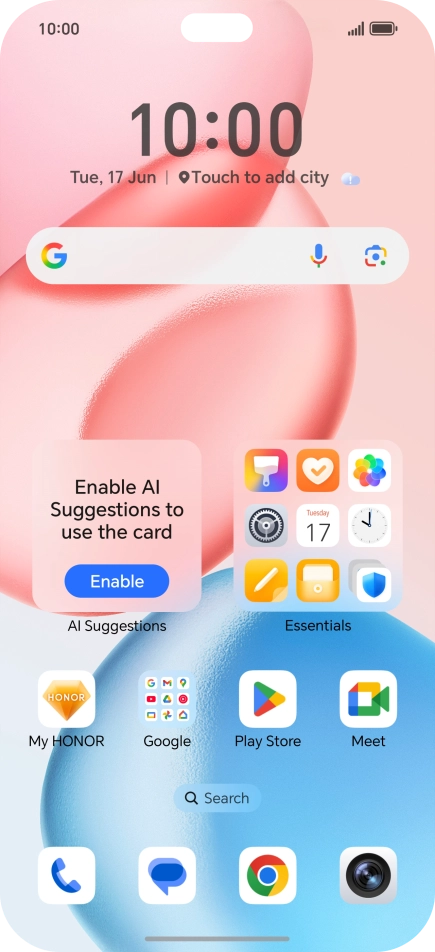
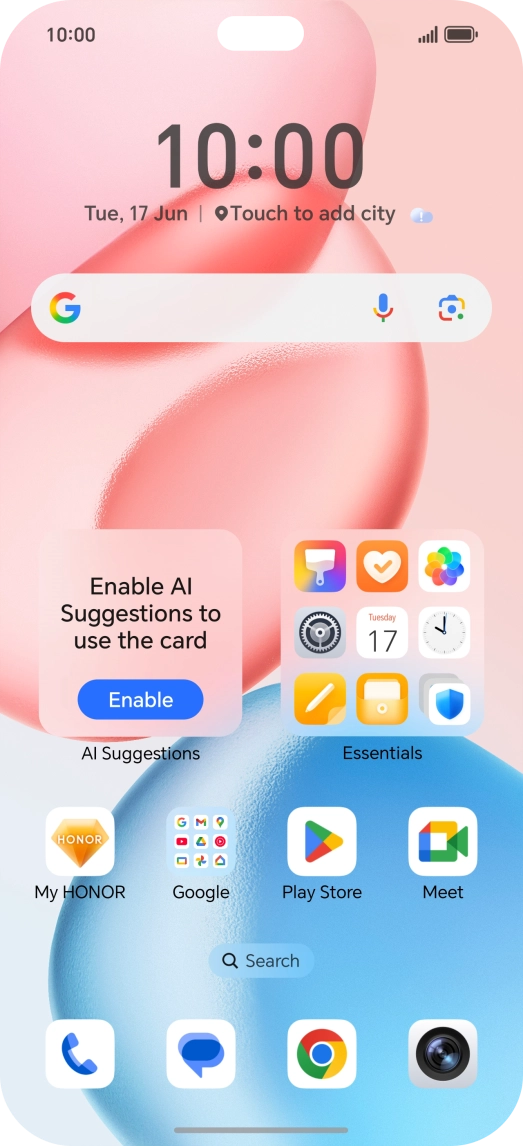
Press the settings icon.
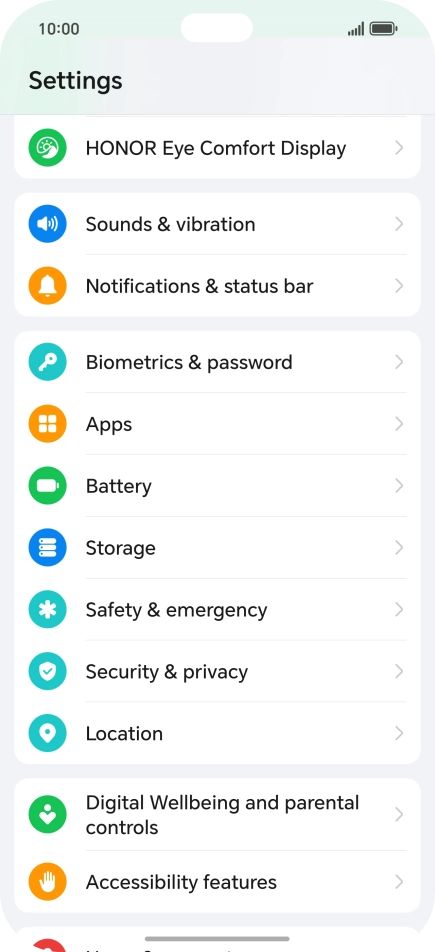
Step 1 of 7

Press the settings icon.

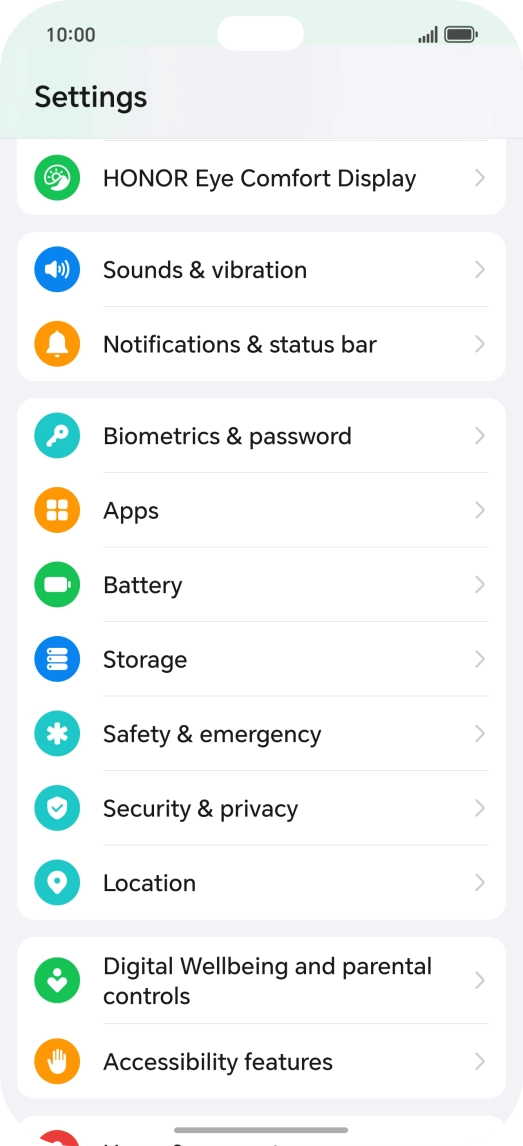
Press Apps.
Press Apps.
Step 2 of 7

Press Apps.

Press Manage apps.
Press Manage apps.
Step 3 of 7

Press Manage apps.

Press the required app.
Step 4 of 7

Press the required app.

Press Storage.
Press Storage.
Step 5 of 7

Press Storage.

Press Clear cache.
Press Clear cache.
Step 6 of 7

Press Clear cache.

Slide your finger upwards starting from the bottom of the screen to return to the home screen.
Step 7 of 7

Slide your finger upwards starting from the bottom of the screen to return to the home screen.

Get information on...

Or choose...

Show more