



Help
Device guides
HONOR
Magic V3 5G

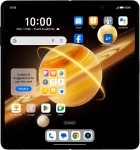
HONOR Magic V3 5G

f-c7292529-1436-4211-b7bd-d5323d0bac13
f-787c8e8e-dec8-49e2-a3d7-d4135a8b4726
f-617080dc-f1af-427c-b474-1ec0d1abd131
f-b25db502-501a-46e7-af8b-b05aed2bc01f
f-996d848d-23cf-4be1-8b75-4db1ae63531a
f-1ed4bc0e-a879-4636-afb8-b36494ff41e6
f-53bd8444-0986-48bb-871a-f404422ed7d0
f-d7ec0a42-dbda-4a33-bf46-9e1f321cfad9
  • Device home
  • Getting started
  • Basic functions
  • Calls, contacts, messaging
  • Connectivity
  • Specifications
  • Device home
  • Getting started
  • Basic functions
  • Calls, contacts, messaging
  • Connectivity
  • Specifications

It's not possible to use my phone as a Wi-Fi hotspot

Solution 1 of 2: Wi-Fi hotspot isn't used correctly

When you use your phone as a Wi-Fi hotspot, you can share your phone's internet connection with other devices via Wi-Fi. To use your phone as a Wi-Fi hotspot, you need to set up your phone for internet.
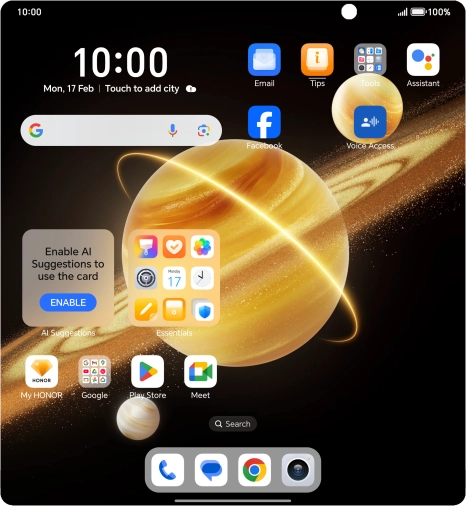
Press the settings icon.
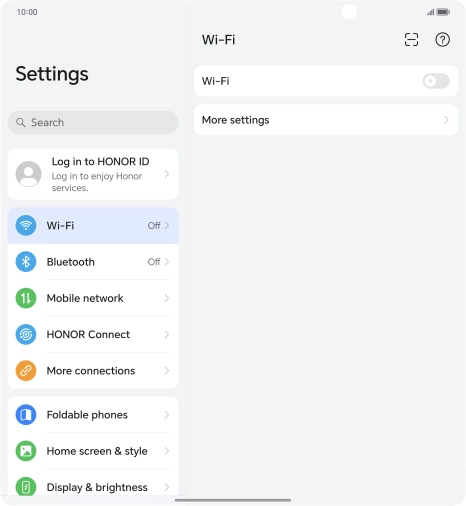
Step 1 of 15

Press the settings icon.

Press Mobile network.
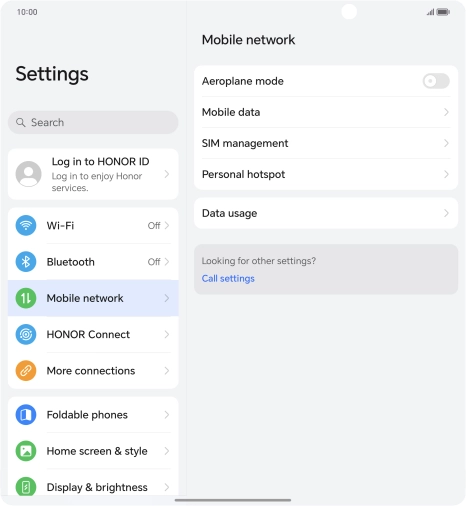
Step 2 of 15

Press Mobile network.

Press Personal hotspot.
Step 3 of 15

Press Personal hotspot.

Press Device name and key in the required name for the Wi-Fi hotspot.
Step 4 of 15

Press Device name and key in the required name for the Wi-Fi hotspot.

Press OK.
Press OK.
Step 5 of 15

Press OK.

Press Security.
Press Security.
Step 6 of 15

Press Security.

Press WPA3-Personal to password protect your Wi-Fi hotspot.
Step 7 of 15

Press WPA3-Personal to password protect your Wi-Fi hotspot.

Press Password and key in the required password.
Step 8 of 15

Press Password and key in the required password.

Press OK.
Press OK.
Step 9 of 15

Press OK.

Press the indicator next to
Step 10 of 15

Press the indicator next to "Personal hotspot" to turn on the function.

Slide your finger upwards starting from the bottom of the screen to return to the home screen.
Step 11 of 15

Slide your finger upwards starting from the bottom of the screen to return to the home screen.

HONOR Magic V3 5G
HONOR Magic V3 5G
Step 12 of 15

Turn on Wi-Fi on the other device.

HONOR Magic V3 5G
HONOR Magic V3 5G
Step 13 of 15

Find the list of available Wi-Fi networks and select your own Wi-Fi hotspot.

HONOR Magic V3 5G
HONOR Magic V3 5G
Step 14 of 15

Key in the password for your Wi-Fi hotspot and establish the connection.

HONOR Magic V3 5G
HONOR Magic V3 5G
Step 15 of 15

When the connection is established, you can access the internet from the other device.


Did this solve your problem?

Yes No

Get information on...

Or choose...

Show more