





Help
Device guides
HONOR
Magic7 Lite

HONOR Magic7 Lite

f-8e3df615-e949-4e99-9d58-561f500cf9c0
f-565ab2d9-665f-467b-93f6-90d572df7a30
f-67025766-b7ee-4740-bb61-4cdac09605f0
f-59418578-b742-4bcb-a615-0575364415ce
f-ab09ec45-dfc3-4895-bc97-193d1f7d1833
f-463838ad-2489-45e1-bdda-75a4db528da6
f-b4aa1f3a-a8ed-423a-ac29-84cd66bd6198
f-145c5983-dd79-41ef-8be7-01dcf016cbf8
  • Device home
  • Getting started
  • Basic functions
  • Calls, contacts, messaging
  • Connectivity
  • Specifications
  • Device home
  • Getting started
  • Basic functions
  • Calls, contacts, messaging
  • Connectivity
  • Specifications

Activating eSIM

In addition to your normal SIM, you can also use an eSIM in your phone. An eSIM is a digital SIM that enables you to activate a price plan without the use of a physical SIM. To activate your eSIM you need to set up your phone for internet or establish a connection to a Wi-Fi network.
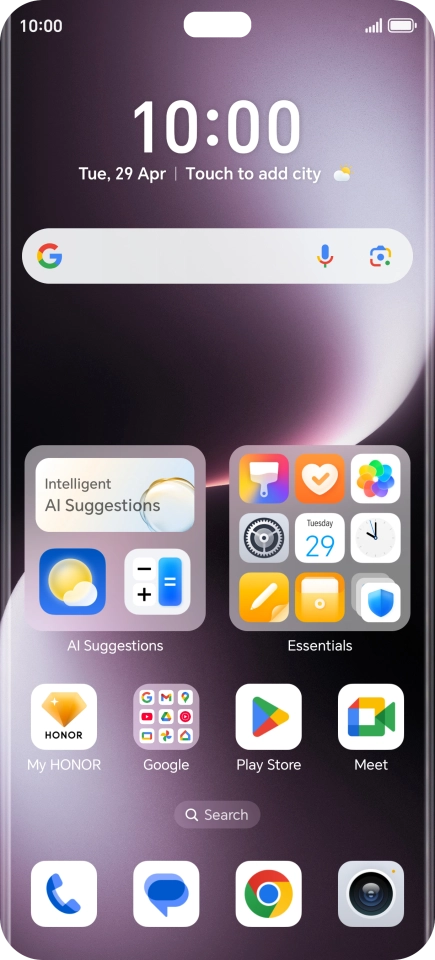
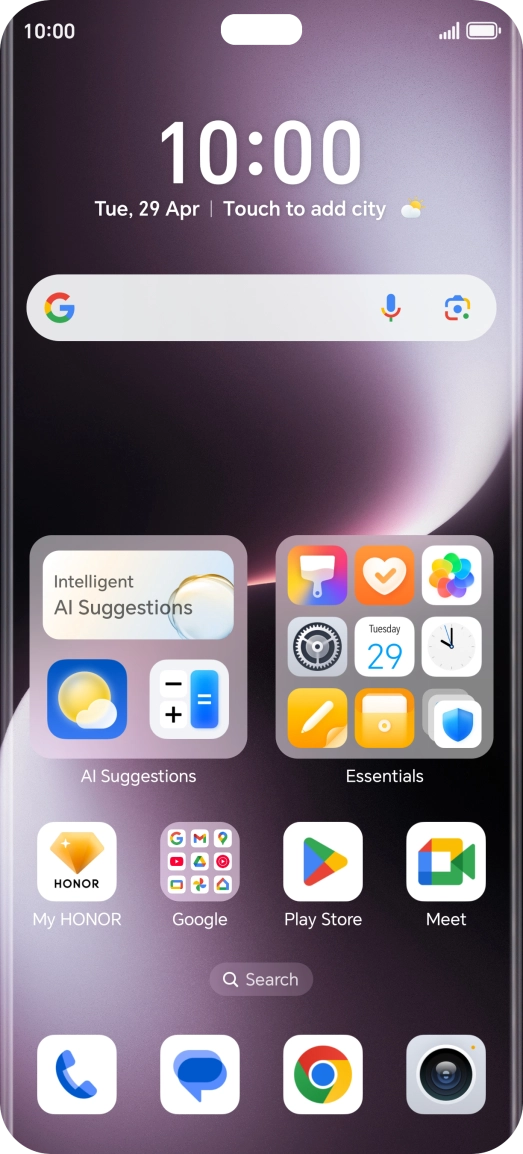
Press the settings icon.
Step 1 of 8

Press the settings icon.

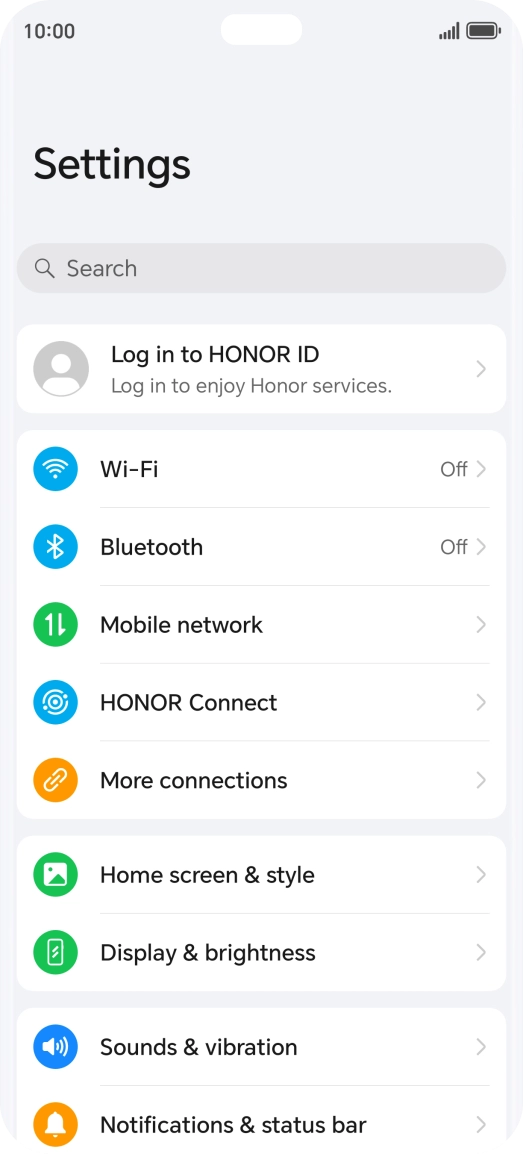
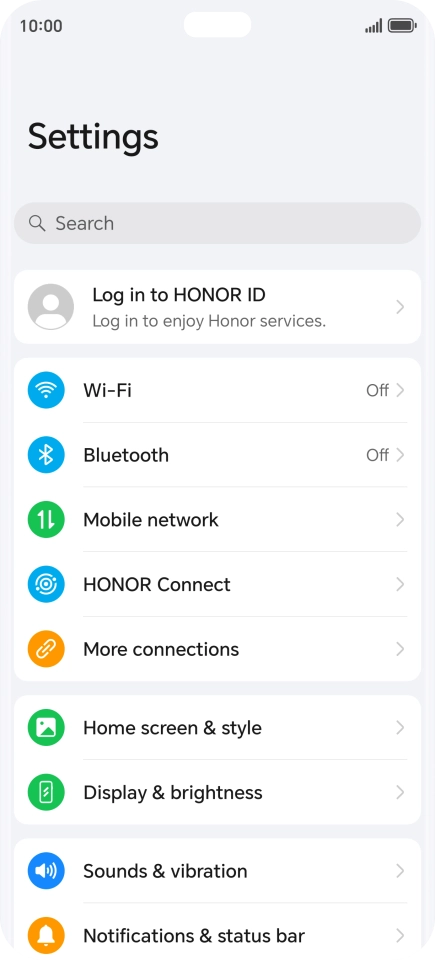
Press Mobile network.
Step 2 of 8

Press Mobile network.

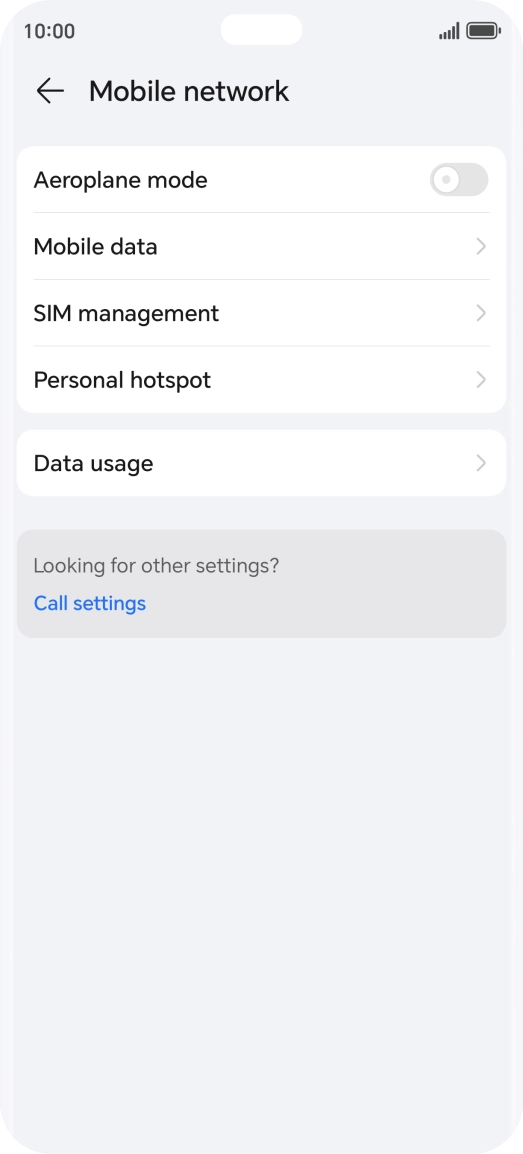
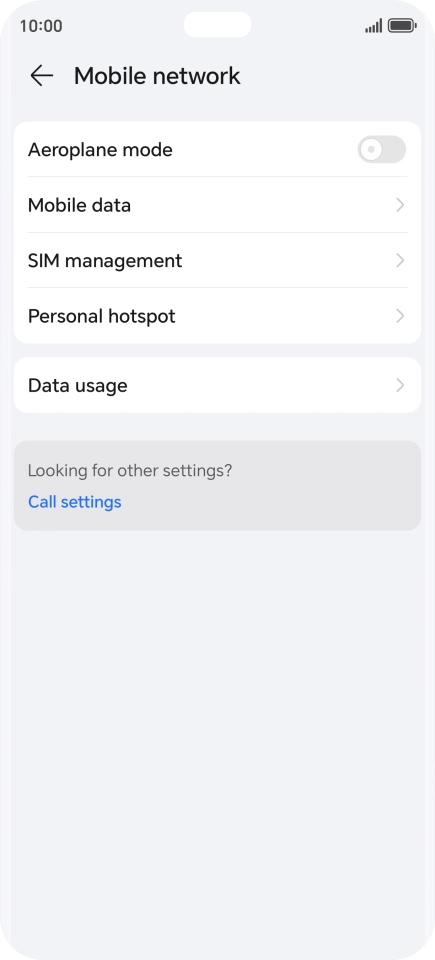
Press SIM management.
Step 3 of 8

Press SIM management.

Press Add eSIM.
Press Add eSIM.
Step 4 of 8

Press Add eSIM.

Press OK.
Press OK.
Step 5 of 8

Press OK.

Press Set up an eSIM.
Step 6 of 8

Press Set up an eSIM.

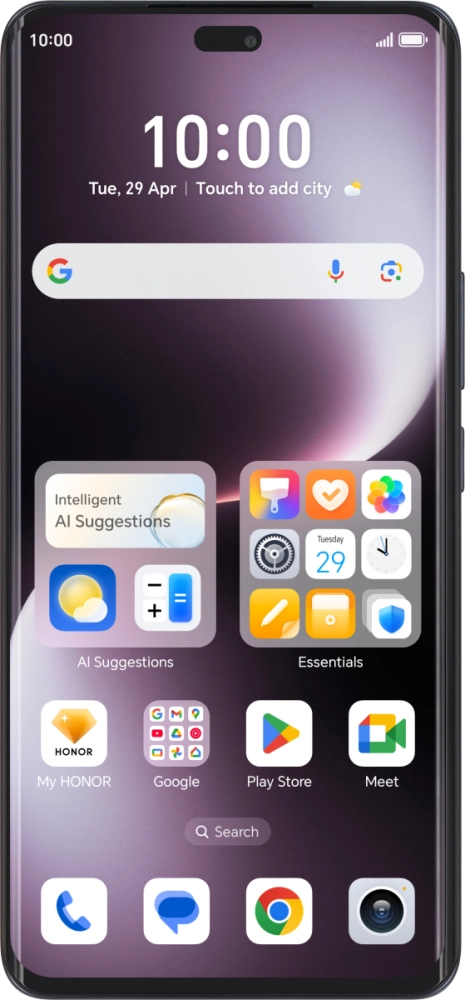
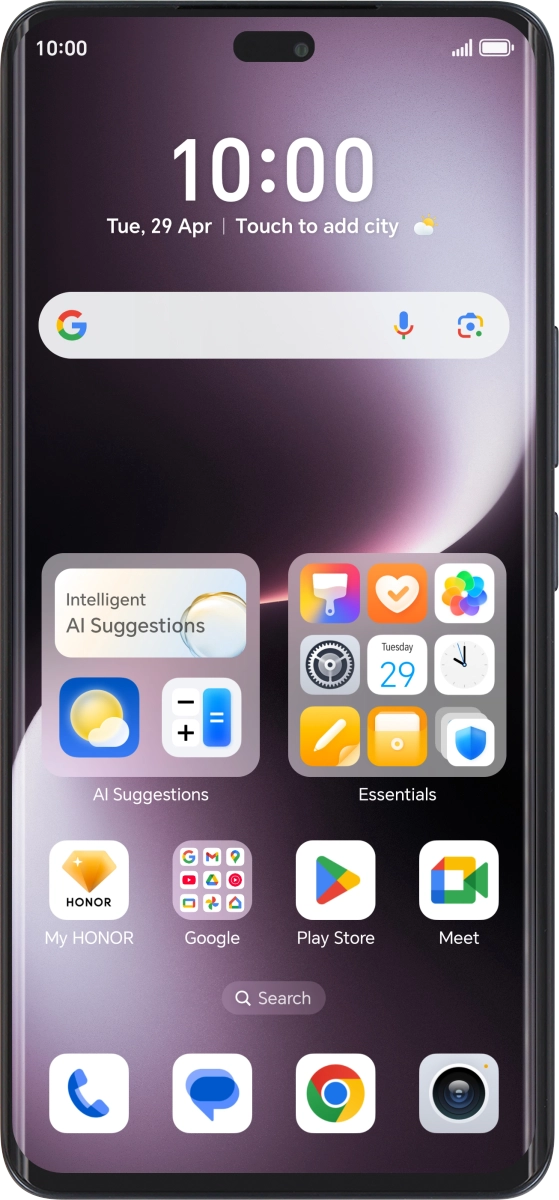
Place the QR code you've received inside the phone camera frame to scan the code.
Step 7 of 8

Place the QR code you've received inside the phone camera frame to scan the code.

HONOR Magic7 Lite
HONOR Magic7 Lite
Step 8 of 8

Follow the instructions on the screen to complete the activation of your eSIM.

Get information on...

Or choose...

Show more