





Help
Device guides
HONOR
Magic7 Pro

HONOR Magic7 Pro

f-1cfb15bf-2520-4ab0-87d7-b92e7b8a4bff
f-7ac95487-02bd-4279-b3b0-7e63bd0aa9a8
f-b3ba3f35-01b5-46d9-b4fb-004506ff2287
f-93efc050-4aa9-4373-bc57-611fa72ab9de
f-8f1ee642-4746-4915-bf4c-82244db4ab65
f-8eb697fc-aae3-4845-aa77-e491fcd4349c
f-13f768ee-493b-4b0b-928b-39700347dcd3
f-e4c8492a-cc72-42dd-9d9a-bbd59ac6e633
  • Device home
  • Getting started
  • Basic functions
  • Calls, contacts, messaging
  • Connectivity
  • Specifications
  • Device home
  • Getting started
  • Basic functions
  • Calls, contacts, messaging
  • Connectivity
  • Specifications

Setting date and time

It's important that the date and time are correct as some phone functions won't work.

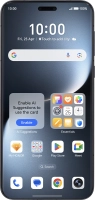
Press the settings icon.
Step 1 of 5

Press the settings icon.

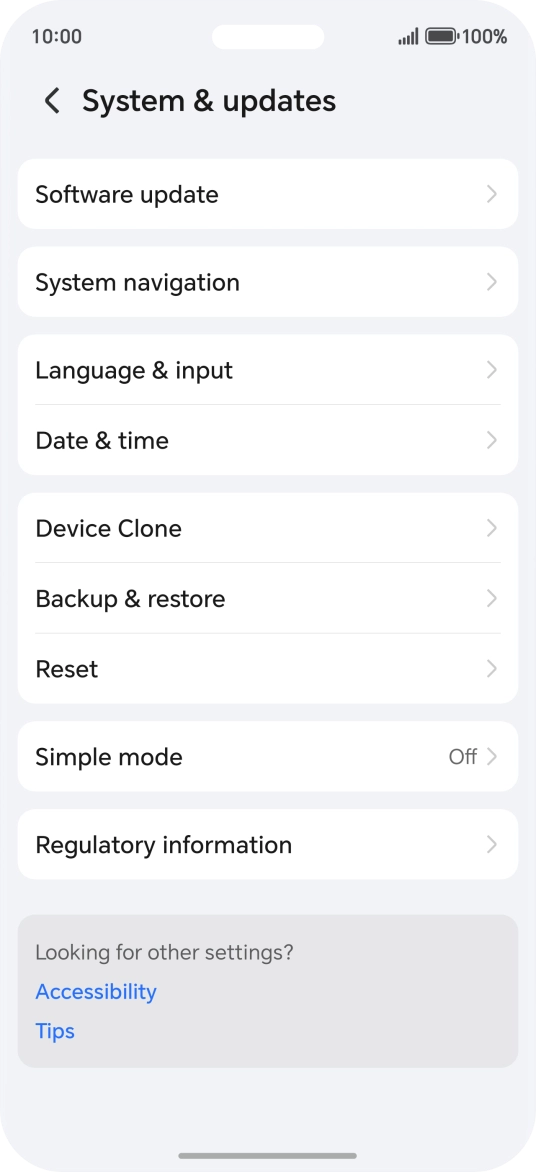
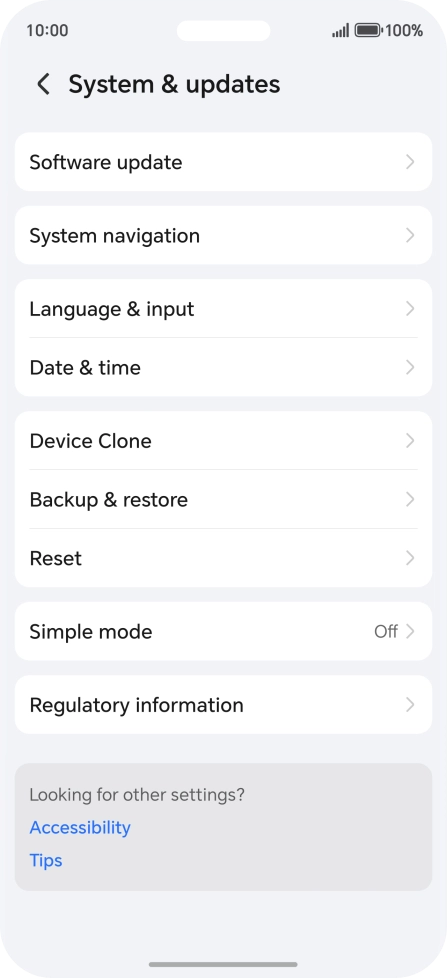
Press System & updates.
Step 2 of 5

Press System & updates.

Press Date & time.
Press Date & time.
Step 3 of 5

Press Date & time.

Press the indicator next to
Step 4 of 5

Press the indicator next to "Set automatically" to turn on the function.

Slide your finger upwards starting from the bottom of the screen to return to the home screen.
Step 5 of 5

Slide your finger upwards starting from the bottom of the screen to return to the home screen.

Get information on...

Or choose...

Show more