





Help
Device guides
HONOR
Magic7 Pro

HONOR Magic7 Pro

f-1cfb15bf-2520-4ab0-87d7-b92e7b8a4bff
f-7ac95487-02bd-4279-b3b0-7e63bd0aa9a8
f-b3ba3f35-01b5-46d9-b4fb-004506ff2287
f-93efc050-4aa9-4373-bc57-611fa72ab9de
f-8f1ee642-4746-4915-bf4c-82244db4ab65
f-8eb697fc-aae3-4845-aa77-e491fcd4349c
f-13f768ee-493b-4b0b-928b-39700347dcd3
f-e4c8492a-cc72-42dd-9d9a-bbd59ac6e633
  • Device home
  • Getting started
  • Basic functions
  • Calls, contacts, messaging
  • Connectivity
  • Specifications
  • Device home
  • Getting started
  • Basic functions
  • Calls, contacts, messaging
  • Connectivity
  • Specifications

Activating eSIM

In addition to your normal SIM, you can also use an eSIM in your phone. An eSIM is a digital SIM that enables you to activate a price plan without the use of a physical SIM. To activate your eSIM you need to set up your phone for internet or establish a connection to a Wi-Fi network.

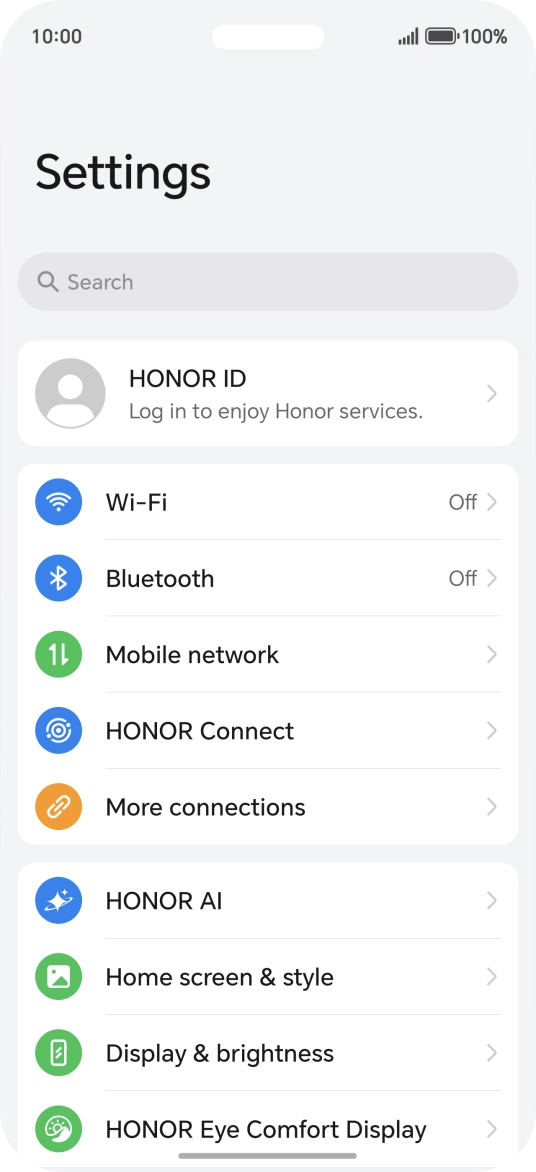
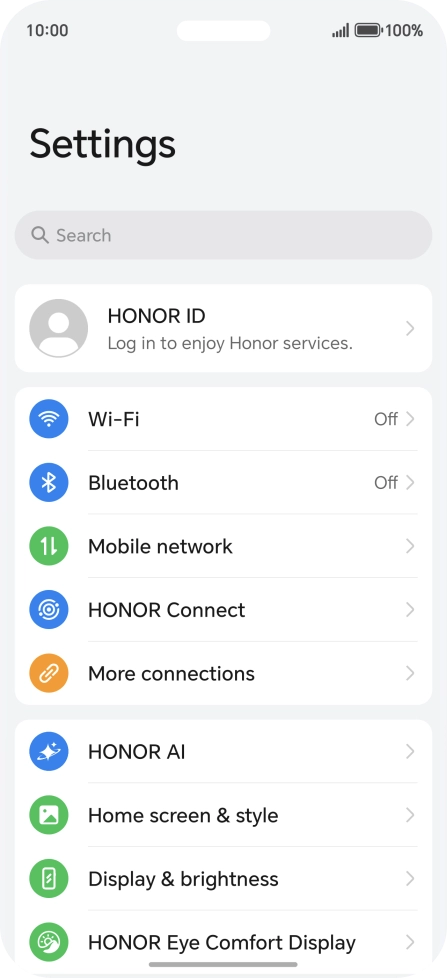
Press the settings icon.
Step 1 of 10

Press the settings icon.

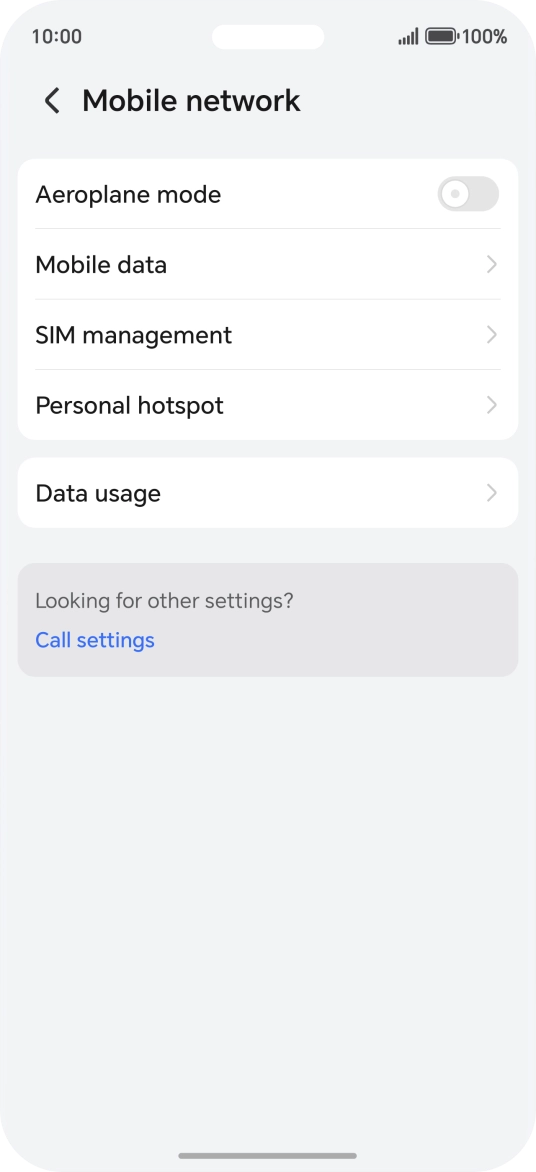
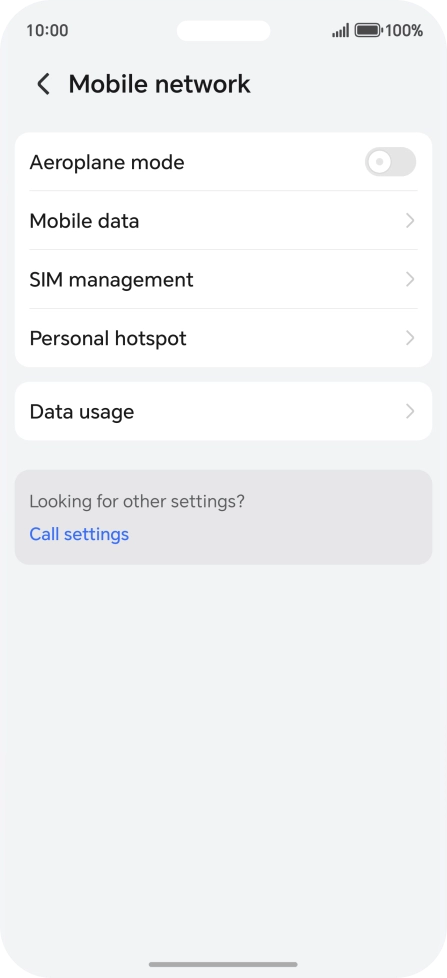
Press Mobile network.
Step 2 of 10

Press Mobile network.

Press SIM management.
Step 3 of 10

Press SIM management.

Press Add eSIM.
Press Add eSIM.
Step 4 of 10

Press Add eSIM.

Press Add eSIM or transfer from your device.
Step 5 of 10

Press Add eSIM or transfer from your device.

Press OK.
Press OK.
Step 6 of 10

Press OK.

Press OK.
Press OK.
Step 7 of 10

Press OK.

Press Set up an eSIM.
Step 8 of 10

Press Set up an eSIM.

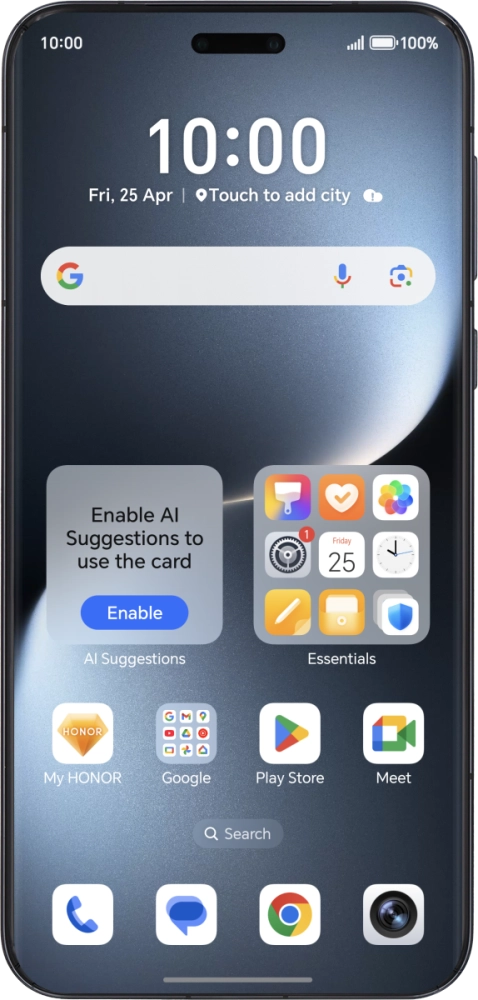
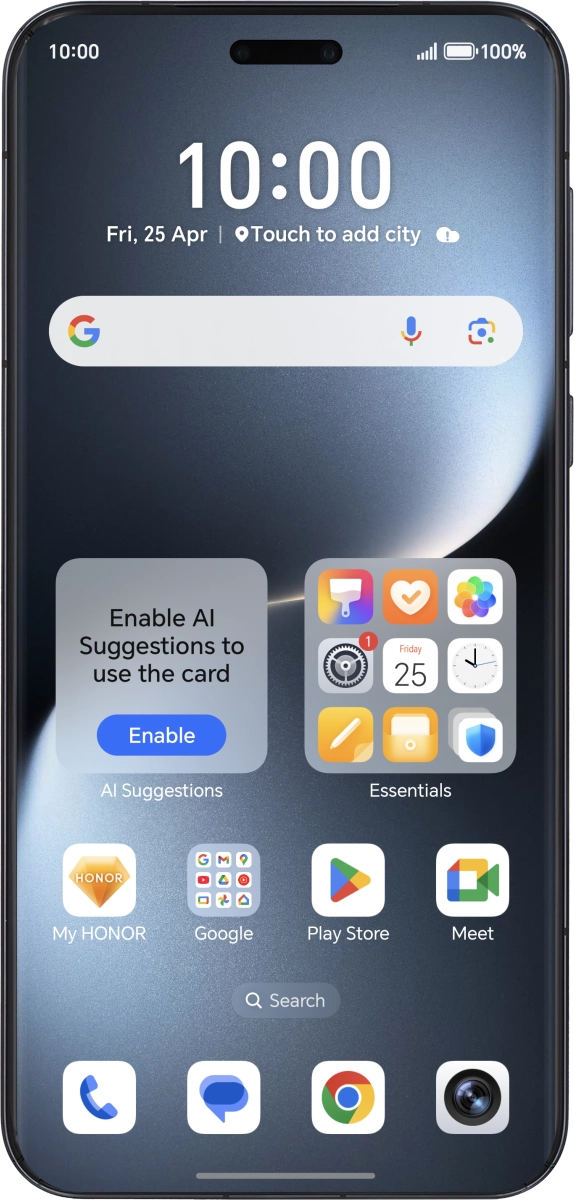
Place the QR code you've received inside the phone camera frame to scan the code.
Step 9 of 10

Place the QR code you've received inside the phone camera frame to scan the code.

HONOR Magic7 Pro
HONOR Magic7 Pro
Step 10 of 10

Follow the instructions on the screen to complete the activation of your eSIM.

Get information on...

Or choose...

Show more