



Help
Device guides
Huawei
Mate 20 lite

Huawei Mate 20 lite

f-00537029-fc04-45cd-8d5a-470e6329c8e2
f-371cef9e-4dac-42a3-8eff-8ddfb969de16
f-a876948a-926d-44b5-96e6-a25a27a69336
f-a5422bcf-1434-4e36-88a5-19118d4a908a
f-aa22e69b-61f4-4e15-836b-5021b953ff93
f-d6ed7c18-2e91-4b22-8581-9e90e835b352
  • Device home
  • Getting started
  • Basic functions
  • Calls, contacts, messaging
  • Connectivity
  • Specifications
  • Device home
  • Getting started
  • Basic functions
  • Calls, contacts, messaging
  • Connectivity
  • Specifications

Updating phone software

It's recommended that you update your phone with the newest software, as the manufacturer continuously corrects errors. It's a good idea to back up the phone memory first. Before you can update the phone software, you need to set up your phone for internet.
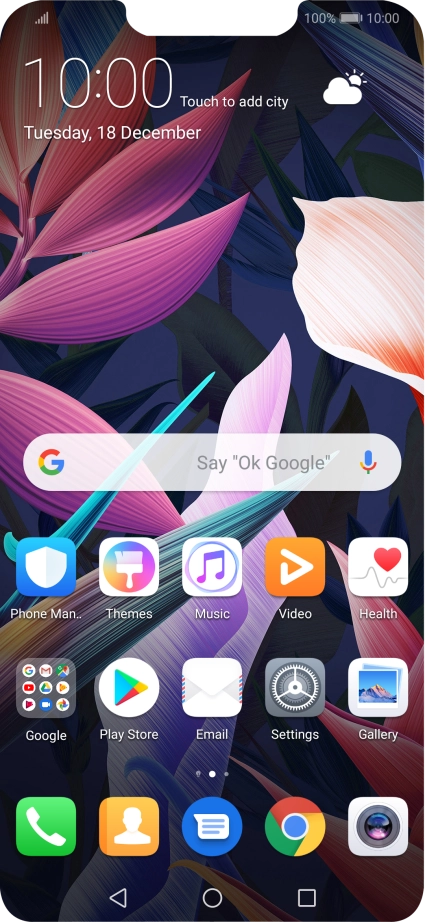
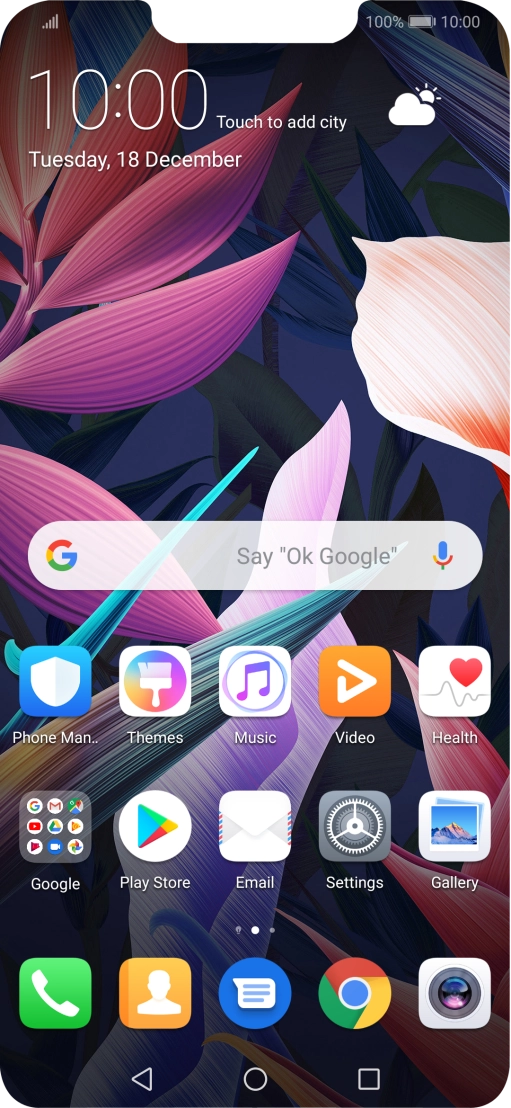
Press Settings.
Press Settings.
Step 1 of 3

Press Settings.

Press System.
Press System.
Step 2 of 3

Press System.

Press System update. If a new software version is available, it's displayed. Follow the instructions on the screen to update the phone software.
Step 3 of 3

Press System update. If a new software version is available, it's displayed. Follow the instructions on the screen to update the phone software.

Get information on...

Or choose...

Show more