


Help
Device guides
Huawei
Mate 20 Pro

Huawei Mate 20 Pro

f-1d144d36-4f25-4dbe-93b5-b780df621617
f-2180afee-a094-4759-8b8d-066db4f879fe
f-6a299b26-5970-4188-b719-6f6c3007fa20
f-3977e861-7b92-41bd-9743-30e8d0ac11a4
f-612629e0-bcb7-4966-8fb0-50bbb7277f17
f-6a77478e-845d-496b-ad00-d19a2097b152
  • Device home
  • Getting started
  • Basic functions
  • Calls, contacts, messaging
  • Connectivity
  • Specifications
  • Device home
  • Getting started
  • Basic functions
  • Calls, contacts, messaging
  • Connectivity
  • Specifications

My phone's battery life is short

Solution 4 of 15: Automatic content synchronisation is turned on

You can access the contents of your phone on other devices by turning on automatic content synchronisation.
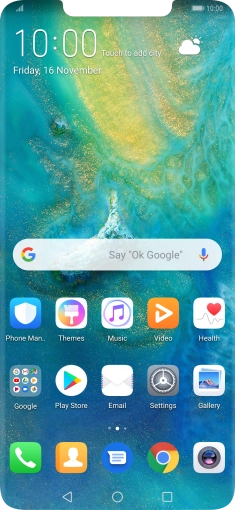
Press Settings.
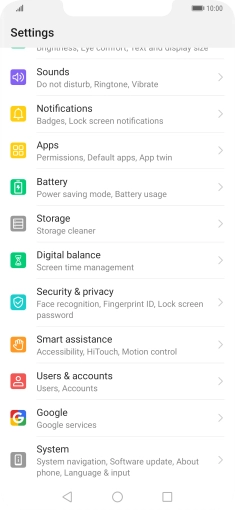
Press Settings.
Step 1 of 6

Press Settings.

Press Users & accounts.
Step 2 of 6

Press Users & accounts.

Press the menu icon.
Step 3 of 6

Press the menu icon.

Press Auto-sync data to turn the function on or off.
Step 4 of 6

Press Auto-sync data to turn the function on or off.

Press OK.
Press OK.
Step 5 of 6

Press OK.

Press the Home key to return to the home screen.
Step 6 of 6

Press the Home key to return to the home screen.


Did this solve your problem?

Yes No

Get information on...

Or choose...

Show more