
Help
Device guides
Huawei
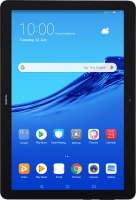
MediaPad T5

Huawei MediaPad T5

f-afda6190-6e00-4510-84ce-d38fc4f41e8d
f-3438ef7b-27bc-4e44-96bd-56d59908b7b6
f-f75b1c00-4952-4822-8c08-f67bf3a3078c
f-e34983cb-533a-4055-8ba1-c1287cf1b373
f-b701f893-d954-400f-ae0d-2fe316630c41
f-a26c12a7-145d-4cc2-ae7e-7f3b55432530
  • Device home
  • Getting started
  • Basic functions
  • Calls, contacts, messaging
  • Connectivity
  • Specifications
  • Device home
  • Getting started
  • Basic functions
  • Calls, contacts, messaging
  • Connectivity
  • Specifications

It's not possible to send and receive text messages

Solution 3 of 3: The text message isn't written correctly

A text message is a message that can be sent to other tablets and mobile phones. If you can't send and receive text messages as soon as you've inserted your SIM, you need to set up your tablet for text messaging.
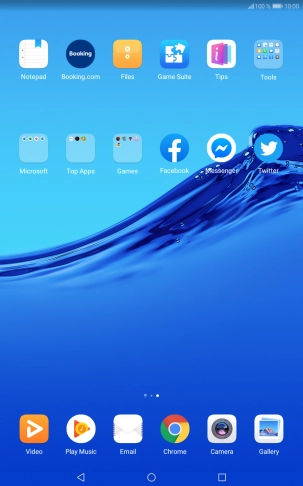
Press Tools.
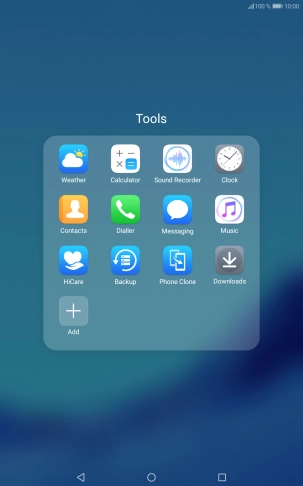
Press Tools.
Step 1 of 8

Press Tools.

Press Messaging.
Press Messaging.
Step 2 of 8

Press Messaging.

Press New message.
Press New message.
Step 3 of 8

Press New message.

Press To.
Press To.
Step 4 of 8

Press To.

Press the required contact.
Step 5 of 8

Press the required contact.

Press the text input field and write the text for your SMS.
Step 6 of 8

Press the text input field and write the text for your SMS.

Press the send icon when you've finished your SMS.
Step 7 of 8

Press the send icon when you've finished your SMS.

Press the Home key to return to the home screen.
Step 8 of 8

Press the Home key to return to the home screen.


Did this solve your problem?

Yes No

Get information on...

Or choose...

Show more