



Help
Device guides
Huawei
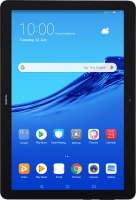
MediaPad T5

Huawei MediaPad T5

f-afda6190-6e00-4510-84ce-d38fc4f41e8d
f-3438ef7b-27bc-4e44-96bd-56d59908b7b6
f-f75b1c00-4952-4822-8c08-f67bf3a3078c
f-e34983cb-533a-4055-8ba1-c1287cf1b373
f-b701f893-d954-400f-ae0d-2fe316630c41
f-a26c12a7-145d-4cc2-ae7e-7f3b55432530
  • Device home
  • Getting started
  • Basic functions
  • Calls, contacts, messaging
  • Connectivity
  • Specifications
  • Device home
  • Getting started
  • Basic functions
  • Calls, contacts, messaging
  • Connectivity
  • Specifications

It's not possible to use Wi-Fi

Solution 1 of 4: No connection to a Wi-Fi network is established

You can use Wi-Fi as an alternative to the mobile network when establishing an internet connection. This way your tablet doesn't use mobile data.
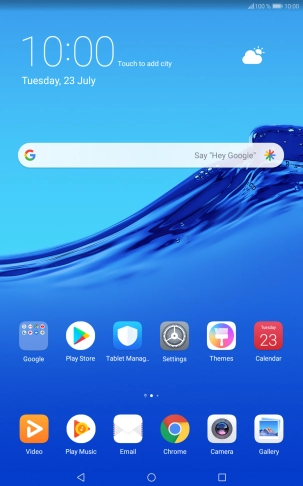
Press Settings.
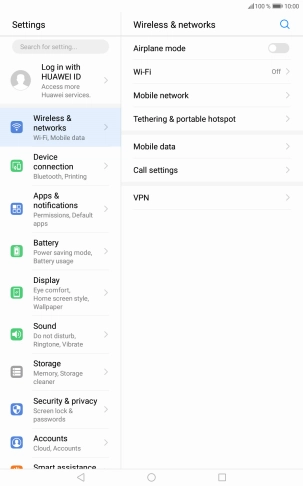
Press Settings.
Step 1 of 8

Press Settings.

Press Wireless & networks.
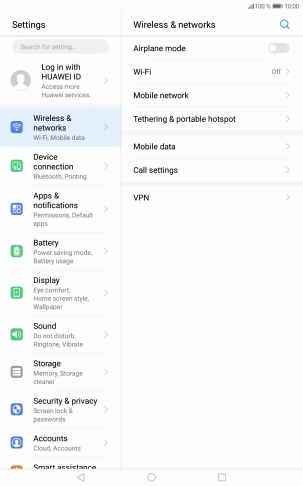
Step 2 of 8

Press Wireless & networks.

Press Wi-Fi.
Press Wi-Fi.
Step 3 of 8

Press Wi-Fi.

Press the indicator next to
Step 4 of 8

Press the indicator next to "Wi-Fi" to turn on the function.

Press the required Wi-Fi network.
Step 5 of 8

Press the required Wi-Fi network.

Press Password.
Press Password.
Step 6 of 8

Press Password.

Key in the password for the Wi-Fi network and press CONNECT.
Step 7 of 8

Key in the password for the Wi-Fi network and press CONNECT.

Press the Home key to return to the home screen.
Step 8 of 8

Press the Home key to return to the home screen.


Did this solve your problem?

Yes No

Get information on...

Or choose...

Show more