


Help
Device guides
Huawei
P smart

Huawei P smart

f-3409b79c-526b-48ac-bf7c-949cb0616fca
f-3252f76c-b4cd-450a-a13c-07772f2686e1
f-bb51db59-d25b-4676-a1a3-a259693cfb76
f-6602657a-53a7-4c27-9b99-f633b9280b55
f-d9e01cf5-79f2-4483-bd30-c994191e1244
f-d311467b-cd55-49b0-a9dc-7032d7d67e00
  • Device home
  • Getting started
  • Basic functions
  • Calls, contacts, messaging
  • Connectivity
  • Specifications
  • Device home
  • Getting started
  • Basic functions
  • Calls, contacts, messaging
  • Connectivity
  • Specifications

It's not possible to use Wi-Fi

Solution 1 of 4: No connection to a Wi-Fi network is established

You can use Wi-Fi as an alternative to the mobile network when establishing an internet connection. This way your phone doesn't use mobile data.
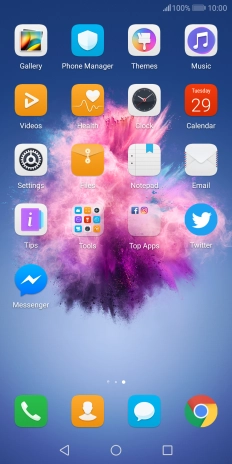
Press Settings.
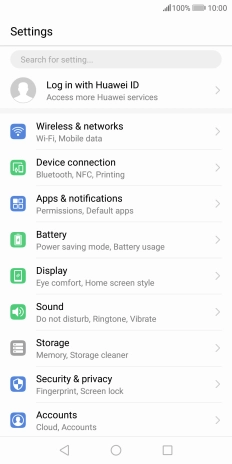
Press Settings.
Step 1 of 8

Press Settings.

Press Wireless & networks.
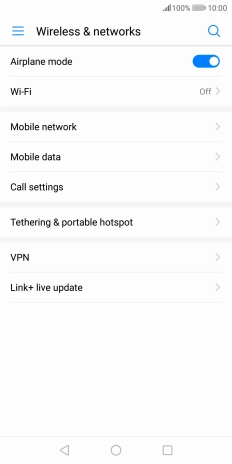
Step 2 of 8

Press Wireless & networks.

Press Wi-Fi.
Press Wi-Fi.
Step 3 of 8

Press Wi-Fi.

Press the indicator next to
Step 4 of 8

Press the indicator next to "Wi-Fi" to turn on the function.

Press the required Wi-Fi network.
Step 5 of 8

Press the required Wi-Fi network.

Press Password.
Press Password.
Step 6 of 8

Press Password.

Key in the password for the Wi-Fi network and press CONNECT.
Step 7 of 8

Key in the password for the Wi-Fi network and press CONNECT.

Press the Home key to return to the home screen.
Step 8 of 8

Press the Home key to return to the home screen.


Did this solve your problem?

Yes No

Get information on...

Or choose...

Show more