


Help
Device guides
Huawei
P smart

Huawei P smart

f-3409b79c-526b-48ac-bf7c-949cb0616fca
f-3252f76c-b4cd-450a-a13c-07772f2686e1
f-bb51db59-d25b-4676-a1a3-a259693cfb76
f-6602657a-53a7-4c27-9b99-f633b9280b55
f-d9e01cf5-79f2-4483-bd30-c994191e1244
f-d311467b-cd55-49b0-a9dc-7032d7d67e00
  • Device home
  • Getting started
  • Basic functions
  • Calls, contacts, messaging
  • Connectivity
  • Specifications
  • Device home
  • Getting started
  • Basic functions
  • Calls, contacts, messaging
  • Connectivity
  • Specifications

My phone's battery life is short

Solution 15 of 15: GPS is turned on

Your phone can determine your geographical position using GPS (Global Positioning System). The information about your location can be used by a number of applications on your phone such as navigation, the search function or weather forecast.
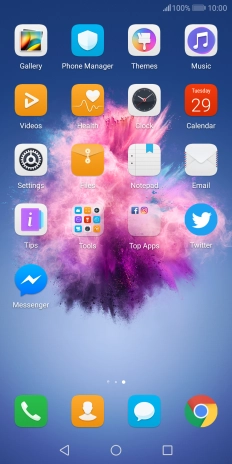
Press Settings.
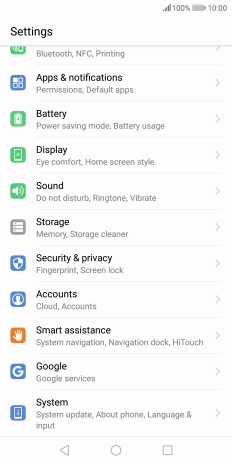
Press Settings.
Step 1 of 8

Press Settings.

Press Security & privacy.
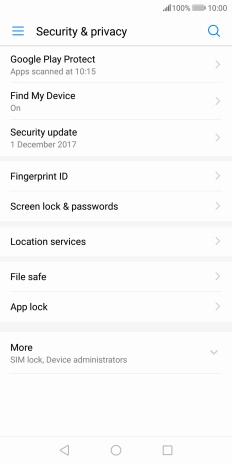
Step 2 of 8

Press Security & privacy.

Press Location services.
Step 3 of 8

Press Location services.

Press the indicator next to
Step 4 of 8

Press the indicator next to "Access to my location" to turn the function on or off.

If you select Use GPS, Wi-Fi and mobile networks, your phone can find your exact position using the GPS satellites, the mobile network and nearby Wi-Fi networks. Satellite-based GPS requires a clear view of the sky.
Step 5 of 8

If you select Use GPS, Wi-Fi and mobile networks, your phone can find your exact position using the GPS satellites, the mobile network and nearby Wi-Fi networks. Satellite-based GPS requires a clear view of the sky.

If you select Use Wi-Fi and mobile networks, your phone can find your approximate position using the mobile network and nearby Wi-Fi networks.
Step 6 of 8

If you select Use Wi-Fi and mobile networks, your phone can find your approximate position using the mobile network and nearby Wi-Fi networks.

If you select Use GPS only, your phone can find your exact position but it may take longer as there is no access to supplementary information from the mobile network or nearby Wi-Fi networks.
Step 7 of 8

If you select Use GPS only, your phone can find your exact position but it may take longer as there is no access to supplementary information from the mobile network or nearby Wi-Fi networks.

Press the Home key to return to the home screen.
Step 8 of 8

Press the Home key to return to the home screen.


Did this solve your problem?

Yes No

Get information on...

Or choose...

Show more