
Help
Device guides
Huawei
P20 lite

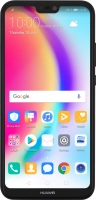
Huawei P20 lite

f-927705e8-b9eb-467b-8534-b31bd27e9bb0
f-6d649079-53ab-4a97-a1c6-3fba018ce384
f-59f66916-36e0-4796-8316-918735b704bd
f-b6426d21-396c-4ee1-994d-83ac33090c57
f-1ecff7e9-6eff-4e2f-b4c7-390745e5f02f
f-4c4b1624-87a4-4f71-8a71-496d8158c836
  • Device home
  • Getting started
  • Basic functions
  • Calls, contacts, messaging
  • Connectivity
  • Specifications
  • Device home
  • Getting started
  • Basic functions
  • Calls, contacts, messaging
  • Connectivity
  • Specifications

Uninstalling apps

You can uninstall apps to free up memory.

Press Play Store.
Press Play Store.
Step 1 of 8

Press Play Store.

Slide your finger right starting from the left side of the screen.
Step 2 of 8

Slide your finger right starting from the left side of the screen.

Press My apps & games.
Step 3 of 8

Press My apps & games.

Press INSTALLED.
Press INSTALLED.
Step 4 of 8

Press INSTALLED.

Press the required app.
Step 5 of 8

Press the required app.

Press UNINSTALL.
Press UNINSTALL.
Step 6 of 8

Press UNINSTALL.

Press OK.
Press OK.
Step 7 of 8

Press OK.

Press the Home key to return to the home screen.
Step 8 of 8

Press the Home key to return to the home screen.

Get information on...

Or choose...

Show more