




Help
Device guides
Huawei
P20 Pro

Huawei P20 Pro

f-806e7c30-2377-4d0d-bc9c-94df783c6898
f-bc7d1280-493c-4452-a3c8-1ab84fbc6a43
f-94aa7a05-5551-4466-8afc-9c9914e94a0a
f-22c9aeb1-67c1-4dc1-8fec-6b634fa66c9b
f-2ab6ae4a-d340-4060-9af9-cff40e78144a
f-8f4b3b54-7163-4fbb-a566-3f0880eebe53
  • Device home
  • Getting started
  • Basic functions
  • Calls, contacts, messaging
  • Connectivity
  • Specifications
  • Device home
  • Getting started
  • Basic functions
  • Calls, contacts, messaging
  • Connectivity
  • Specifications

Updating phone software

It's recommended that you update your phone with the newest software, as the manufacturer continuously corrects errors. It's a good idea to back up the phone memory first. Before you can update the phone software, you need to set up your phone for internet.
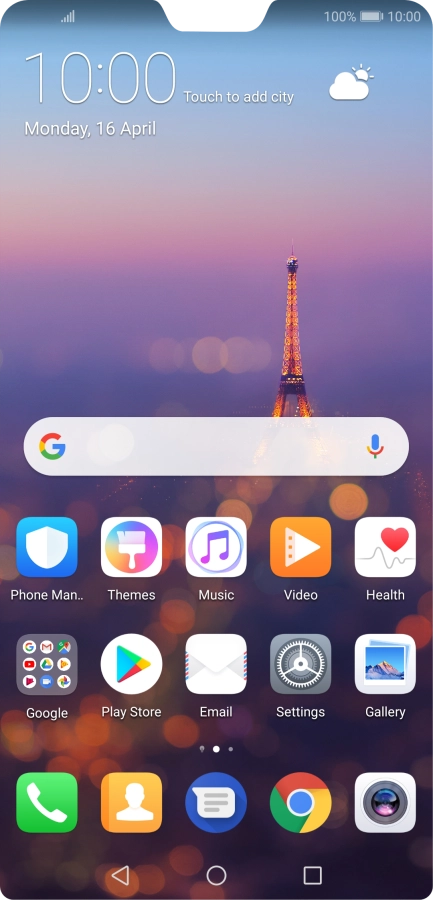
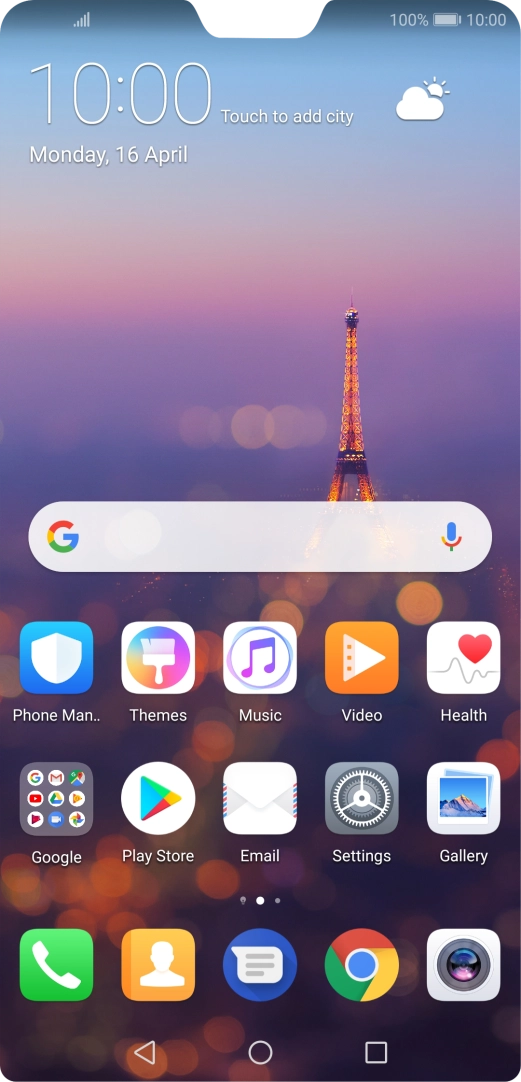
Press Settings.
Press Settings.
Step 1 of 4

Press Settings.

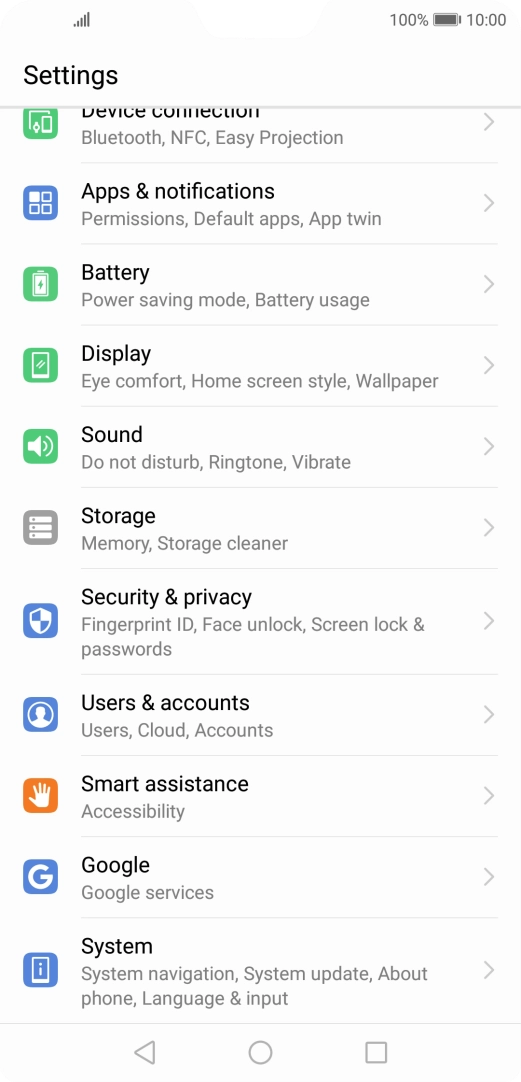
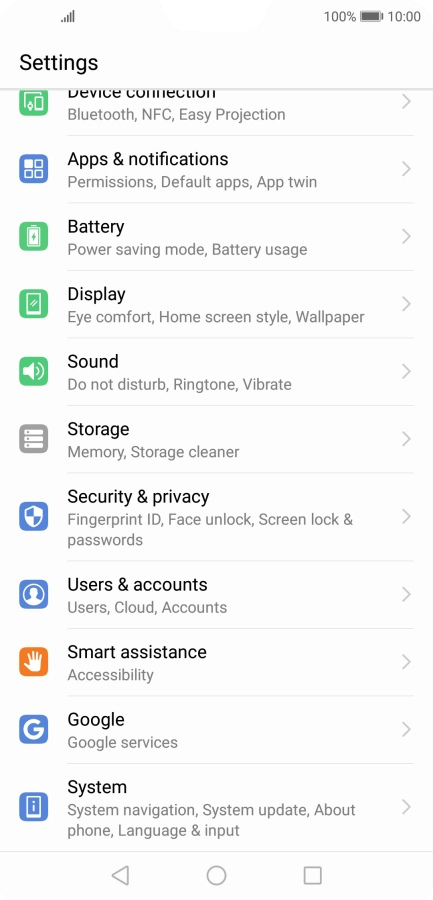
Press System.
Press System.
Step 2 of 4

Press System.

Press System update.
Step 3 of 4

Press System update.

Press CHECK FOR UPDATES. If a new software version is available, it's displayed. Follow the instructions on the screen to update the phone software.
Step 4 of 4

Press CHECK FOR UPDATES. If a new software version is available, it's displayed. Follow the instructions on the screen to update the phone software.

Get information on...

Or choose...

Show more