


Help
Device guides
Huawei
P30 lite

Huawei P30 lite

f-a648f297-4545-402e-9e65-2b064453f507
f-bb59445c-d712-4313-90e0-dd01cf95b0c9
f-23c7a06f-ac0c-4878-a3bb-efa4ad144408
f-eb5e20f9-4a39-4b88-b917-3ae9c86be9cd
f-e290a4b3-0987-455d-a343-a561cbb6d640
f-690366ca-8c1c-40b9-a457-b32747b729c6
  • Device home
  • Getting started
  • Basic functions
  • Calls, contacts, messaging
  • Connectivity
  • Specifications
  • Device home
  • Getting started
  • Basic functions
  • Calls, contacts, messaging
  • Connectivity
  • Specifications

Cancelling all diverts

If you no longer wish to divert your calls, you need to cancel the diverts.
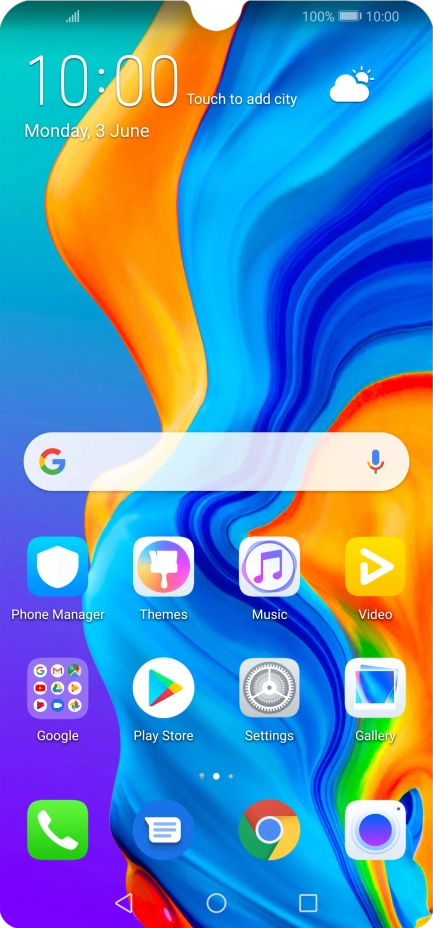
Press the phone icon.
Step 1 of 7

Press the phone icon.

Press the menu icon.
Step 2 of 7

Press the menu icon.

Press Settings.
Press Settings.
Step 3 of 7

Press Settings.

Press Call forwarding.
Step 4 of 7

Press Call forwarding.

Press the required divert type.
Step 5 of 7

Press the required divert type.

Press DISABLE.
Press DISABLE.
Step 6 of 7

Press DISABLE.

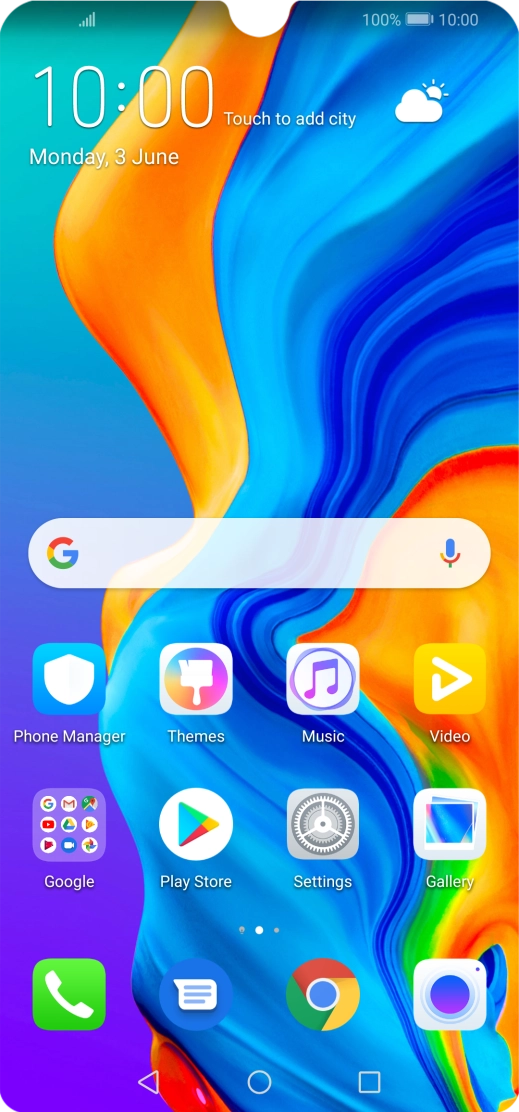
Press the Home key to return to the home screen.
Step 7 of 7

Press the Home key to return to the home screen.

Get information on...

Or choose...

Show more