Help
Device guides
Huawei
P30 lite New Edition

Huawei P30 lite New Edition
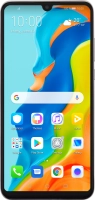
f-c99e242c-702a-40f1-9b5f-d38084b40266
f-5651e181-1124-4072-a855-df82e9eced61
f-6b3ea370-78c1-450f-9f59-e51cf111a771
f-cd4aca61-0b34-4cf2-a32d-a67a828b93ac
f-766244e0-8801-475d-a04e-3df3df914910
f-ba96b406-6f9d-4b4e-9623-1a9a95e58394
  • Device home
  • Getting started
  • Basic functions
  • Calls, contacts, messaging
  • Connectivity
  • Specifications
  • Device home
  • Getting started
  • Basic functions
  • Calls, contacts, messaging
  • Connectivity
  • Specifications

My phone uses a large amount of mobile data

Solution 2 of 4: Automatic mobile data usage is turned on

You can set your phone to use mobile data automatically when the connection to the Wi-Fi network is weak. To turn automatic use of mobile data on or off, you need to turn on mobile data.
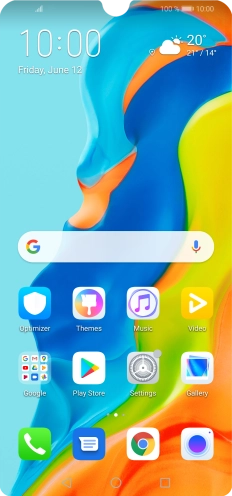
Press Settings.
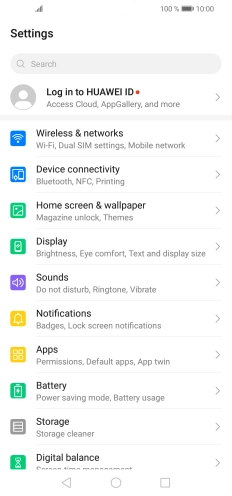
Press Settings.
Step 1 of 8

Press Settings.

Press Wireless & networks.
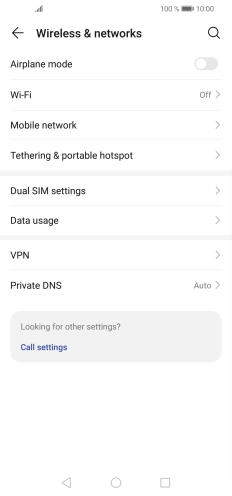
Step 2 of 8

Press Wireless & networks.

Press Wi-Fi.
Press Wi-Fi.
Step 3 of 8

Press Wi-Fi.

Press the indicator next to
Step 4 of 8

Press the indicator next to "Wi-Fi" to turn on the function.

Press the menu icon.
Step 5 of 8

Press the menu icon.

Press Wi-Fi+.
Press Wi-Fi+.
Step 6 of 8

Press Wi-Fi+.

Press the indicator next to
Step 7 of 8

Press the indicator next to "Wi-Fi+" to turn the function on or off.

Press the Home key to return to the home screen.
Step 8 of 8

Press the Home key to return to the home screen.


Did this solve your problem?

Yes No

Get information on...

Or choose...

Show more