



Help
Device guides
Huawei
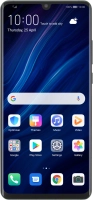
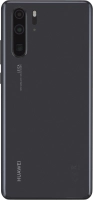
P30 Pro

Huawei P30 Pro

f-982f8f7a-9045-4996-8a9d-e1e55fe79466
f-0d38148d-b192-417a-af20-c005a90adda9
f-f9cfe359-2909-4037-9371-fc44fb99a323
f-979c6fb8-3eb9-49f3-a8bf-ee656937c558
f-52882f70-b57f-4442-8cd4-75ae181adc70
f-e1726ed1-a2cb-4b4c-bdd9-d8508836fa02
  • Device home
  • Getting started
  • Basic functions
  • Calls, contacts, messaging
  • Connectivity
  • Specifications
  • Device home
  • Getting started
  • Basic functions
  • Calls, contacts, messaging
  • Connectivity
  • Specifications

Taking screenshot

You can take a picture of your screen if you want to share something with your friends or save the picture for later use.

Press On/Off.
Press On/Off.
Step 1 of 2

Press On/Off.

At the same time, press the lower part of the Volume key to take a screenshot.
Step 2 of 2

At the same time, press the lower part of the Volume key to take a screenshot.

The picture is saved in the phone gallery.

Get information on...

Or choose...

Show more