



Help
Device guides
Huawei
P40 lite 5G

Huawei P40 lite 5G

f-2a1cacb3-8bdc-4faf-ae12-ecefc097d38b
f-a674966d-ce0f-4a63-8cee-78138fbfe860
f-daea9c61-7a6b-4dfe-a7ae-2c9df301d429
f-26ebb6c4-75a0-4a28-b17b-8fdb06f173f5
f-3264d04f-477f-461d-b3cb-ad992c58e37d
f-15894f03-5d79-4c87-aa7f-f7d16d4eb8ab
  • Device home
  • Getting started
  • Basic functions
  • Calls, contacts, messaging
  • Connectivity
  • Specifications
  • Device home
  • Getting started
  • Basic functions
  • Calls, contacts, messaging
  • Connectivity
  • Specifications

Selecting ring tone

You can select the ring tone you want to hear when you get a call.
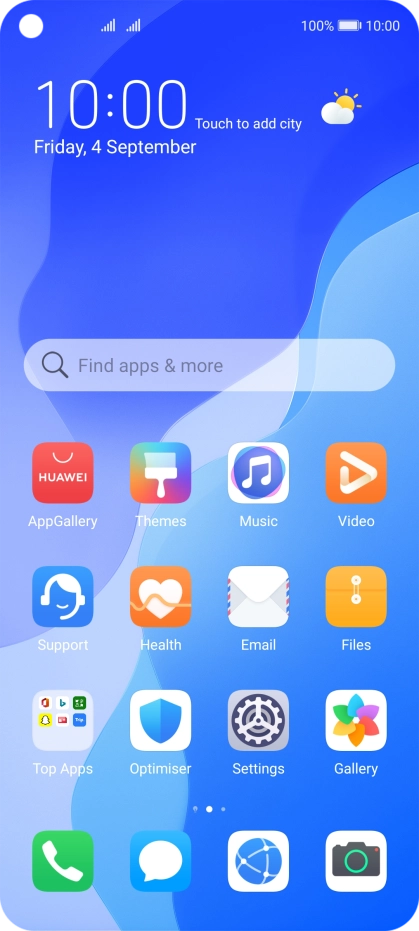
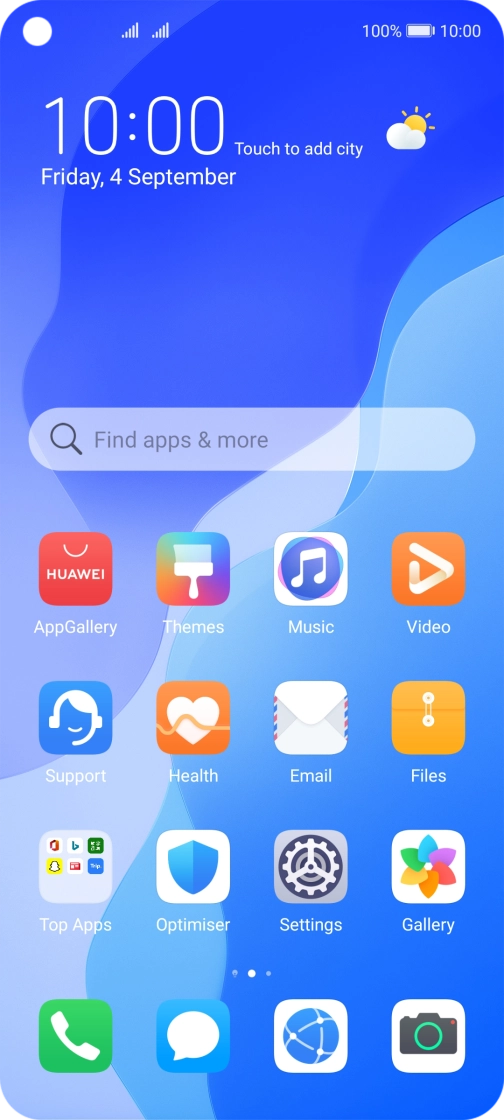
Press Settings.
Press Settings.
Step 1 of 8

Press Settings.

Press Sounds & vibration.
Step 2 of 8

Press Sounds & vibration.

Press Phone ringtone.
Step 3 of 8

Press Phone ringtone.

Press the required SIM.
Step 4 of 8

Press the required SIM.

Press Music on device.
Step 5 of 8

Press Music on device.

Press the required ring tones to hear them.
Step 6 of 8

Press the required ring tones to hear them.

Once you've found a ring tone you like, press arrow left.
Step 7 of 8

Once you've found a ring tone you like, press arrow left.

Slide your finger upwards starting from the bottom of the screen to return to the home screen.
Step 8 of 8

Slide your finger upwards starting from the bottom of the screen to return to the home screen.

Get information on...

Or choose...

Show more