


Help
Device guides
Huawei
P40 Pro

Huawei P40 Pro

f-68820e22-cce0-4e67-aef0-bb5aab9779da
f-06c071a9-fd11-4bf7-b744-39fc44a814c4
f-b91a16d7-edb4-4fce-bf25-c05d59517602
f-afd6e8b2-6543-480b-a0b7-316b6591b461
f-2ac96897-81fc-4309-a202-a6ea4ccfad30
f-01f5ba1c-9be7-4db8-8afe-0373d0e10ad8
  • Device home
  • Getting started
  • Basic functions
  • Calls, contacts, messaging
  • Connectivity
  • Specifications
  • Device home
  • Getting started
  • Basic functions
  • Calls, contacts, messaging
  • Connectivity
  • Specifications

My phone uses a large amount of mobile data

Solution 1 of 4: GPS position usage for applications is turned on

Your phone can determine your geographical position using GPS (Global Positioning System). The information about your location can be used by a number of applications on your phone such as navigation, the search function or weather forecast.
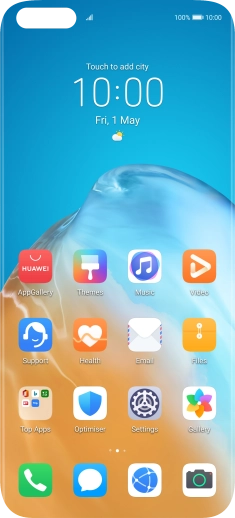
Press Settings.
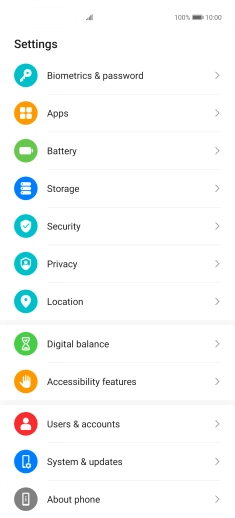
Press Settings.
Step 1 of 11

Press Settings.

Press Location.
Press Location.
Step 2 of 11

Press Location.

Press the indicator next to
Step 3 of 11

Press the indicator next to "Access my location" to turn the function on or off.

Press Location.
Press Location.
Step 4 of 11

Press Location.

Press the required app.
Step 5 of 11

Press the required app.

Press the required setting.
Step 6 of 11

Press the required setting.

Press arrow left twice.
Step 7 of 11

Press arrow left twice.

Press Advanced settings.
Step 8 of 11

Press Advanced settings.

Press the indicator next to
Step 9 of 11

Press the indicator next to "Wi-Fi scanning" to turn the function on or off. If you turn on the function, your phone can find your exact position using nearby Wi-Fi networks.

Press the indicator next to
Step 10 of 11

Press the indicator next to "Bluetooth scanning" to turn the function on or off. If you turn on the function, your phone can find your exact position using nearby Bluetooth devices.

Slide your finger upwards starting from the bottom of the screen to return to the home screen.
Step 11 of 11

Slide your finger upwards starting from the bottom of the screen to return to the home screen.


Did this solve your problem?

Yes No

Get information on...

Or choose...

Show more