


Help
Device guides
Huawei
P40 Pro

Huawei P40 Pro

f-68820e22-cce0-4e67-aef0-bb5aab9779da
f-06c071a9-fd11-4bf7-b744-39fc44a814c4
f-b91a16d7-edb4-4fce-bf25-c05d59517602
f-afd6e8b2-6543-480b-a0b7-316b6591b461
f-2ac96897-81fc-4309-a202-a6ea4ccfad30
f-01f5ba1c-9be7-4db8-8afe-0373d0e10ad8
  • Device home
  • Getting started
  • Basic functions
  • Calls, contacts, messaging
  • Connectivity
  • Specifications
  • Device home
  • Getting started
  • Basic functions
  • Calls, contacts, messaging
  • Connectivity
  • Specifications

My phone's battery life is short

Solution 4 of 15: Automatic content synchronisation is turned on

You can access the contents of your phone on other devices by turning on automatic content synchronisation.
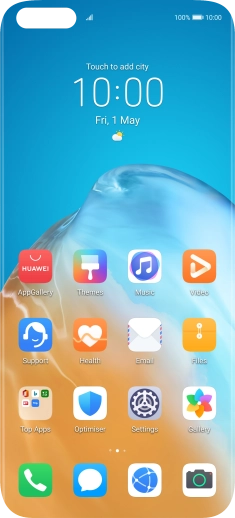
Press Settings.
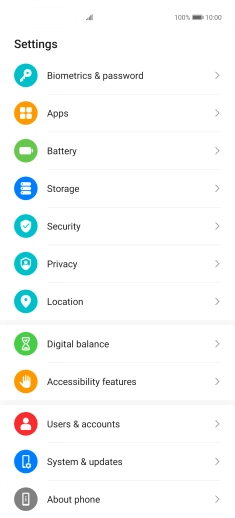
Press Settings.
Step 1 of 6

Press Settings.

Press Users & accounts.
Step 2 of 6

Press Users & accounts.

Press the menu icon.
Step 3 of 6

Press the menu icon.

Press Auto-sync data to turn the function on or off.
Step 4 of 6

Press Auto-sync data to turn the function on or off.

Press OK.
Press OK.
Step 5 of 6

Press OK.

Slide your finger upwards starting from the bottom of the screen to return to the home screen.
Step 6 of 6

Slide your finger upwards starting from the bottom of the screen to return to the home screen.


Did this solve your problem?

Yes No

Get information on...

Or choose...

Show more