Help
Device guides
Microsoft
Surface Duo

Microsoft Surface Duo

f-d24da4d4-13d5-4f4b-bb7c-0fc54ef6f548
f-d8cc0311-13a5-43e3-aaf2-c85b670d94fb
f-2d2f002d-d232-48b5-9ecf-0c5ff742a0c6
f-da79d204-ea8d-4a8f-98c6-239aa1747f5e
f-17bc4c99-b40f-47b8-83af-39b32a8f7788
f-9f10e683-70fe-4a67-8128-8a140a782fa1
  • Device home
  • Getting started
  • Basic functions
  • Calls, contacts, messaging
  • Connectivity
  • Specifications
  • Device home
  • Getting started
  • Basic functions
  • Calls, contacts, messaging
  • Connectivity
  • Specifications

Selecting ring tone

You can select the ring tone you want to hear when you get a call.

Slide two fingers downwards starting from the top of the screen.
Step 1 of 9

Slide two fingers downwards starting from the top of the screen.

Press the settings icon.
Step 2 of 9

Press the settings icon.

Press Sound.
Press Sound.
Step 3 of 9

Press Sound.

Press Phone ringtone.
Step 4 of 9

Press Phone ringtone.

Press Add ringtone.
Press Add ringtone.
Step 5 of 9

Press Add ringtone.

Press the required ring tone.
Step 6 of 9

Press the required ring tone.

Press the required ring tones to hear them.
Step 7 of 9

Press the required ring tones to hear them.

Once you've found a ring tone you like, press OK.
Step 8 of 9

Once you've found a ring tone you like, press OK.

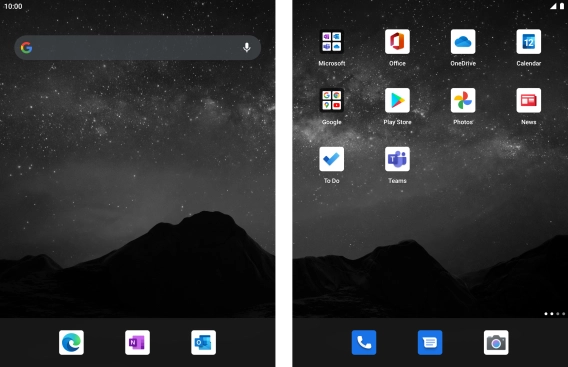
Slide your finger upwards starting from the bottom of the screen to return to the home screen.
Step 9 of 9

Slide your finger upwards starting from the bottom of the screen to return to the home screen.

Get information on...

Or choose...

Show more