Help
Device guides
Microsoft
Surface Go 3

Microsoft Surface Go 3

f-fa21f256-8bba-44bb-9b83-82cd37c94129
f-7ab6181b-c1d1-40db-8be9-f8671759e7f6
f-5f1de494-2212-444e-aff7-455622fa62ea
f-2f21a26c-5cdc-4964-9b27-bb32601c8f1b
f-1782133a-5185-4fdc-8381-3b220e8ca83d
  • Device home
  • Getting started
  • Basic functions
  • Connectivity
  • Specifications
  • Device home
  • Getting started
  • Basic functions
  • Connectivity
  • Specifications

Updating laptop apps

You can update your apps to the latest version automatically or manually.
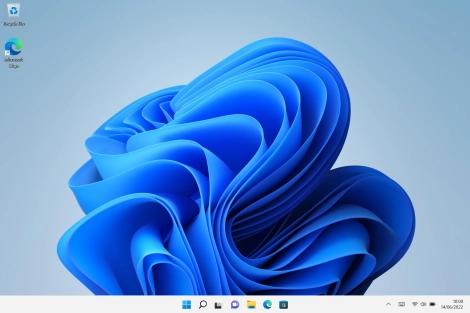
Click the Microsoft Store icon.
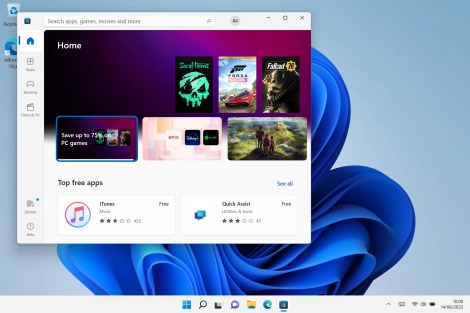
Step 1 of 9

Click the Microsoft Store icon.

Click Library.
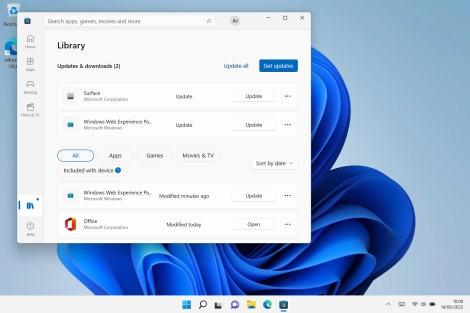
Click Library.
Step 2 of 9

Click Library.

Click Get updates and wait while your apps are updated.
Step 3 of 9

Click Get updates and wait while your apps are updated.

Click the close icon.
Step 4 of 9

Click the close icon.

Click the Microsoft Store icon.
Step 5 of 9

Click the Microsoft Store icon.

Click the profile icon.
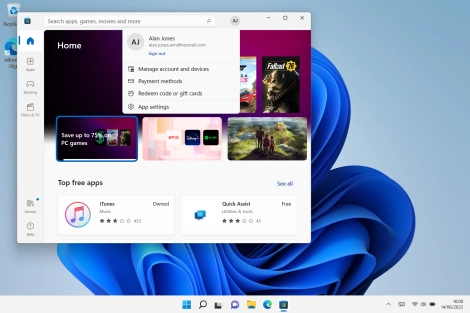
Step 6 of 9

Click the profile icon.

Click App settings.
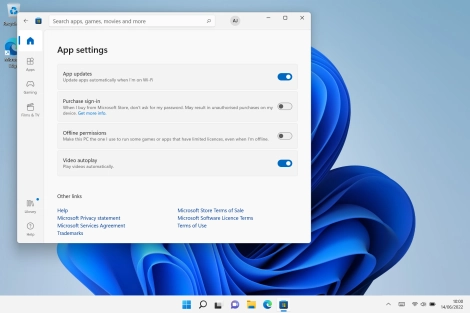
Click App settings.
Step 7 of 9

Click App settings.

Click the indicator below
Step 8 of 9

Click the indicator below "Update apps automatically when I'm on Wi-Fi" to turn the function on or off.

If you turn on the function, your apps will automatically be updated when you're connected to a Wi-Fi network.
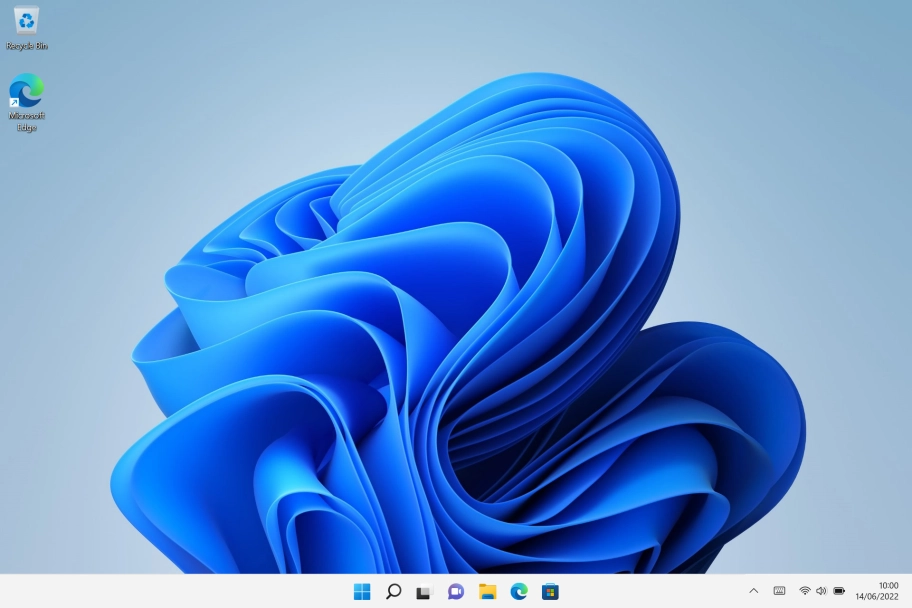
Click the close icon to return to the home screen.
Step 9 of 9

Click the close icon to return to the home screen.

Get information on...

Or choose...

Show more