Help
Device guides
Microsoft
Surface Go 3

Microsoft Surface Go 3

f-fa21f256-8bba-44bb-9b83-82cd37c94129
f-7ab6181b-c1d1-40db-8be9-f8671759e7f6
f-5f1de494-2212-444e-aff7-455622fa62ea
f-2f21a26c-5cdc-4964-9b27-bb32601c8f1b
f-1782133a-5185-4fdc-8381-3b220e8ca83d
  • Device home
  • Getting started
  • Basic functions
  • Connectivity
  • Specifications
  • Device home
  • Getting started
  • Basic functions
  • Connectivity
  • Specifications

Start using your laptop

Before you start using your laptop, you need to follow these initial steps.

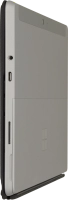
Find the opener for the card holder.
Step 1 of 45

Find the opener for the card holder.

Insert the opener into the small hole in the SIM holder.
Step 2 of 45

Insert the opener into the small hole in the SIM holder.

Remove the SIM holder from your laptop.
Step 3 of 45

Remove the SIM holder from your laptop.

Turn your SIM so the angled corner of the SIM matches the angled corner of the SIM holder and place your SIM in the SIM holder.
Step 4 of 45

Turn your SIM so the angled corner of the SIM matches the angled corner of the SIM holder and place your SIM in the SIM holder.

Please note that your laptop only supports nano SIMs.
Slide the SIM holder into your laptop.
Step 5 of 45

Slide the SIM holder into your laptop.

Connect the power supply to the power plug and to a wall socket.

Step 6 of 45

Connect the power supply to the power plug and to a wall socket.

Press and hold On/Off until your laptop is turned on. Follow the instructions on the screen to log on.
Step 7 of 45

Press and hold On/Off until your laptop is turned on. Follow the instructions on the screen to log on.

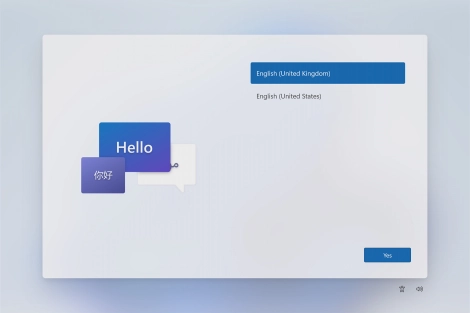
Click the required language.
Step 8 of 45

Click the required language.

Click Yes.
Click Yes.
Step 9 of 45

Click Yes.

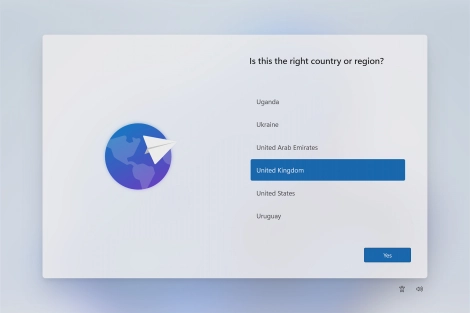
Click the required country or area.
Step 10 of 45

Click the required country or area.

Click Yes.
Click Yes.
Step 11 of 45

Click Yes.

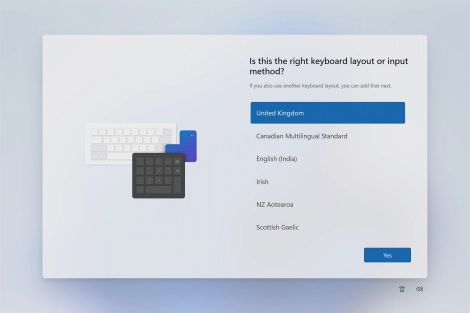
Click the required keyboard layout.
Step 12 of 45

Click the required keyboard layout.

Click Yes.
Click Yes.
Step 13 of 45

Click Yes.

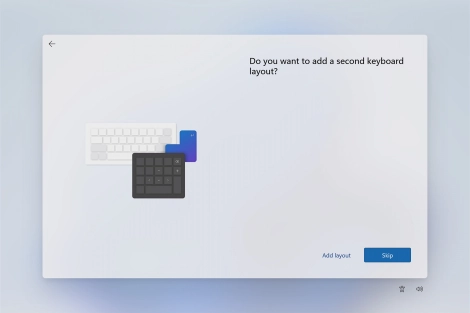
Follow the instructions on the screen.to add more keyboard layouts or click Skip.
Step 14 of 45

Follow the instructions on the screen.to add more keyboard layouts or click Skip.

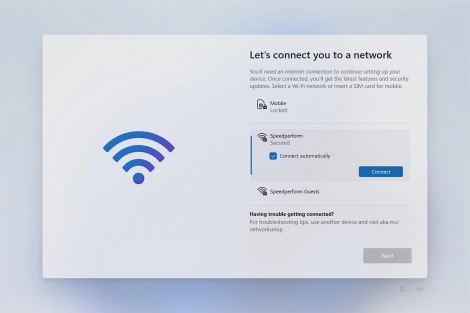
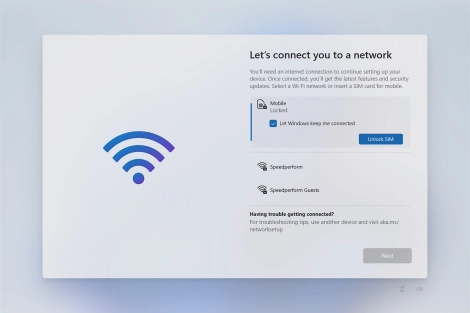
Click Mobile.
Click Mobile.
Step 15 of 45

Click Mobile.

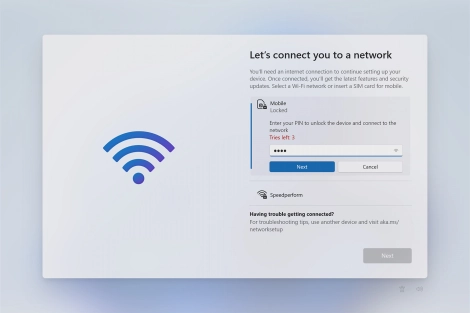
If your SIM is locked, click Unlock SIM.
Step 16 of 45

If your SIM is locked, click Unlock SIM.

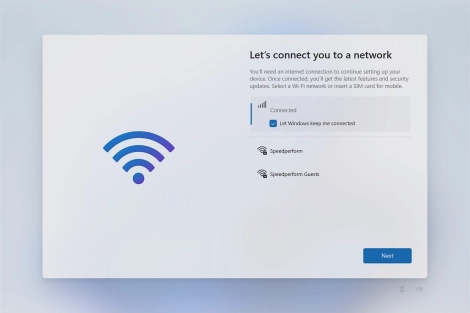
Key in your PIN and click Next. The default PIN is 1111.
1111
Key in your PIN and click Next. The default PIN is 1111.
1111
Step 17 of 45

Key in your PIN and click Next. The default PIN is 1111.

If an incorrect PIN is entered three times in a row, your SIM will be blocked. To unblock your SIM, you'll need to key in your PUK. The PUK can be obtained by contacting customer services. Please note: If you key in the wrong PUK ten times in a row, your SIM will be blocked permanently. In this case, you need a new SIM from EE.
Click Next.
Click Next.
Step 18 of 45

Click Next.

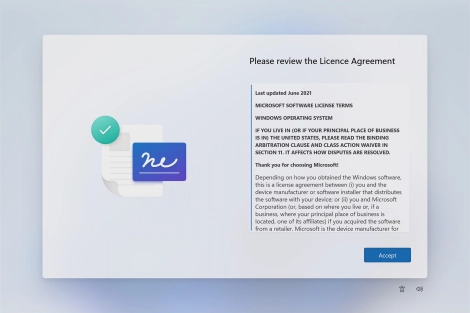
Click Accept.
Click Accept.
Step 19 of 45

Click Accept.

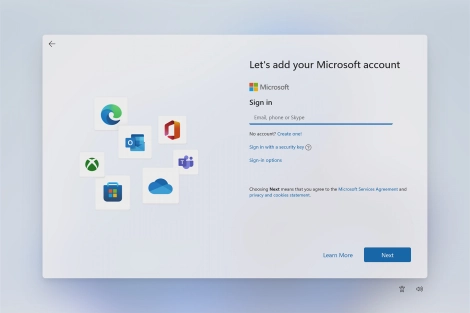
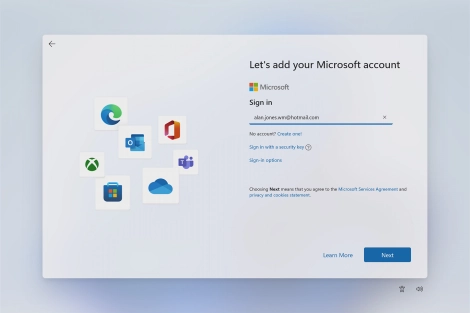
If you don't have a Microsoft account, click Create one! and follow the instructions on the screen to create a Microsoft account.
Step 20 of 45

If you don't have a Microsoft account, click Create one! and follow the instructions on the screen to create a Microsoft account.

Key in the username for your Microsoft account and click Next.
Step 21 of 45

Key in the username for your Microsoft account and click Next.

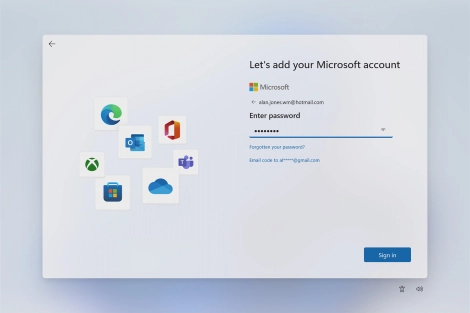
Key in the password for your Microsoft account and click Sign in.
Step 22 of 45

Key in the password for your Microsoft account and click Sign in.

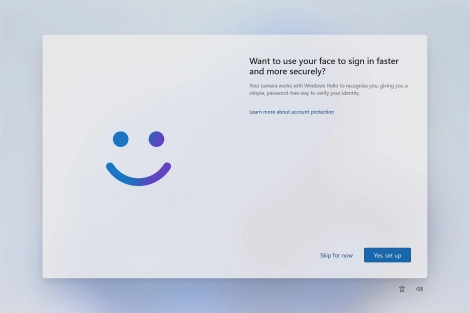
Follow the instructions on the screen to turn on face recognition for unlocking your laptop or click Skip for now.
Step 23 of 45

Follow the instructions on the screen to turn on face recognition for unlocking your laptop or click Skip for now.

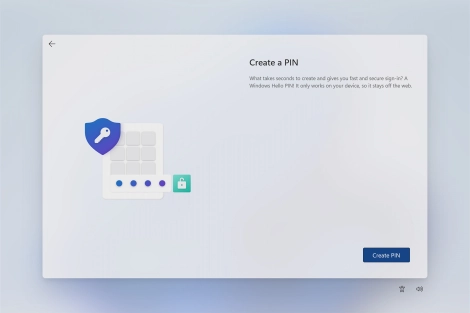
Click Create PIN.
Click Create PIN.
Step 24 of 45

Click Create PIN.

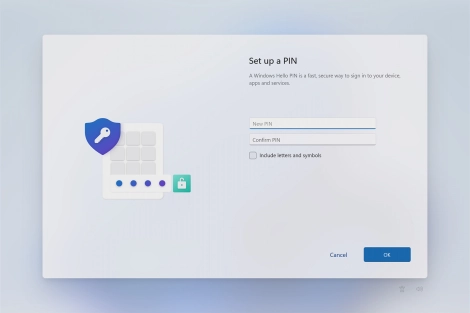
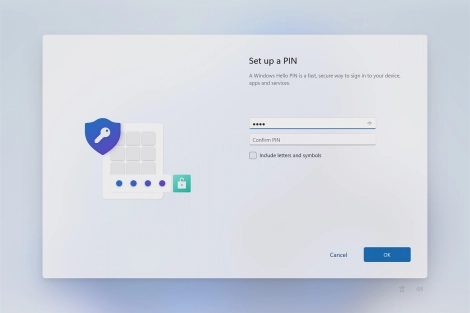
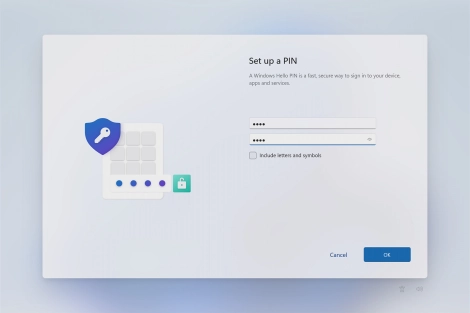
Click New PIN and key in the required PIN.
Step 25 of 45

Click New PIN and key in the required PIN.

Click Confirm PIN and key in the required PIN again.
Step 26 of 45

Click Confirm PIN and key in the required PIN again.

Click OK.
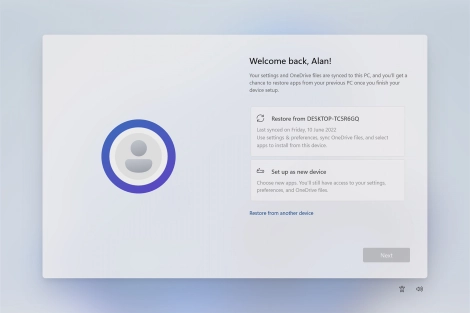
Click OK.
Step 27 of 45

Click OK.

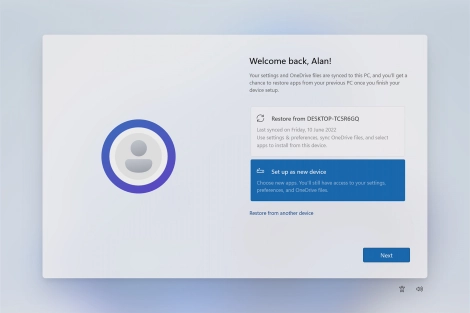
Click Set up as new device.
Step 28 of 45

Click Set up as new device.

If you have previously saved content, you can follow the instructions on the screen instead.to restore it.
Click Next.
Click Next.
Step 29 of 45

Click Next.

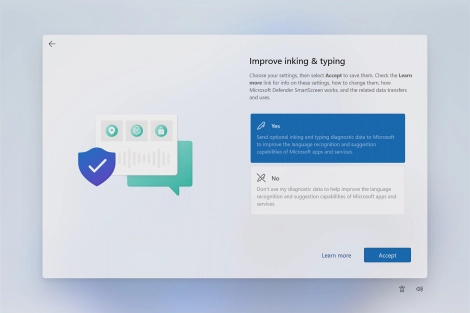
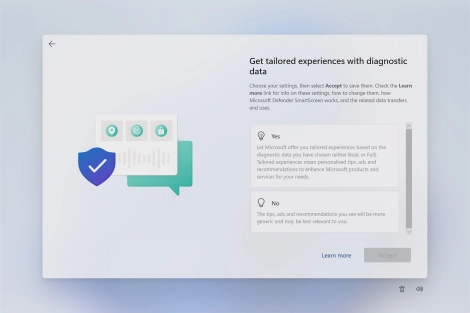
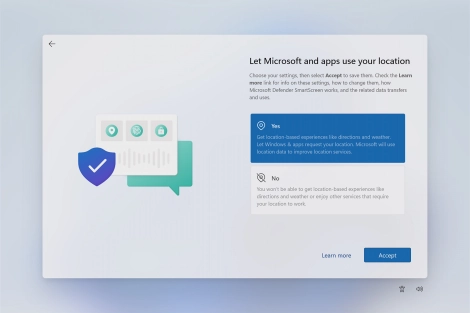
Click the required setting.
Step 30 of 45

Click the required setting.

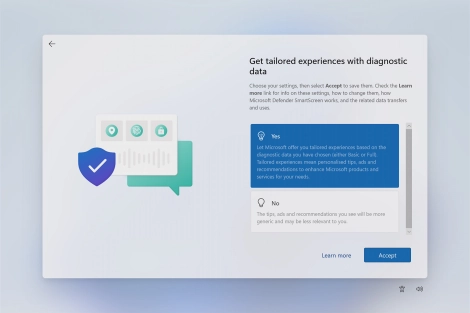
Click Accept.
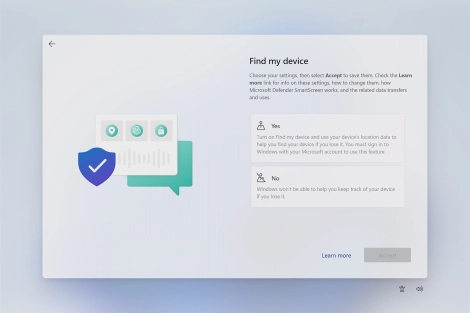
Click Accept.
Step 31 of 45

Click Accept.

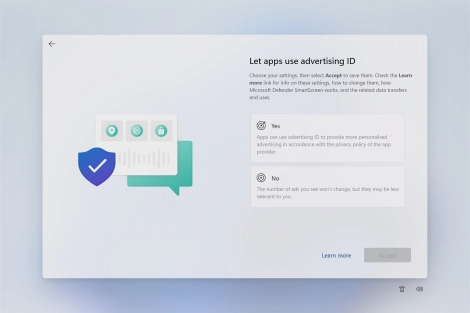
Click the required setting.
Step 32 of 45

Click the required setting.

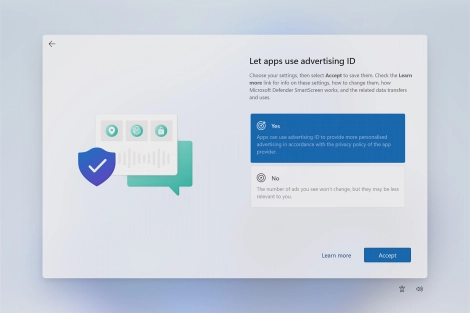
Click Accept.
Click Accept.
Step 33 of 45

Click Accept.

Click the required setting.
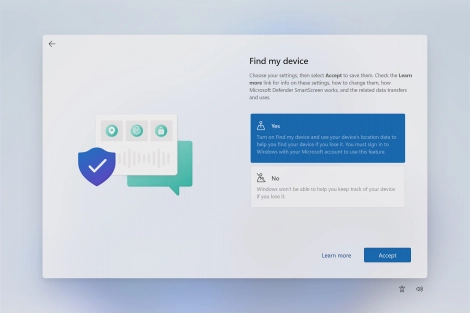
Step 34 of 45

Click the required setting.

Click Accept.
Click Accept.
Step 35 of 45

Click Accept.

Click the required setting.
Step 36 of 45

Click the required setting.

Click Accept.
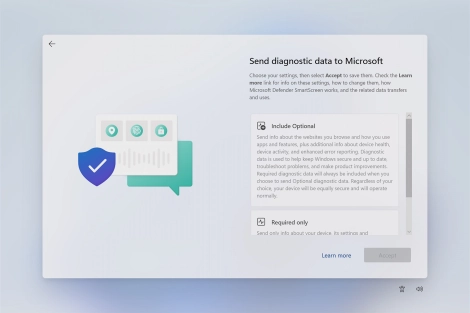
Click Accept.
Step 37 of 45

Click Accept.

Click the required setting.
Step 38 of 45

Click the required setting.

Click Accept.
Click Accept.
Step 39 of 45

Click Accept.

Click the required setting.
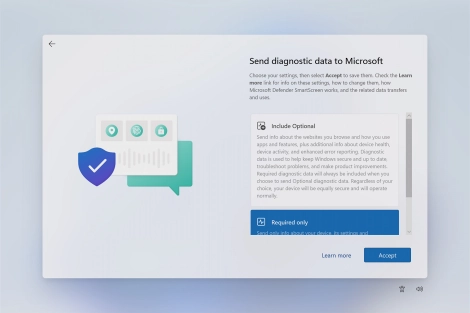
Step 40 of 45

Click the required setting.

Click Accept.
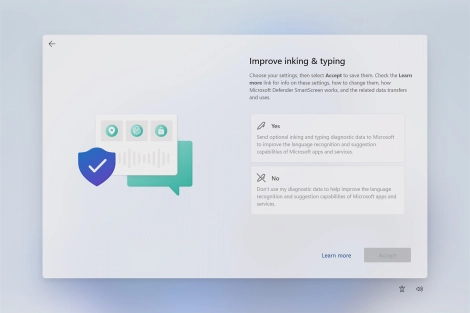
Click Accept.
Step 41 of 45

Click Accept.

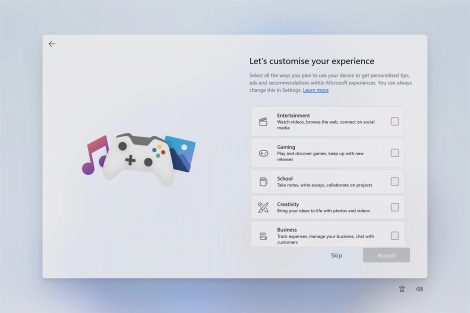
Click the fields next to the required categories to receive customised tips and suggestions.
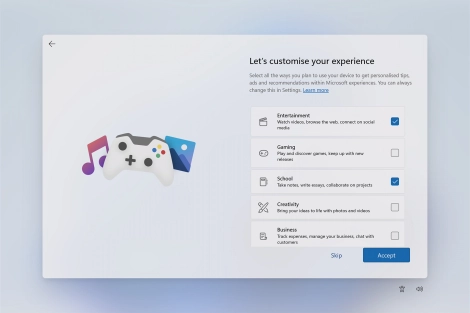
Step 42 of 45

Click the fields next to the required categories to receive customised tips and suggestions.

Click Accept.
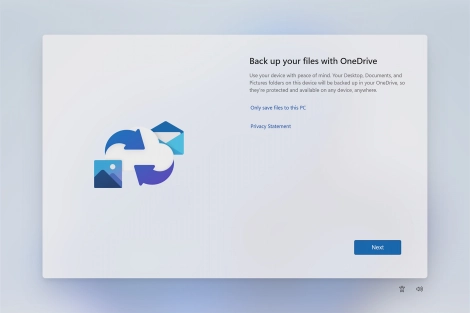
Click Accept.
Step 43 of 45

Click Accept.

Follow the instructions on the screen if you don't want to back up your files to OneDrive or click Next.
Step 44 of 45

Follow the instructions on the screen if you don't want to back up your files to OneDrive or click Next.

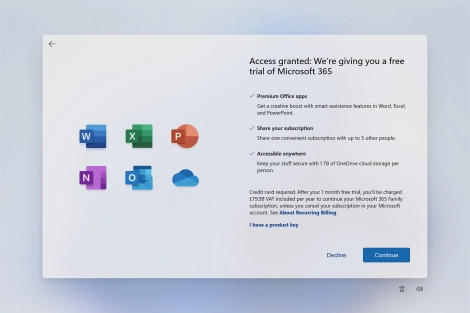
Follow the instructions on the screen to subscribe to Microsoft Office or click Decline to finish setting up your laptop.
Step 45 of 45

Follow the instructions on the screen to subscribe to Microsoft Office or click Decline to finish setting up your laptop.

Get information on...

Or choose...

Show more