Help
Device guides
Motorola
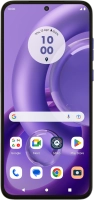
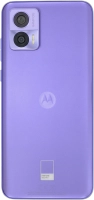
Edge 30 Neo

Motorola Edge 30 Neo
f-93e9a634-e984-49da-b3c0-4ecf46ea52a0
f-1d0a17fb-5c02-427f-a490-dc32516cbcbf
f-ea7de478-9867-4af5-ba1a-3cc132157dff
f-820c2a10-229b-4da3-9ce8-c76f97e4c992
f-76a750bd-fe54-4d4b-9975-c5269c46baf7
f-631bd3ce-6900-4cbd-9863-cad31b369587
  • Device home
  • Getting started
  • Basic functions
  • Calls, contacts, messaging
  • Connectivity
  • Specifications
  • Device home
  • Getting started
  • Basic functions
  • Calls, contacts, messaging
  • Connectivity
  • Specifications

Uninstalling apps

You can uninstall apps to free up memory.

Slide your finger upwards on the screen.
Step 1 of 9

Slide your finger upwards on the screen.

Press Play Store.
Press Play Store.
Step 2 of 9

Press Play Store.

Press the profile icon.
Step 3 of 9

Press the profile icon.

Press Manage apps and device.
Step 4 of 9

Press Manage apps and device.

Press Manage.
Press Manage.
Step 5 of 9

Press Manage.

Press the required app.
Step 6 of 9

Press the required app.

Press Uninstall.
Press Uninstall.
Step 7 of 9

Press Uninstall.

Press Uninstall.
Press Uninstall.
Step 8 of 9

Press Uninstall.

Press the Home key to return to the home screen.
Step 9 of 9

Press the Home key to return to the home screen.

Get information on...

Or choose...

Show more