Help
Device guides
Motorola
Moto G05

Motorola Moto G05

f-800a37cc-f77a-432f-bb1c-d13428fc2606
f-9731241b-a9d2-4298-af60-8c73910a0171
f-d87567eb-f1f9-4153-8463-8a24c26571fd
f-3452e966-0e82-4e49-883b-61dbbdf0fb54
f-420229aa-73a5-48c4-8475-ea38646939ac
f-fd9bcd53-c4a2-4cc2-ae98-533c14e96677
  • Device home
  • Getting started
  • Basic functions
  • Calls, contacts, messaging
  • Connectivity
  • Specifications
  • Device home
  • Getting started
  • Basic functions
  • Calls, contacts, messaging
  • Connectivity
  • Specifications

Turning automatic synchronisation of content on or off

You can access the contents of your phone on other devices by turning on automatic content synchronisation.

Slide your finger downwards starting from the top right side of the screen.
Step 1 of 6

Slide your finger downwards starting from the top right side of the screen.

Press the settings icon.
Step 2 of 6

Press the settings icon.

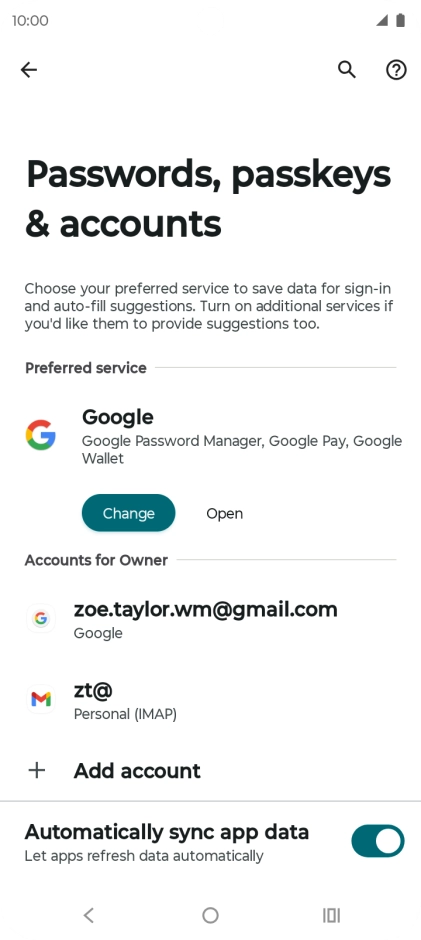
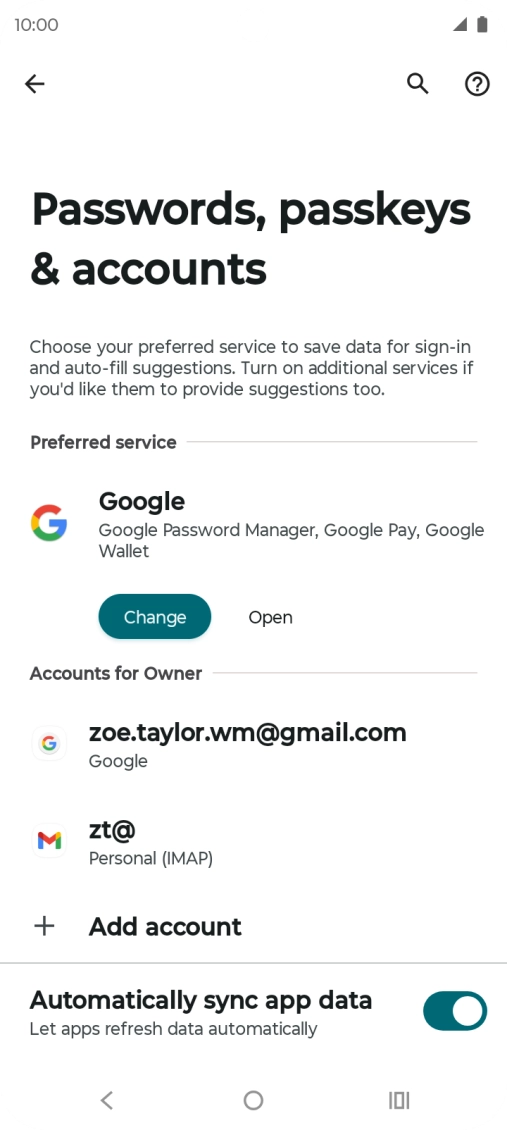
Press Passwords, passkeys & accounts.
Step 3 of 6

Press Passwords, passkeys & accounts.

Press the indicator next to
Step 4 of 6

Press the indicator next to "Automatically sync app data" to turn the function on or off.
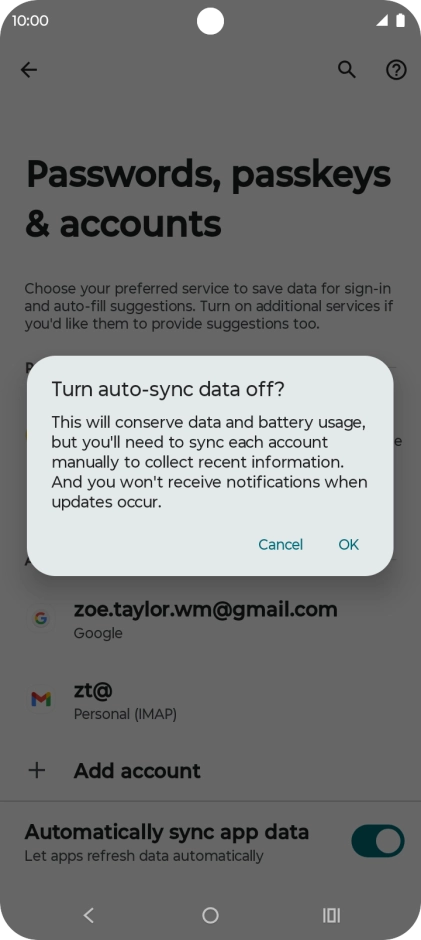
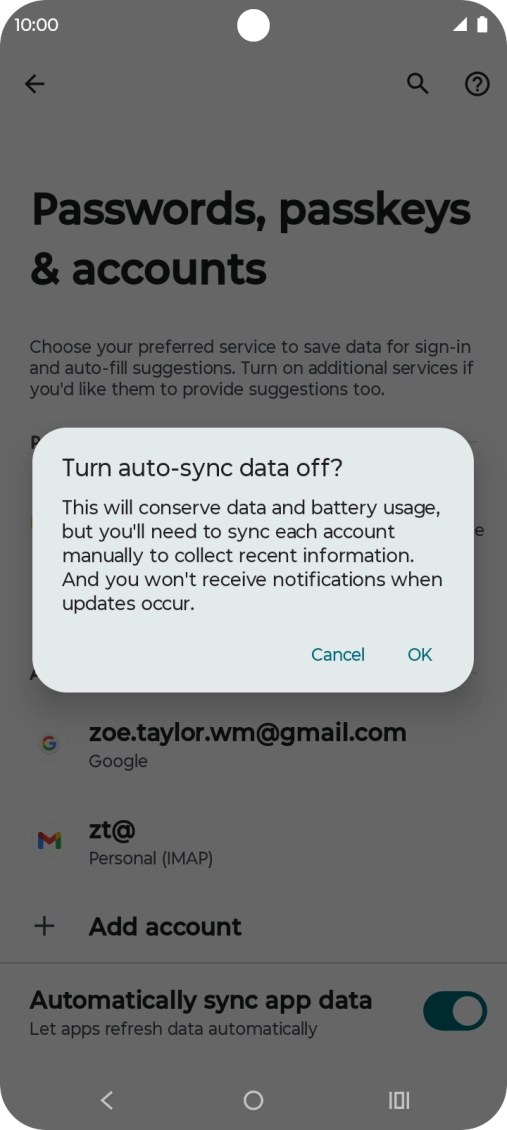
Press OK.
Press OK.
Step 5 of 6

Press OK.

Press the Home key to return to the home screen.
Step 6 of 6

Press the Home key to return to the home screen.

Get information on...

Or choose...

Show more